VidSell communities are one of the clearest and most personal ways for you to connect directly with your audience in your own online space. There are a lot of ways you can use VidSell to build engaging online communities for your audience!
Categories
Categories are the first layer of VidSell's community structure that allow you to group community spaces into different topics, member access levels, or more.
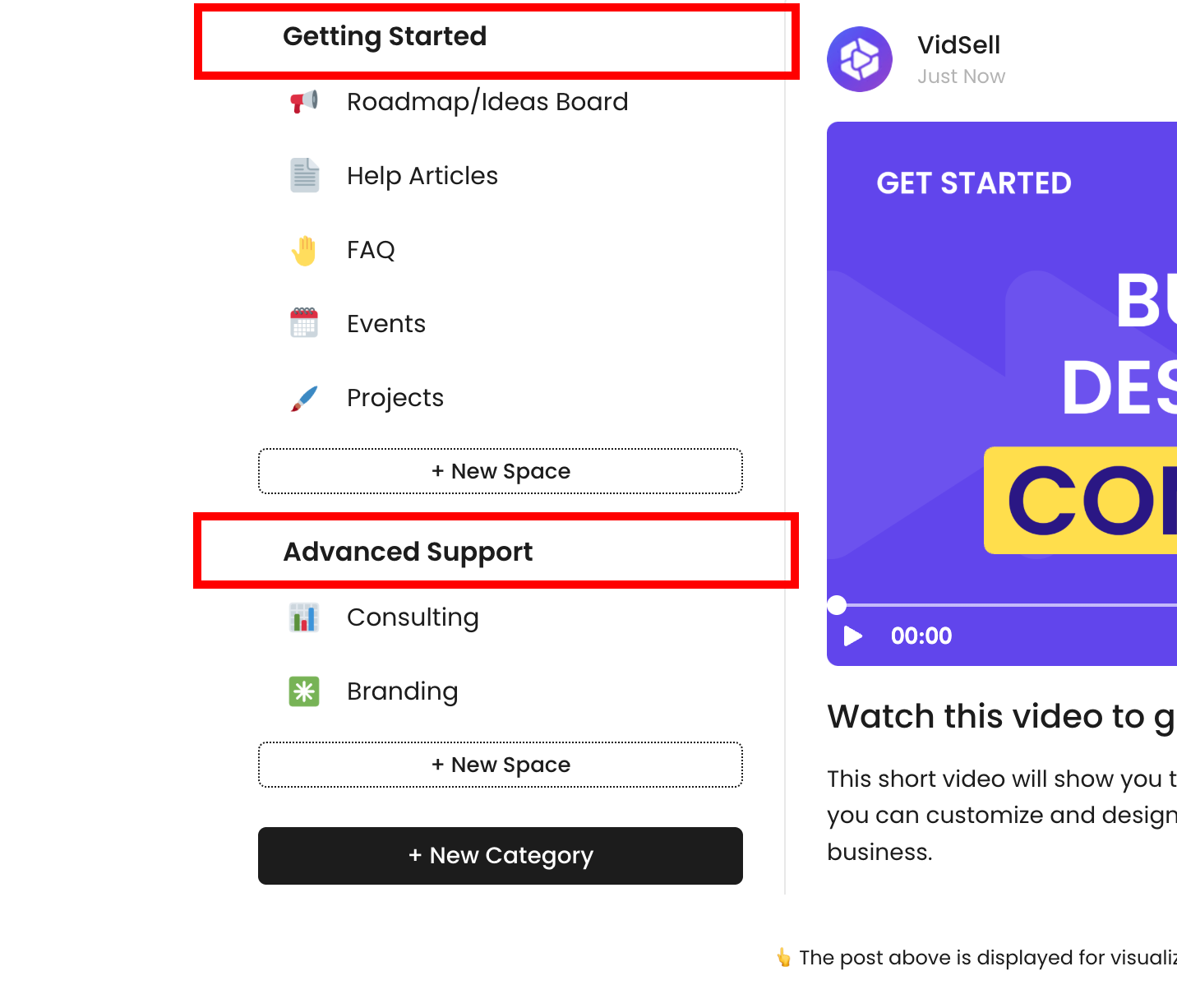
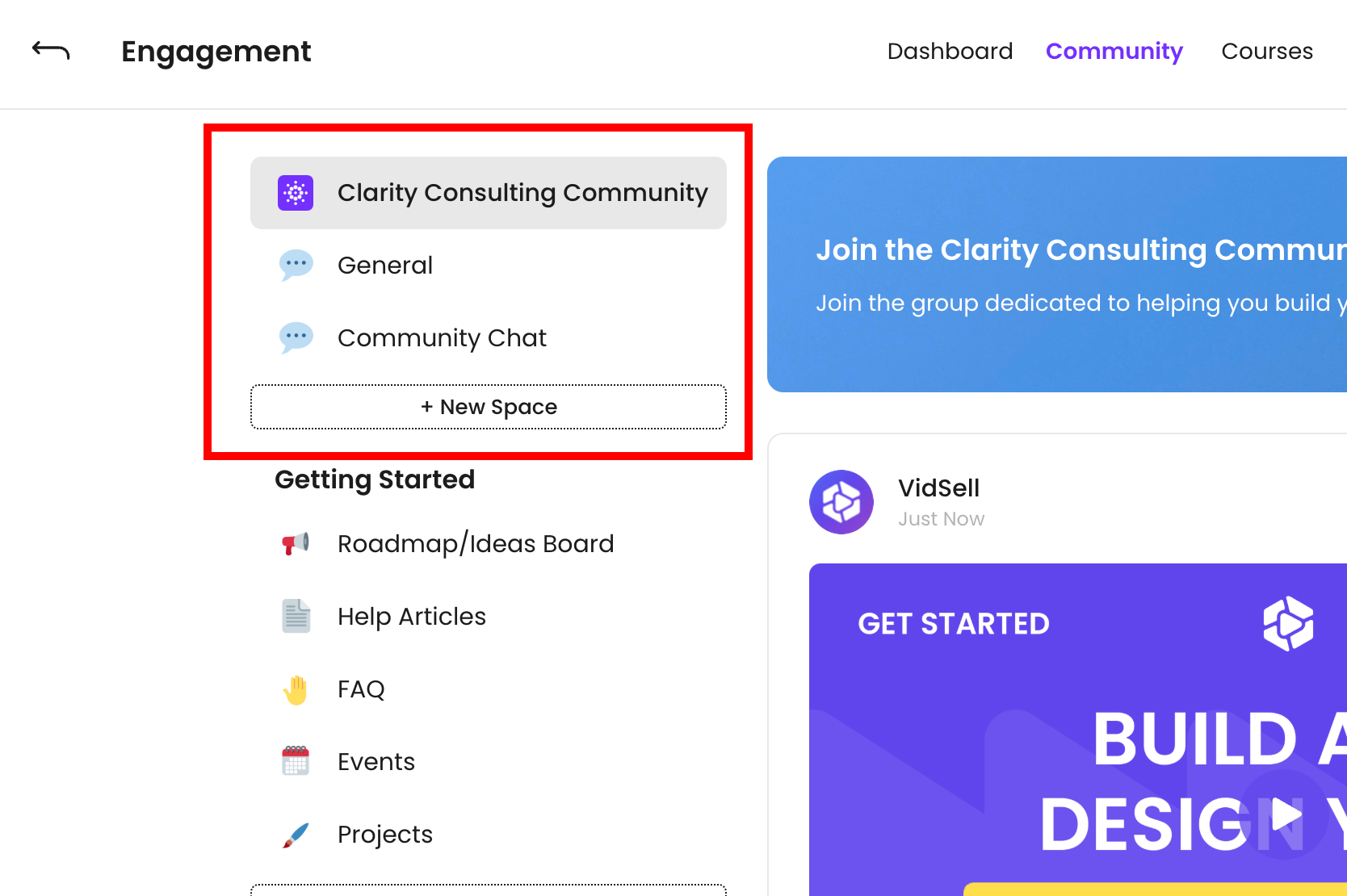
Home Spaces
Your "home" spaces are spaces grouped without a category name. They appear at the top of your community space list, and are useful primarily for community areas that you would like to appear to all members.
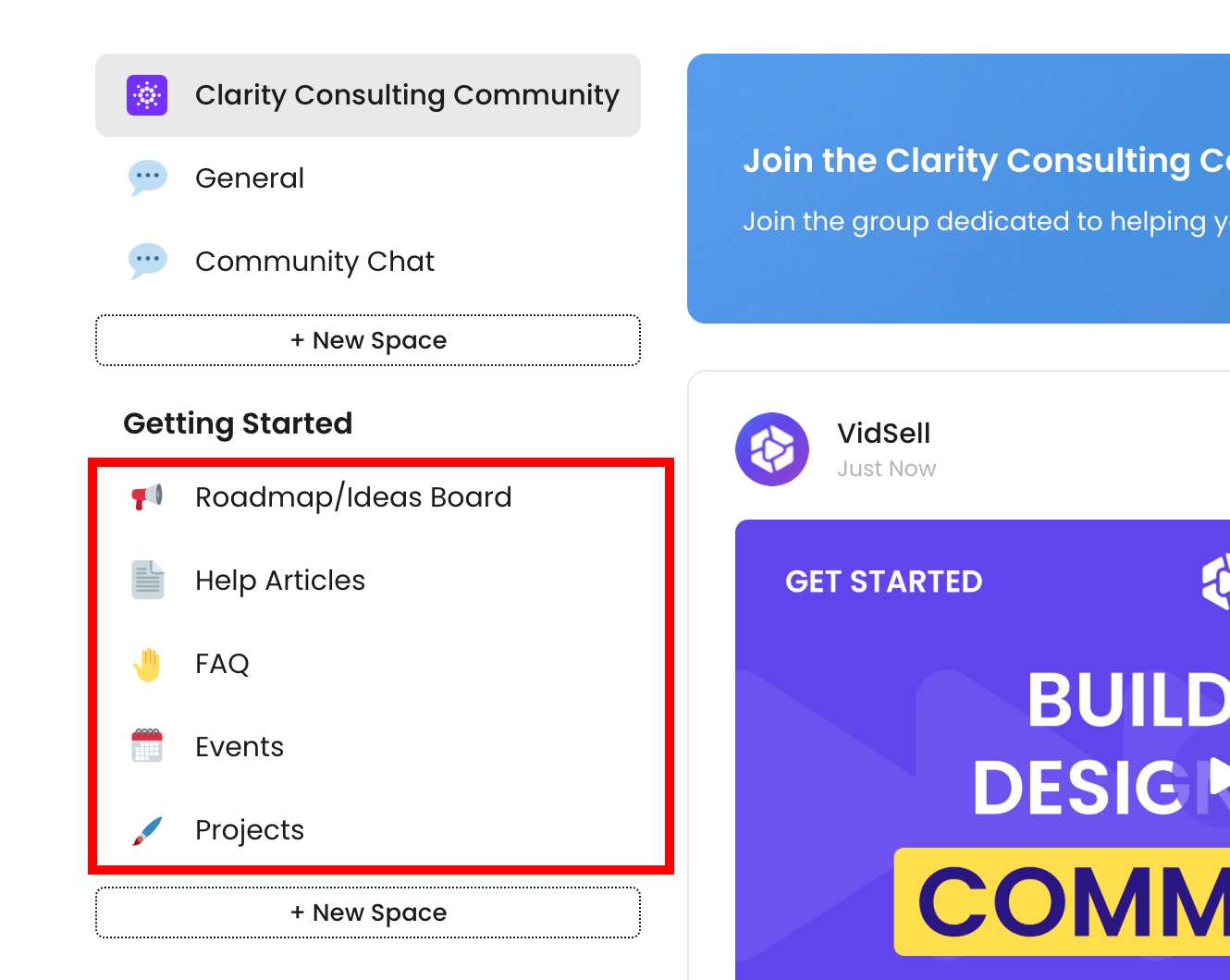
Additional Categories
Other categories you create can be given a name, which will appear when members have access to one or more of the spaces inside that category.
Spaces
Spaces are the primary places where you engage with your audience inside of VidSell communities from posting, to commenting, gathering feedback, and more.
Creating a space
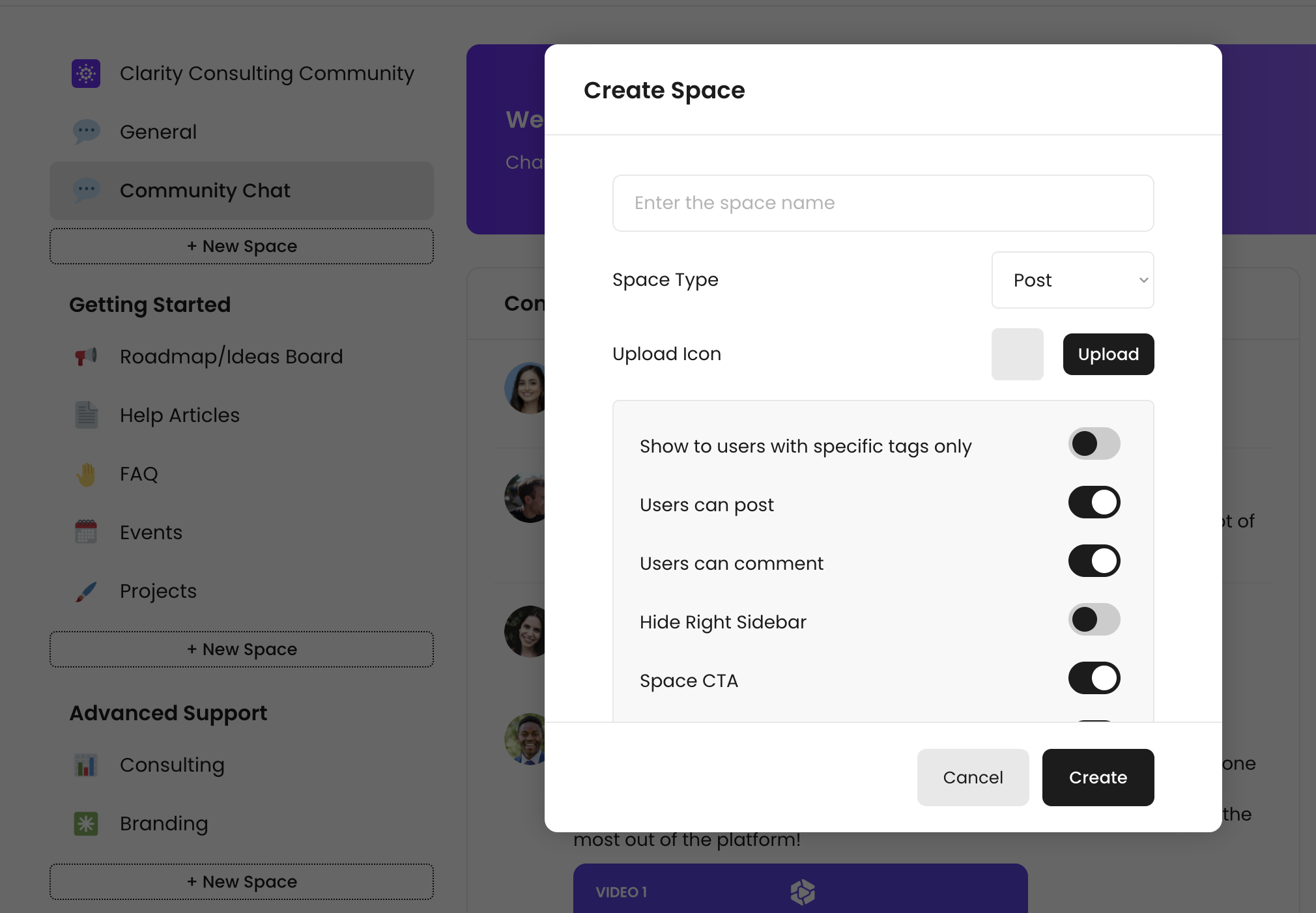
To create a space, click the "+ New Space" button and customize your space settings.
Space Types
There are multiple types of spaces you can create within your VidSell Communities
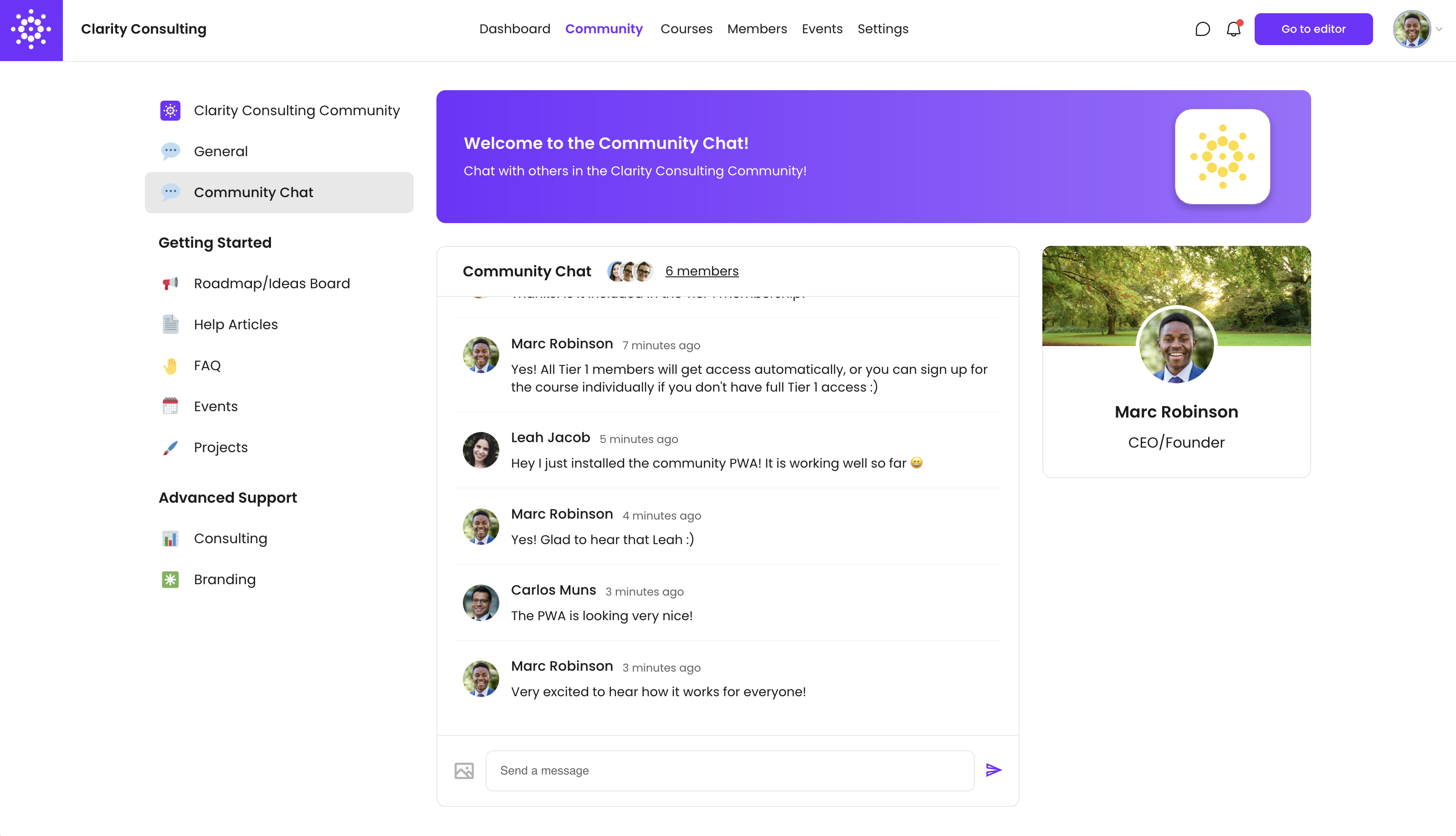
- Post - Create a standard social media post environment for you to share content, comment, like, and interact with your members.
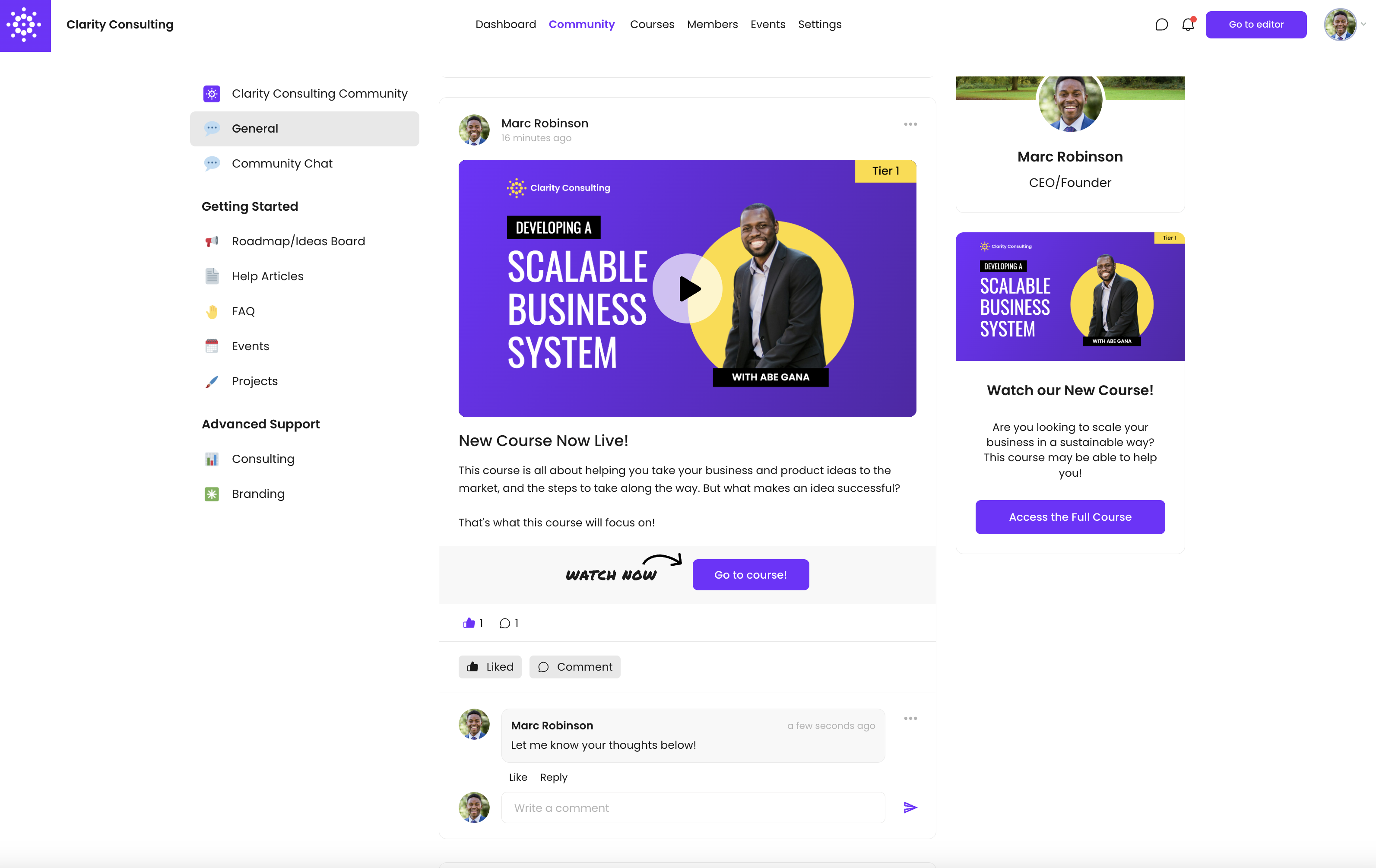
- List - Gives your community spaces a forum-like environment to quickly see posts in a list format with the same interaction abilities as posts (liking, commenting).
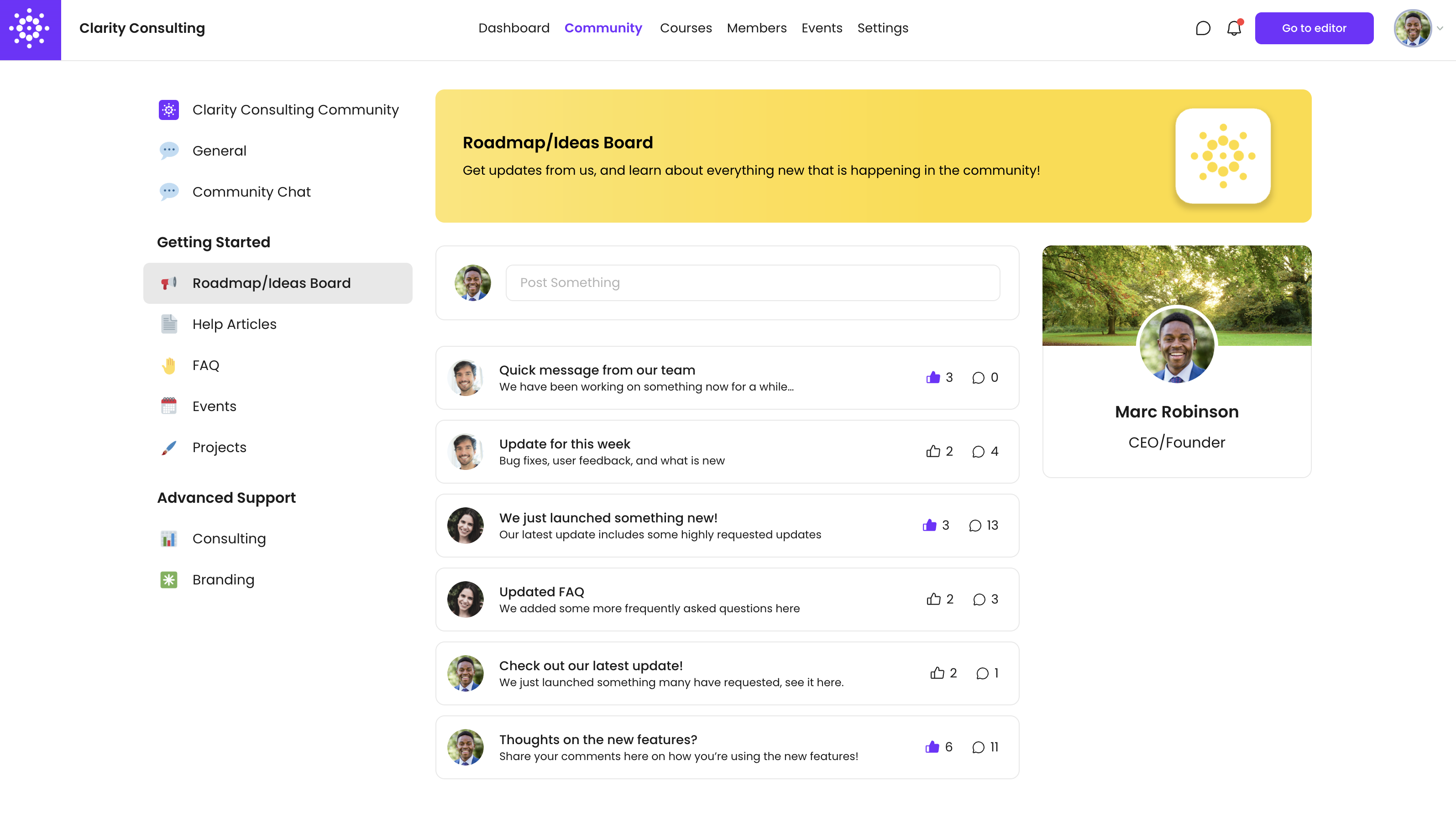
- Grid - Lets you format your posts into a visually appealing grid, which can be useful for things like posting articles or tutorial content within your community.
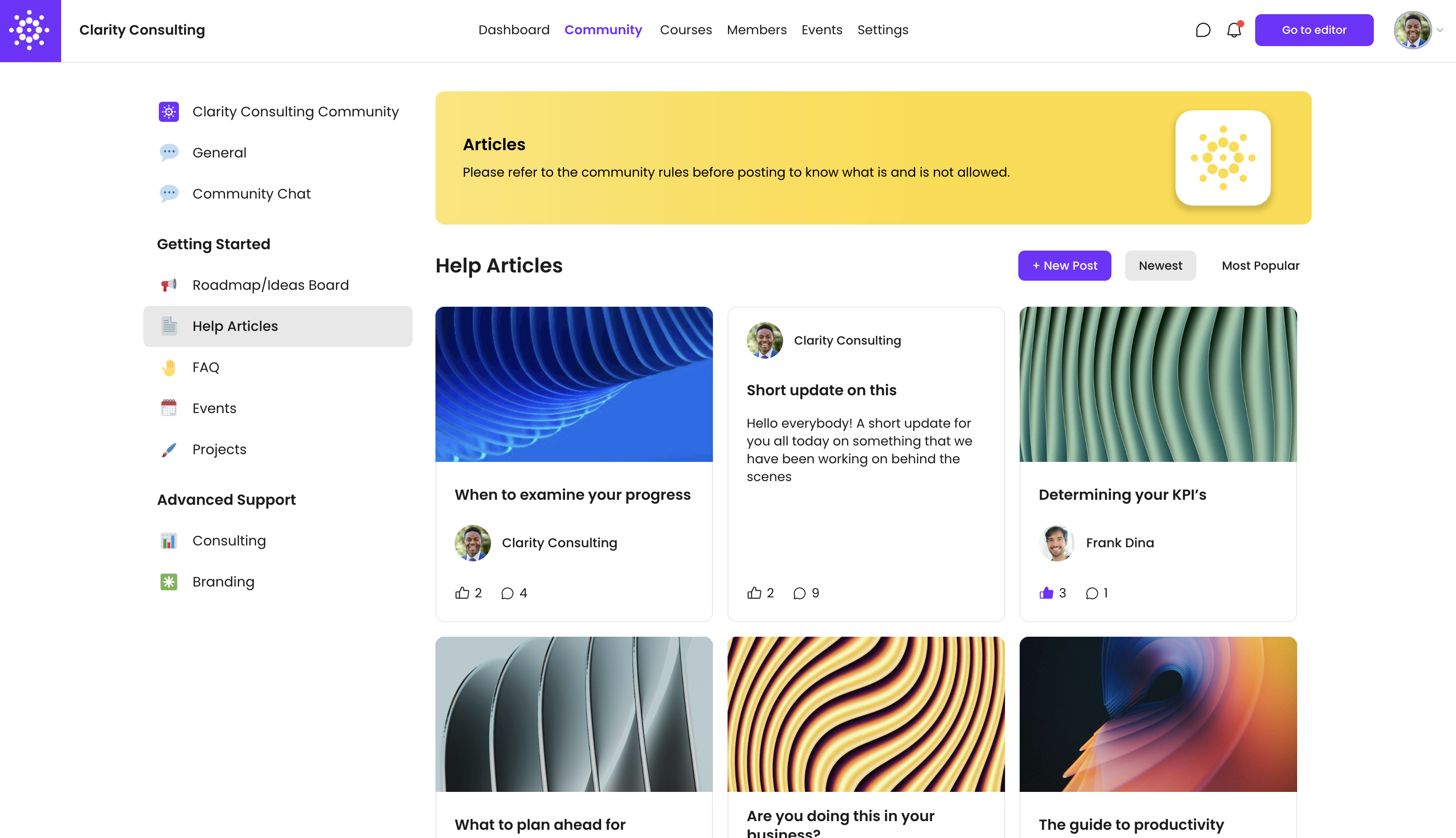
- Chat - Create entire chat areas accessible to every member of your community (or specific members when locked by space tag access).
Space Icon
Your space icon is an optional (square 1:1 aspect ratio) icon that appears next to your space name inside of your community. This is optional but useful for consistent community branding and design.
Public Spaces
Toggling on "Make this space public" creates a public community space, and causes this space to be visible to non logged-in visitors to your community. This option appears once the space is already created.
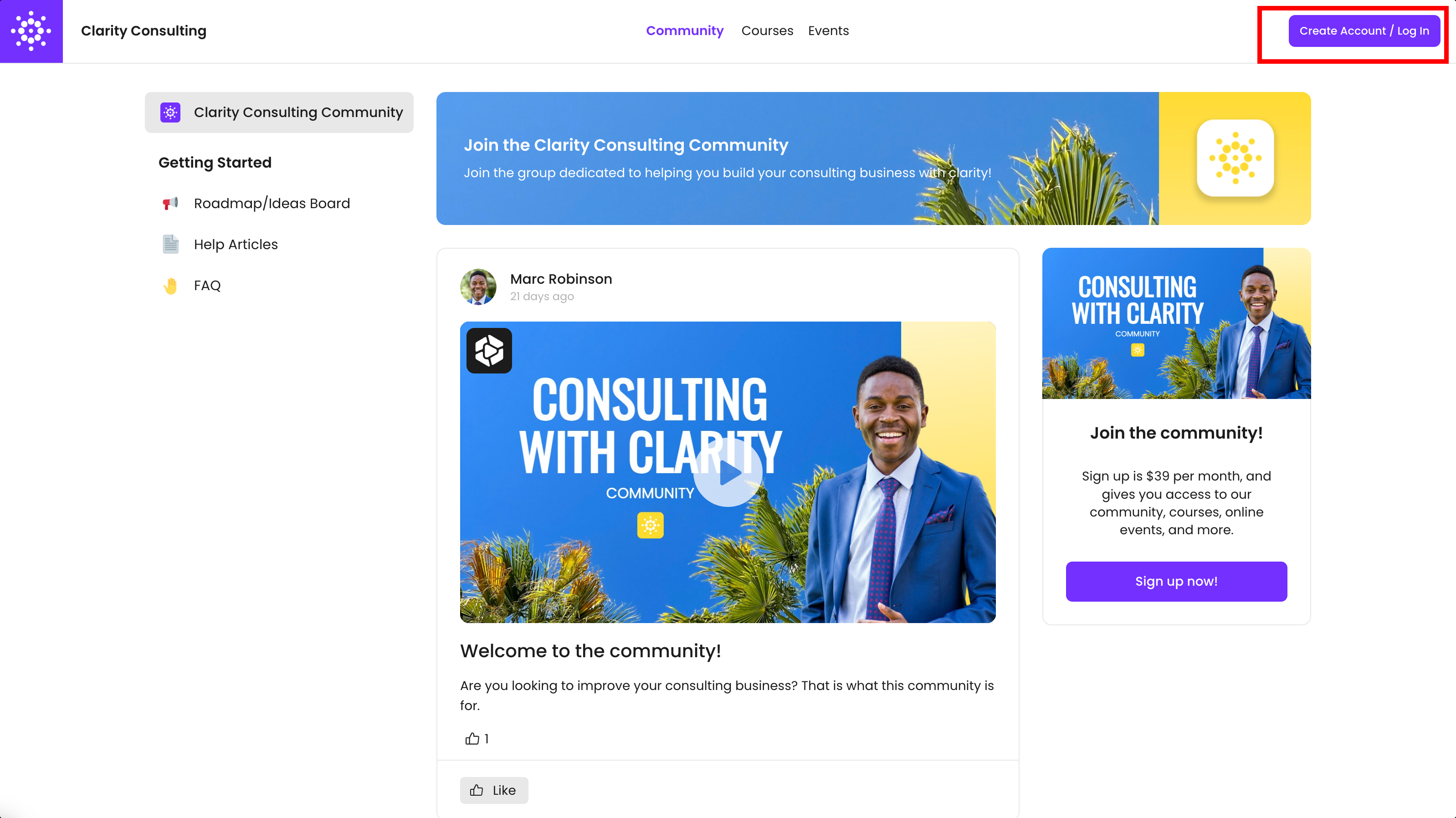
Note: Public spaces first require the "Make Community Public" toggle to be turned on inside of Advanced Settings.
Private Spaces
Private spaces allow you to show spaces to users with specific tags only. By allowing members to see certain spaces only if they have specific tags, you can create spaces that are unlocked with specific actions like subscription purchases. This allows you to create multi-tiered communities with different access levels to different paid members.
Space CTA
Your space CTA is an optional CTA area on the right side bar of your community that allows you to direct your members to specific actions within each your spaces.

Hide Right Sidebar
Hiding the right sidebar will hide all of the items in the right side bar area including the Space CTA and Member Profile area.
Space member controls
- Users can post - Controls whether members of your community can post within a space.
- Users can comment - Controls whether members of yoru community can comment on posts within a space