VidSell Events allow you to schedule and gather interest around your events inside of your VidSell community whether on or offline.
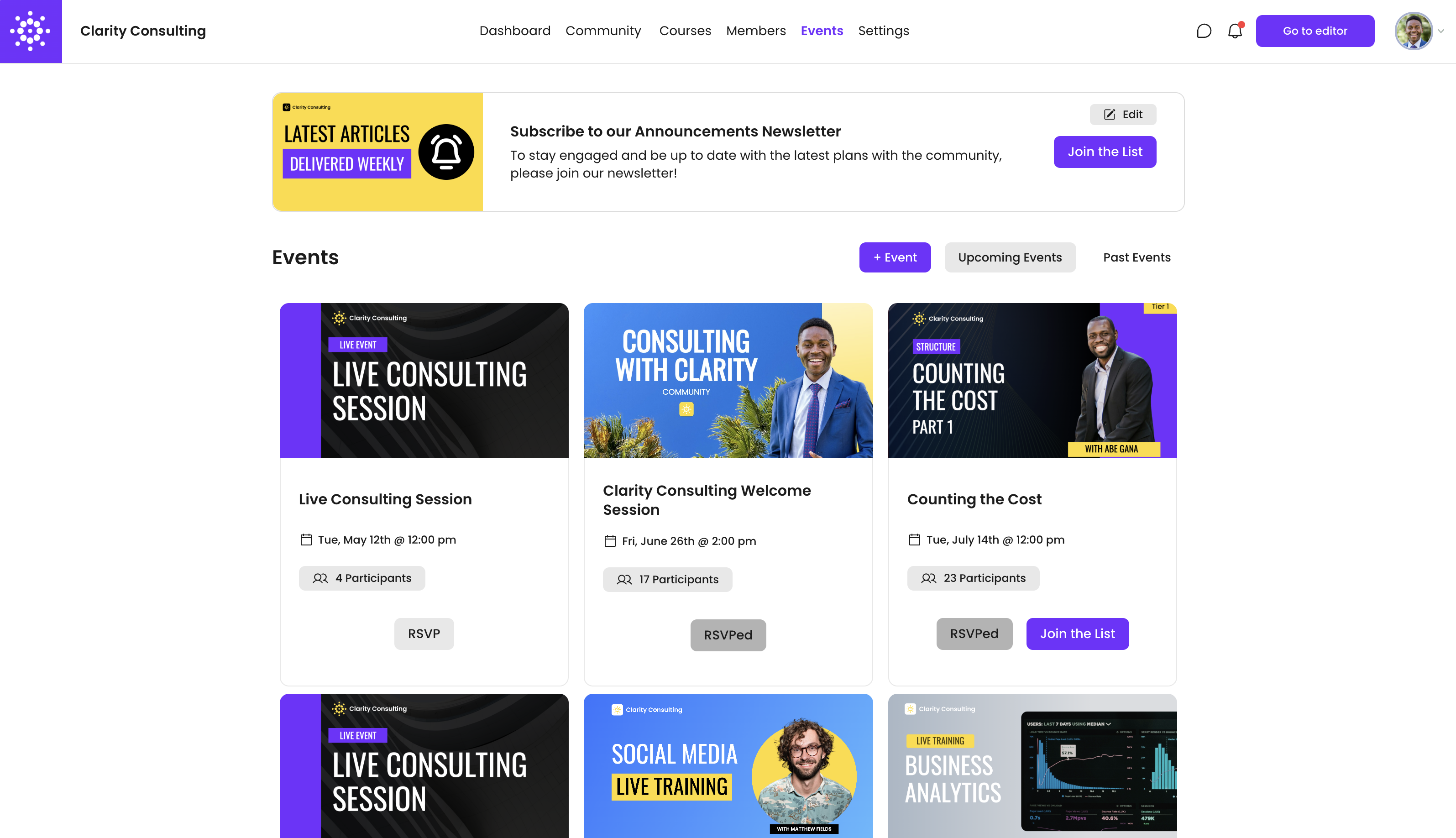
New Events
To create a new event, click the "+ Event" button and enter your event details.
Event Details
Your event details include your event title, description and date and time for your event. These details can apply to both on or offline events.
Event CTA
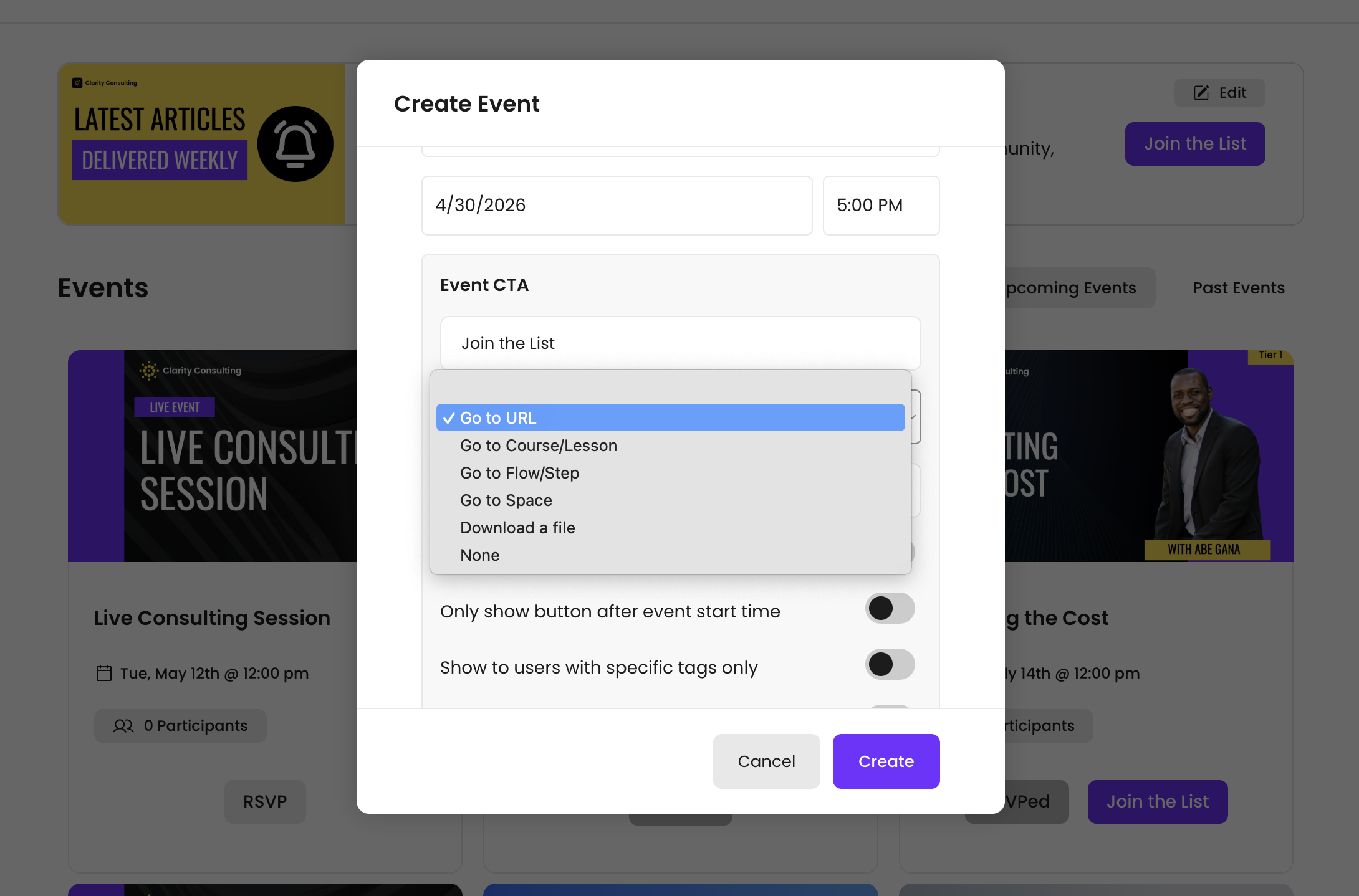
Your event CTA controls where your community members are directed to once they click your CTA button and includes the following options:
- Go to URL - Link to an external URL when the CTA button is clicked.
- Go to Course/Lesson - Link to a specific course and lesson in your VidSell Courses Area.
- Go to Flow/Step - Link to a specific Flow within the VidSell Flows Area.
- Go to Space - Link to a space within your community.
- Download a File - Allow your members to download a specific file when the CTA button is clicked.
- None - Remove the CTA button to make your Space CTA into a simple informational or message banner.
Event Settings
There are a few options available to control how your events display in your Events Area.
- Only show button after event start time - This option causes your CTA button to only appear after your set event start time. This is useful for live events, or any event that only becomes available once the event has started.
- Event Visibility - Enabling the option to "Show to users with specific tags only" will make your event only appear to your members with specific tags. This is useful for events that you would like to only be available to members that have paid or premium access, or for any events that should not be viewable by every community member.
- Event Reminders - "Enable Email Reminders for Attendees" will send out two automatic email reminders to members who have RSVP'ed one hour before the event and at the time of the event.
Event RSVP's
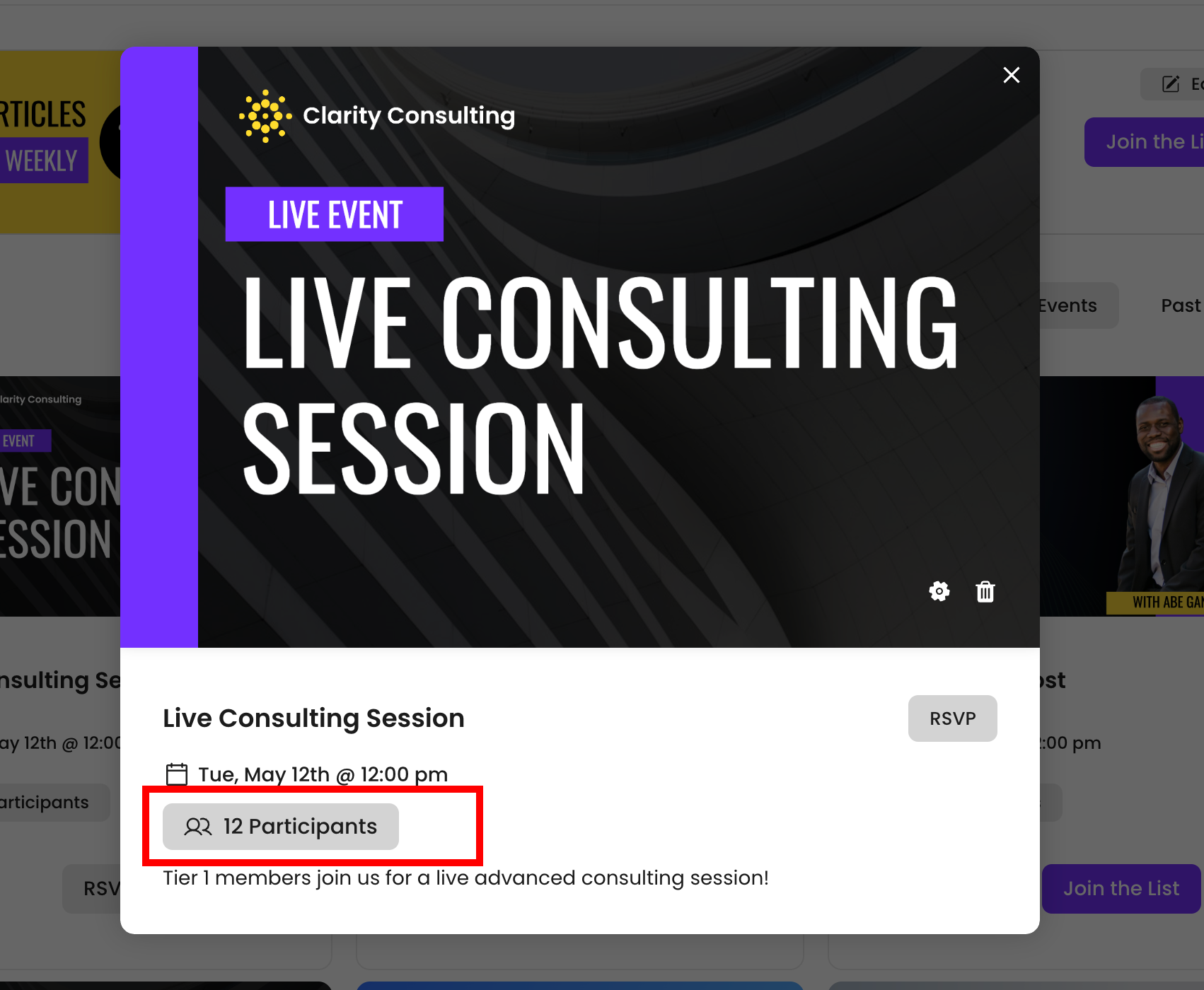
Community members can choose to RSVP to your events in VidSell, which displays how many people are interested in your event. This is useful for gathering more engagement, as well as gathering a list of people who event email reminders will be sent to.
Event Types
You can schedule multiple types of events within VidSell, including in-person and digital events, as well as free or paid events.
Important note: VidSell does not currently offer online meeting hosting within the platform. All online events will need to be hosted on 3rd party platforms like Zoom and linked to in VidSell.
- In-Person Events can be made by providing the location and meeting information inside of your event details area. If your event requires signup beforehand or payment use Flows to create your signup process. For free or more casual events you can use simple RSVP's in the Events Area.
- Digital Events can be created by linking your event link in the CTA area. If your event link only becomes active once your event begins, choose the CTA option "Only show button after event start time".
- Paid Events can be created by linking to purchase Flows from your event's CTA button.
- Free Events can be simply linked to (like a webinar), and participants can use the CTA button to join.
Events Filtering
In the Events Area, members can filter your events by upcoming and past events.
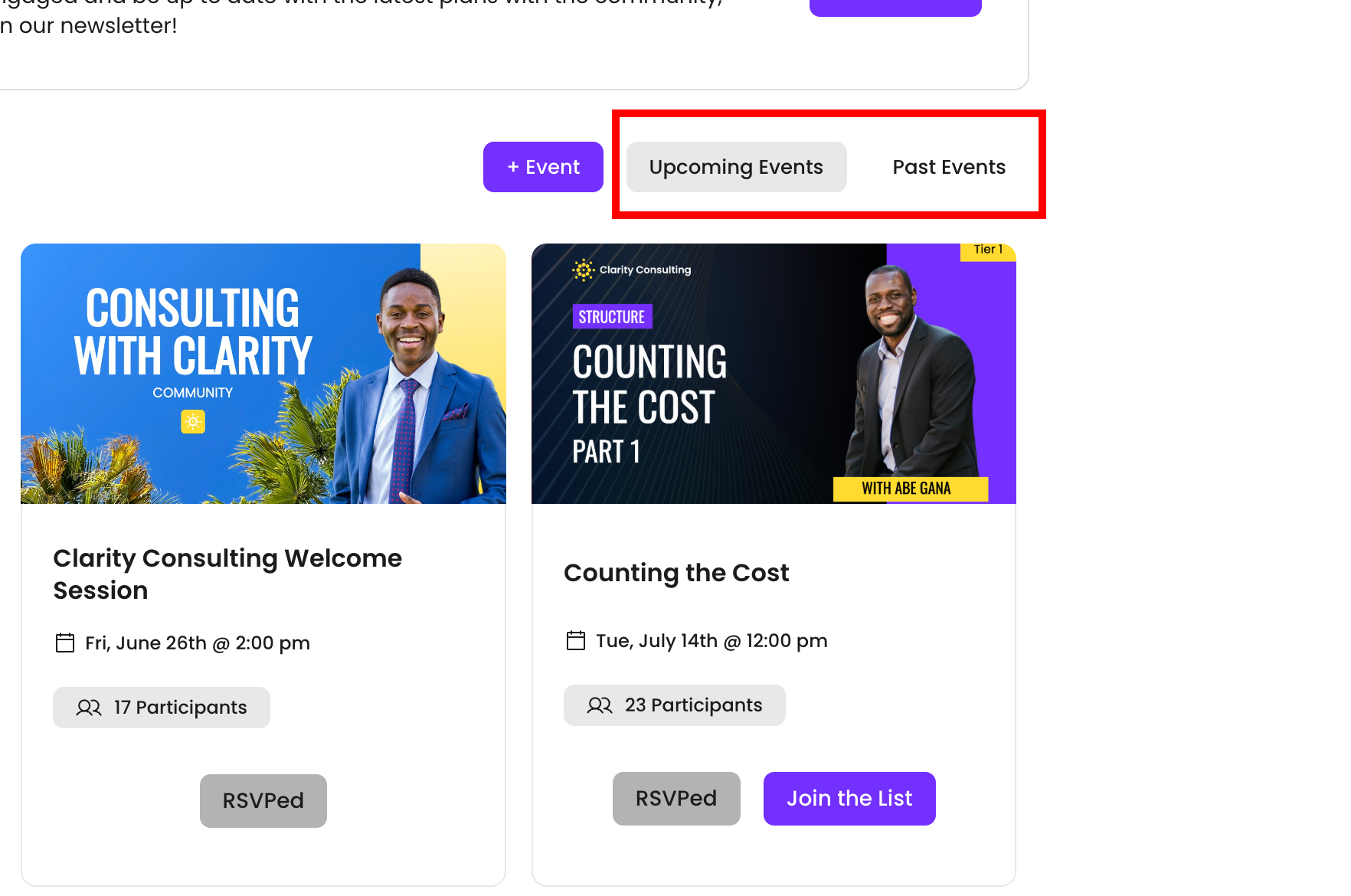
- Upcoming Events - View all events that have not occurred yet. This is useful for gathering RSVP's or payments for paid events.
- Past Events - View all events that have passed their start date and time. This can be useful for things like event replays, or archives of previous events.
Events Area Banner
Your Events Area has it's own unique CTA banner, similar to community space banners, with a few key differences.
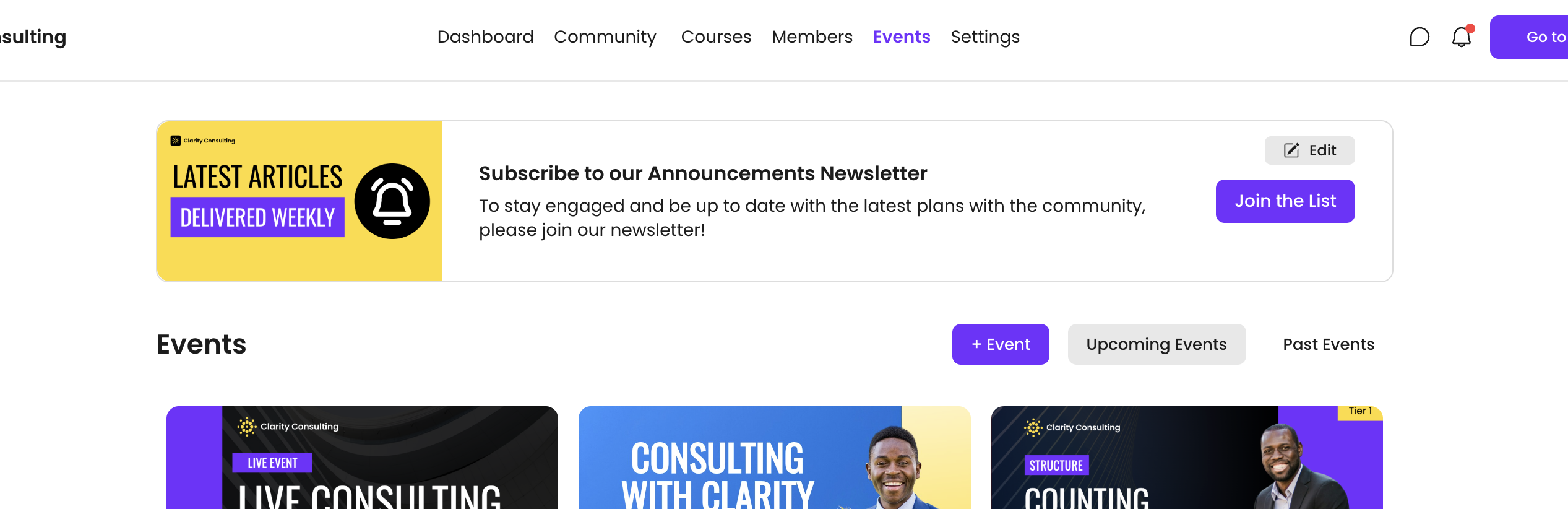
- Banner Details - Allow you to upload a custom banner image, create a custom title and description for your banner.
- Banner CTA - Create a custom CTA for your banner that can lead your members to take action with the same CTA destinations as Event CTA's: Go to URL, Go to Course/Lesson, Go to Flow/Step, Go to Space, Download a File, and None