The course builder helps you create dynamic and engaging courses for your students within VidSell.
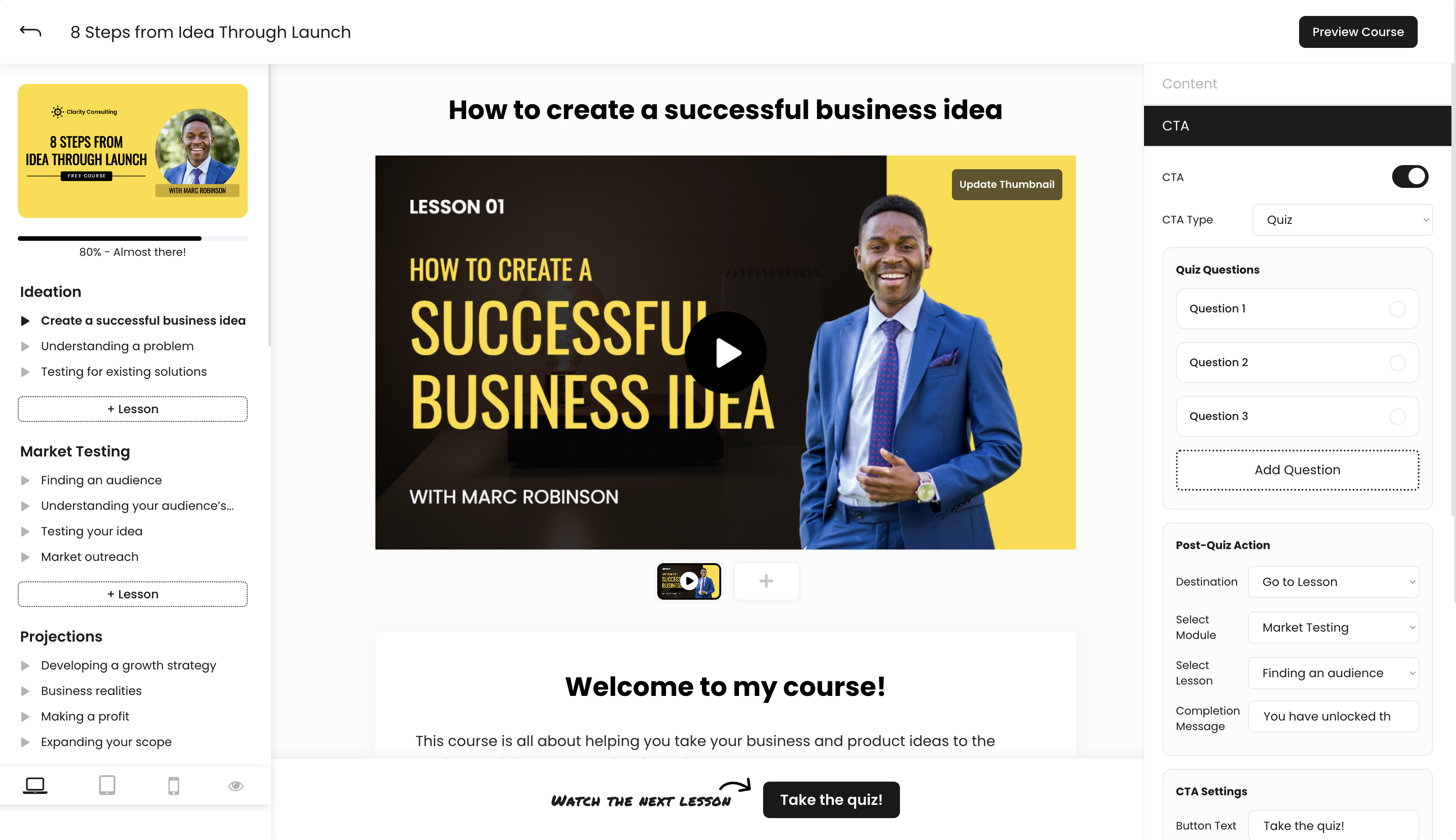
Lesson CTA's
Each lesson you create within courses has the option to include (or not include) a CTA on the bottom of the page. There are multiple CTA options available to choose from.
No CTA
Include no CTA on your lessons. Students can progress through lessons without taking additional actions.
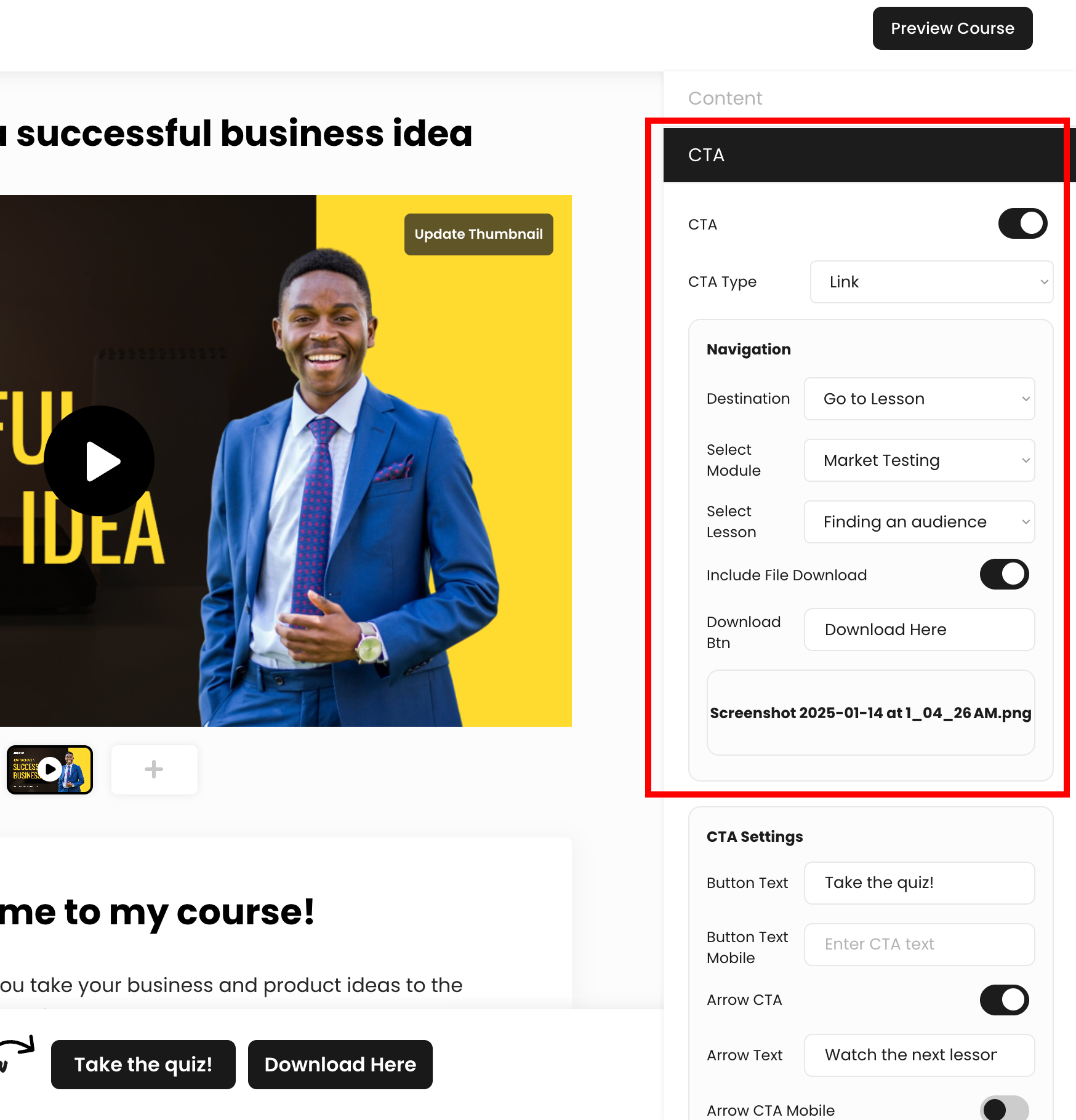
Link CTA
The Link CTA lets you link to direct your students to other websites, lessons, or content with links. Choose from one of the available options of where to direct students upon clicking your CTA button:
- None - Direct to no external URL
- Go to Lesson - Direct to a specific module and lesson within your course (often the next lesson)
- Link to URL - Link to an external URL when clicked
- Include File Download - This option allows you to add an additional button on your CTA banner to include a file download with your lesson. This can be useful for things like printable, PDF's, or downloadable course material.
Quiz CTA
You can create dynamic, multiple choice lesson quizzes for your courses to increase retention, and test your students' knowledge on the content of your course.
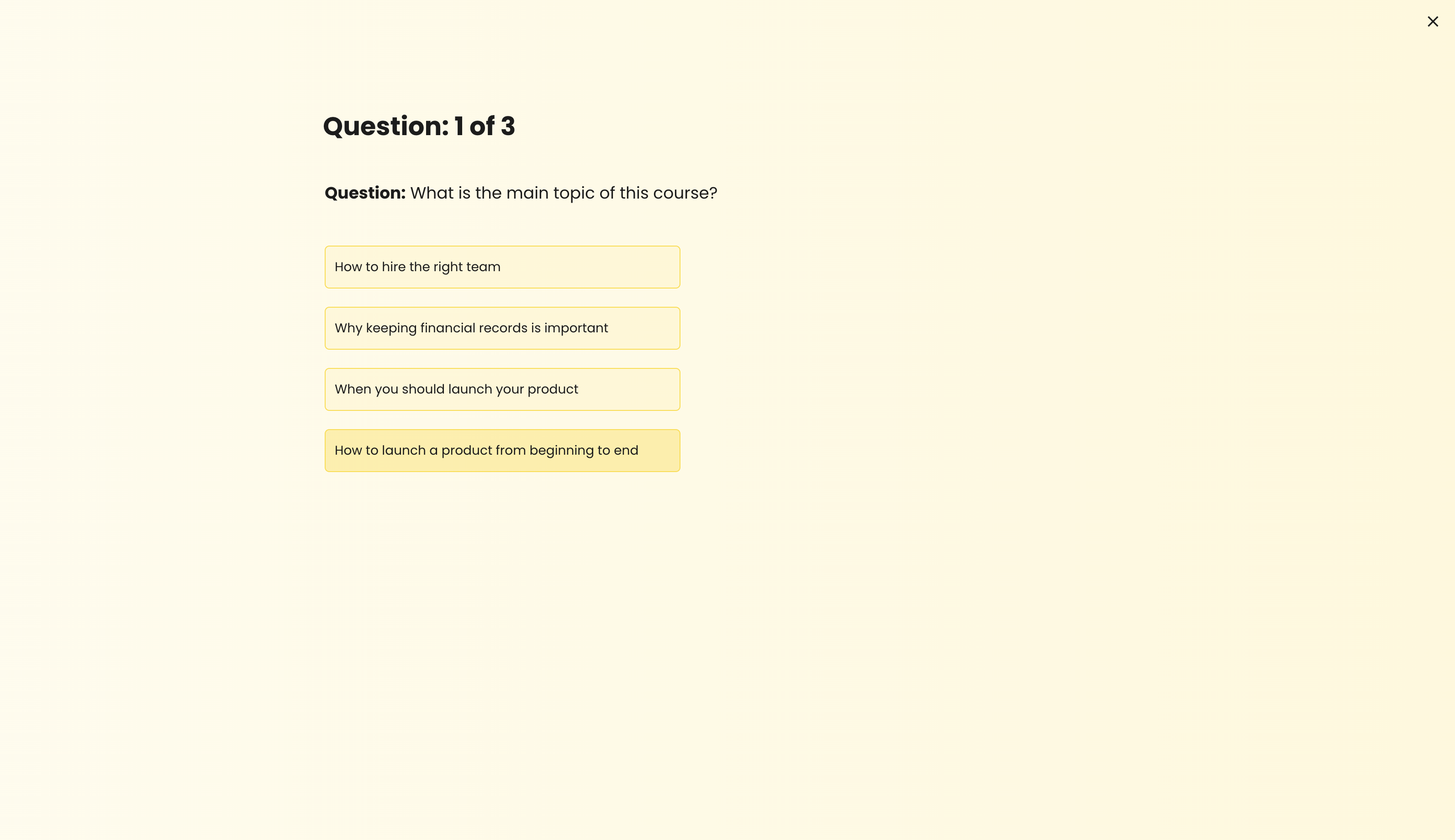
To create a lesson quiz, edit the available options:
- Questions - Type a question you would like to appear on your quiz
- Answers - Add up to 4 multiple choice answers and choose which one is correct
- Post-Quiz Actions - Determine where you would like your students to go once they have completed your quiz from the following destinations:
- None - Students stay on the same lesson when the quiz is completed
- Go to Lesson - Students are taken to another lesson when they complete the quiz
- Link to URL - Students are taken to an external URL when they complete the quiz
- Completion Message - Write a message you would like to display once your students complete the quiz
CTA Settings
- Button Text - Choose the text for your CTA button
- Button Text Mobile - Choose the text for your CTA button to display on mobile
- Arrow CTA - Choose to include an optional arrow CTA next to your CTA button
- Arrow CTA Mobile - Choose to display your optional arrow CTA on mobile
- Arrow Text - Choose the text for the optional arrow CTA next to your button
- Arrow Text Mobile - Choose the text for your optional arrow CTA to display on mobile
- CTA Text Color - Choose the text color for your CTA button (background button color will be applied from your Flow Accent Color in the Content Tab)
CTA Timing
CTA timing controls when your CTA bar appears at the bottom of your screen so you can call your viewers to action at the time you choose.
- Time of Video - Set a specific time in your course video where your CTA button will appear. (This will only apply if the video is playing.)
- Time on Page - Set a specific time after your visitor lands on your lesson where your main CTA button will appear
Automations
Automations in courses let you create custom experiences for students, connect with outside platforms, and more through simple actions you set up.
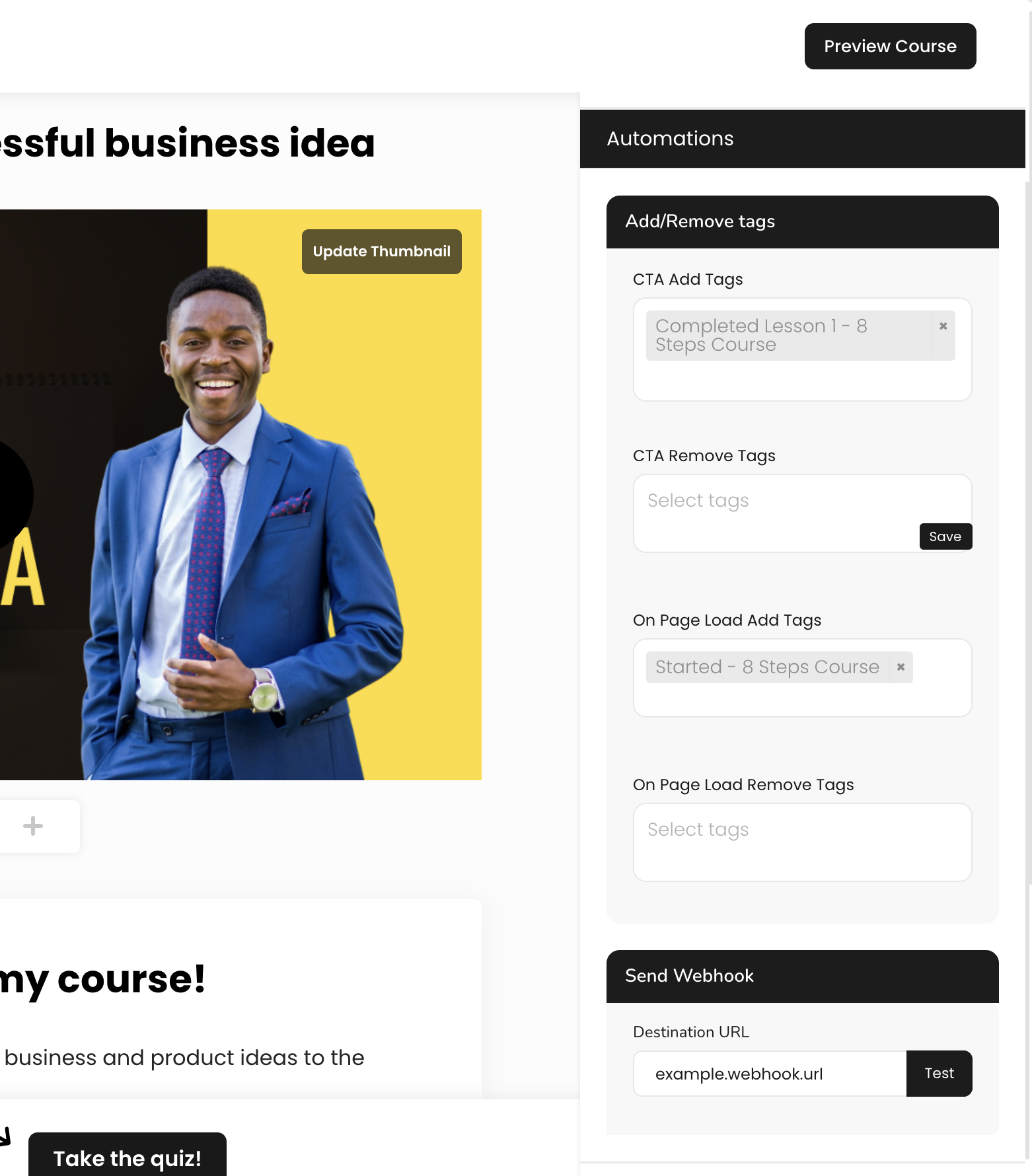
- CTA Add Tags - Add tags to students when they click the CTA button on your lesson
- CTA Remove Tags - Remove tags from students when they click the CTA button on your lesson
- On Page Load Add Tags - Add tags to students when your lesson page loads
- On Page Load Remove Tags - Remove tags from students when your lesson page loads
- Webhooks - Send webhooks to 3rd party platforms when a CTA action is taken (automations, CRM's, etc.) to sync course progress across platforms.
SEO and Domain
Courses include built-in SEO options to give you control over how your courses display in search engines.
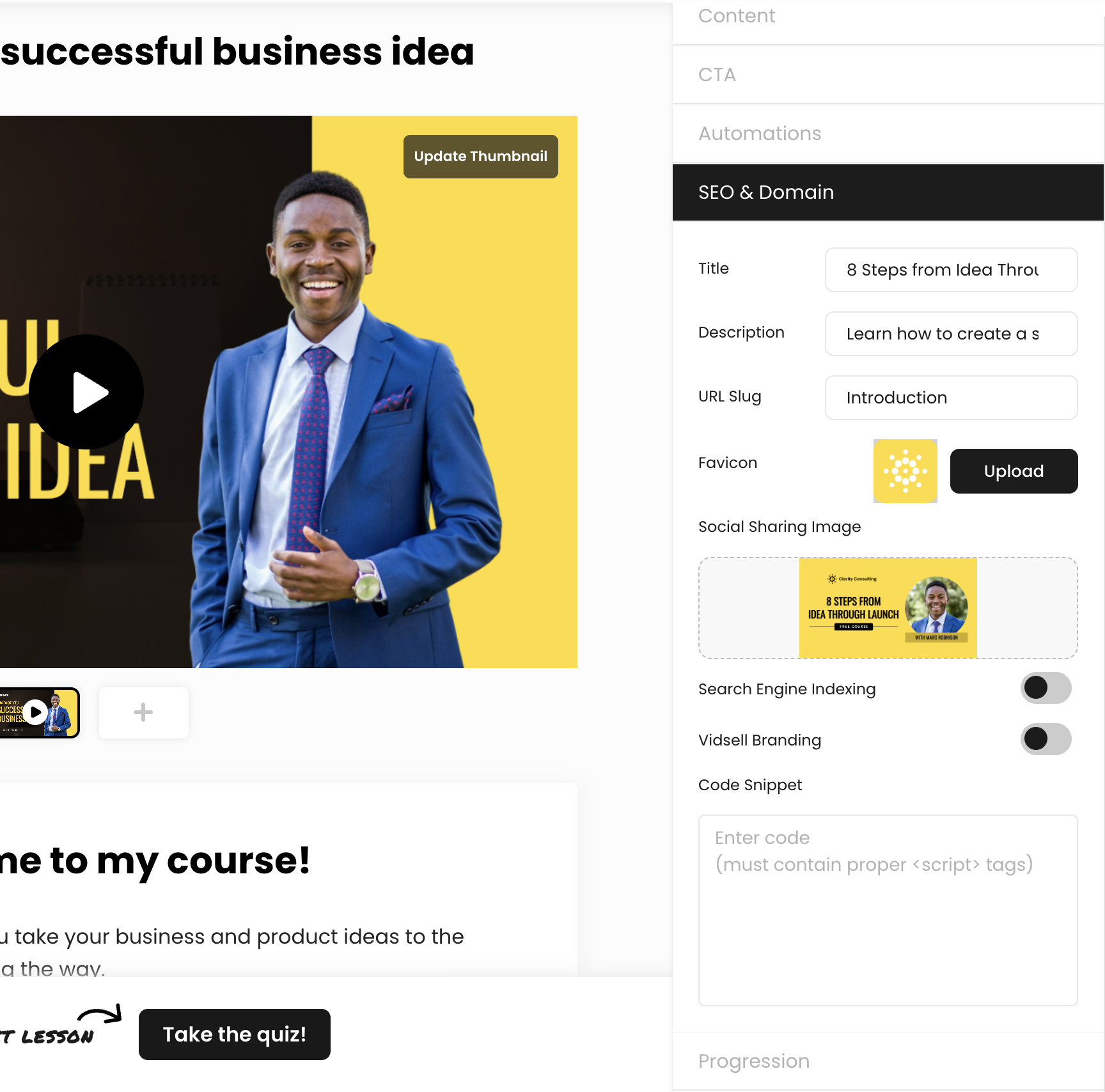
- Title - Controls the SEO meta title of your lesson
- Description - Controls the SEO meta description of your lesson
- URL Slug - Controls the URL slug for your lesson
Note: To load your courses on your custom domain, first set up your custom domain inside of your account settings area, otherwise VidSell's URL (vsll.link) will be used as the default.
- Favicon - Your favicon controls the small, square image that appears next to your lesson name in browser tabs. Recommended Favicon size upload is 256px x 256px
- Social Sharing Image - Your social sharing image appears when sharing links to your course on social media. Recommended size is 1200px x 630px ( a 1.91:1 aspect ratio) for compatibility with most social platforms.
- Search Engine Indexing - Controls whether you would like your course lessons to be indexable to appear in search engine results. Turning this toggle off causes your course lessons not to index in search engine results pages (SERP's) like Google search.
Note: If your courses are visible in search engines, new traffic to your courses will need to first sign up to your Engage area to view course content.
- VidSell Branding - Allow an optional on-page message in your pages' footer "Built with VidSell".
- Code Snippets (Lesson Level) - Custom code snippets allow you to run on-page code for things like chatbots or a help widgets, adding accessibility or translation tools and more.
Progression
Progression controls how your students navigate from one lesson to the next within your courses. There are a few progression options available to choose from:
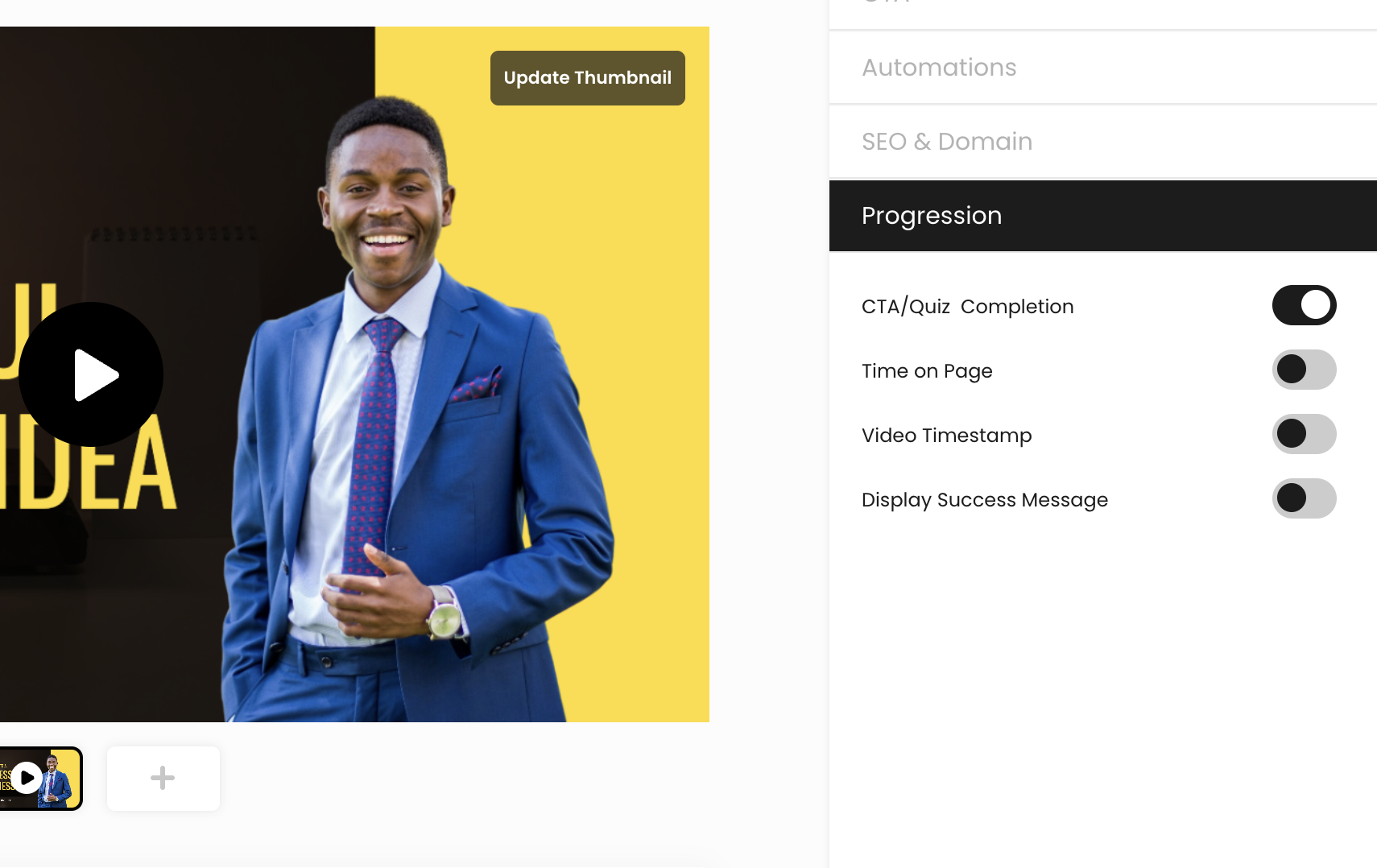
- CTA/Quiz Completion - Students progress to the next lesson once they click a CTA button, or complete a lesson quiz.
- Time on Page - Students progress to the next lesson after a certain time spend on a lesson page.
- Video Timestamp - Students progress to the next lesson at a set timestamp within your lesson video.
- Display Success Message - Write an optional success message when a student completes a lesson.