The content section in the Flow Editor lets you have control a number of page styles and video display options.
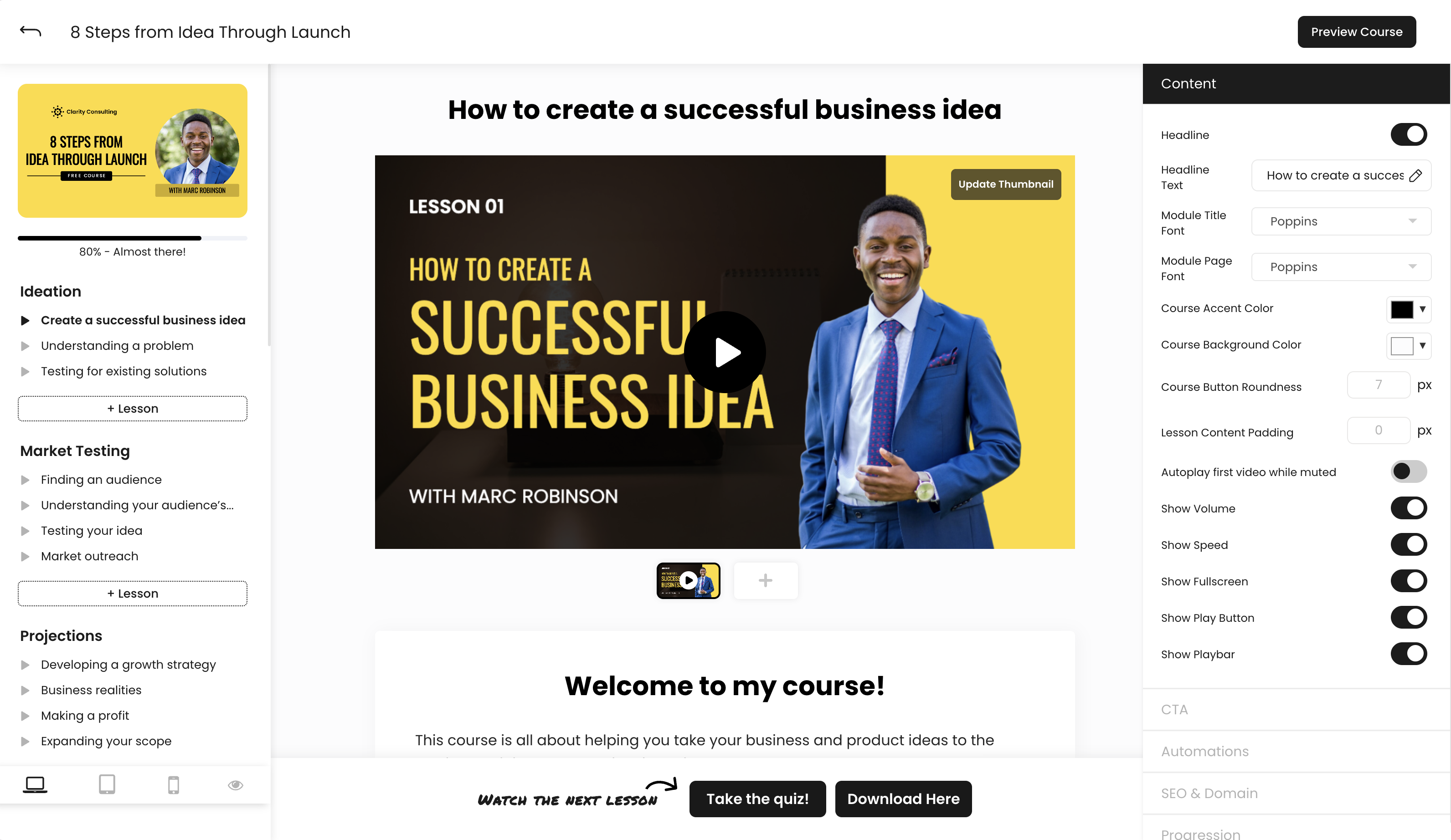
On page style controls include:
- Headline - Include an optional headline on your lessons
- Headline Text - Modify how your headline text looks on your page with a number of options including Font Size, Font Weight, Text Color, Letters Spacing, Line Spacing (with options for mobile)
- Module Title Font - Choose the font for your lesson title
- Module Page Font - Choose the font for the body copy of your lesson
- Course Accent Color - Choose the accent color for on-page elements of your lesson like CTA buttons and play buttons
- Course Background Color - Choose the background color of your lesson
- Course Button Roundness - Modify the corner rounding for your main lesson CTA (default value is 7px)
- Lesson Content Padding - Adjust the default padding between sections of your lesson (can be modified on an individual section basis on top of the default padding as well)
Video Controls
Like the controls available in the Videos Area, courses also give you a number of display and playback options for your main on-page video.
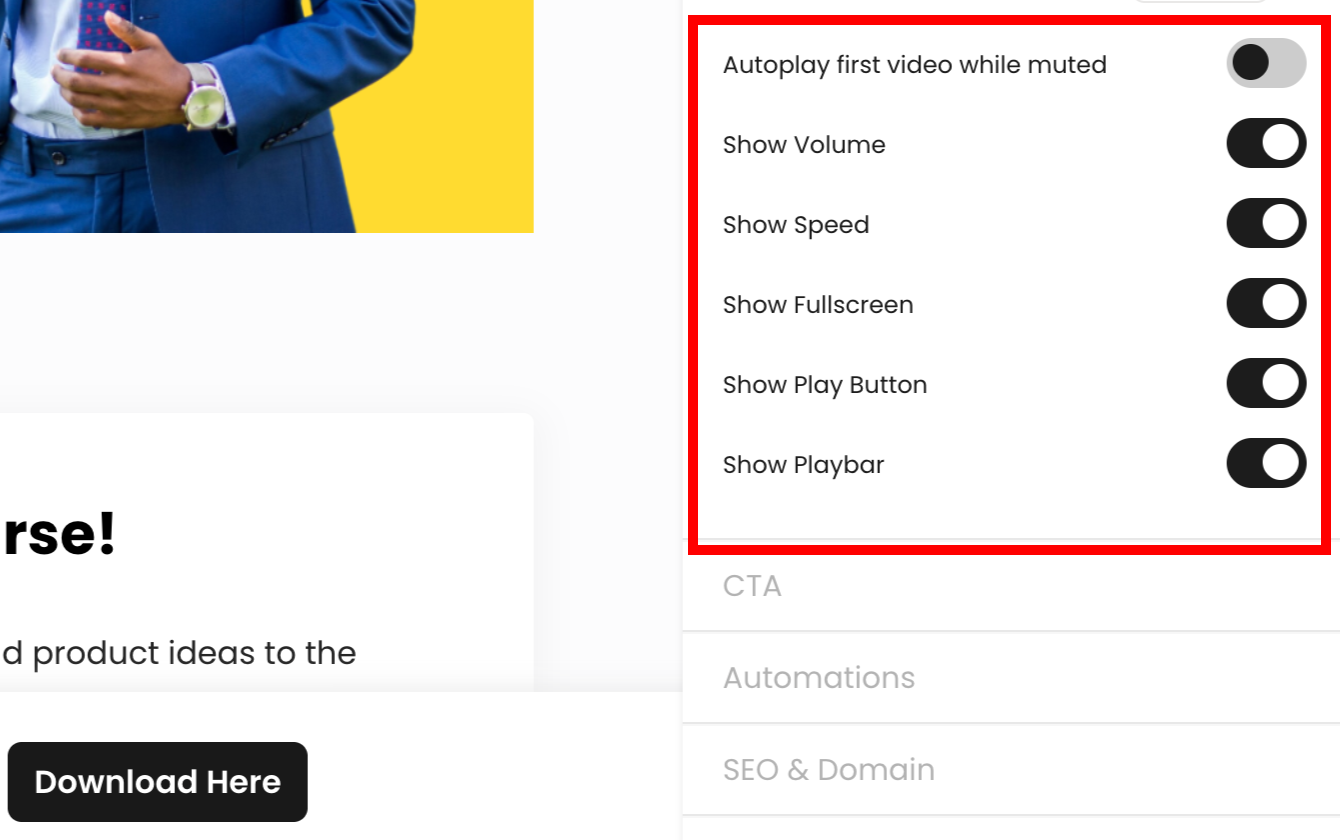
- Autoplay first video while muted - The first video in your feature area starts playing automatically upon page load
- Show Volume - Volume can be adjusted
- Show Speed - Video speed can be set to 0.5x, 1x, 1.5x, 2x, 4x, and 8x speeds
- Show Fullscreen - Video can be maximized to fill the entire screen
- Show Play Button - Controls the video's play button over the thumbnail
- Show Playbar - Controls the entire video playbar
Course Builder
Video and Media Feature
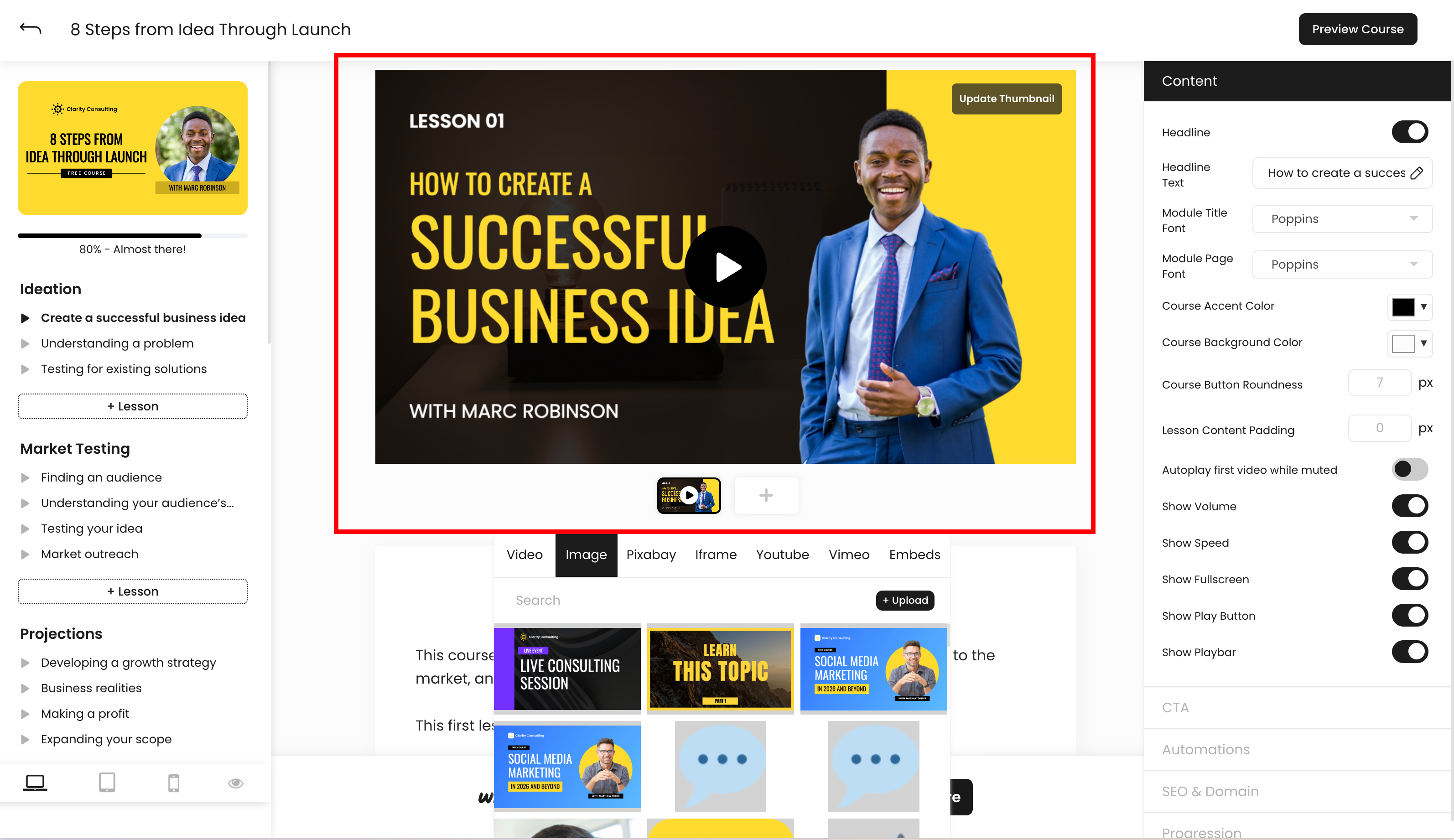
The main video and media feature area in your lesson is where you can place your primary course video content.
Media Selector
The media selector give you a number of options for adding your content to the main video and media feature area, as well as within sections on-page.
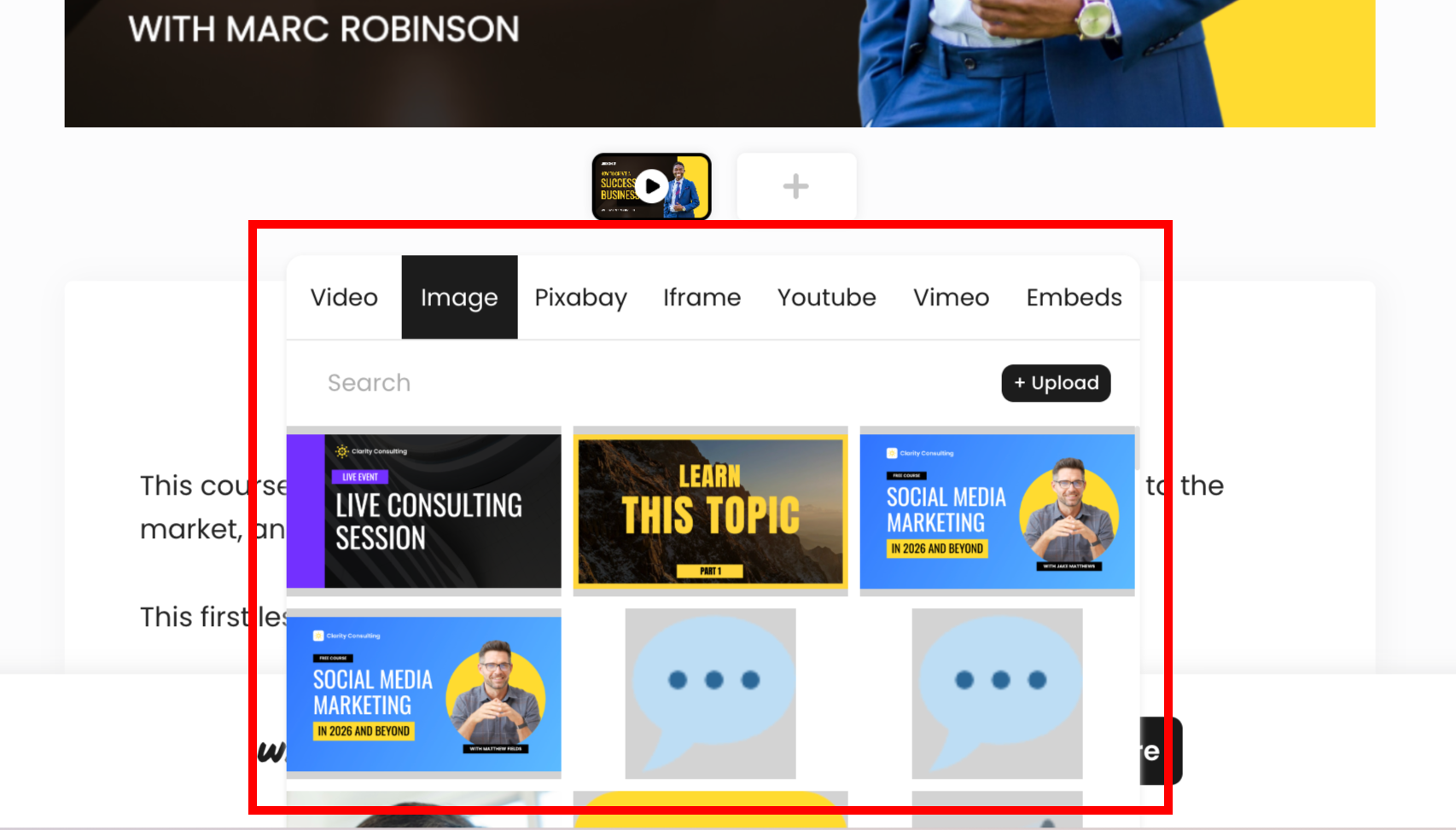
- Videos - Use videos organized into folders in the Videos Area in your lessons
Note: The video in the first media slot can be controlled through the Content Tab video controls, such as "Autoplay first video while muted".
- Image - Upload an image from your computer as support to your main video, or instead of a video
- Pixabay - Choose an image for your lesson from Pixabay
- Iframe - Allows you to embed iframed content into your lesson, and allow your iframe to be scaled
- YouTube - Enter a YouTube video URL directly into a lesson
- Vimeo - Enter a Vimeo video URL directly into a lesson
- Embeds - Embed content into your lesson like forms or other media
Sections
Sections make up the body content of your lesson page and include multiple available elements to help you convert and sell online.
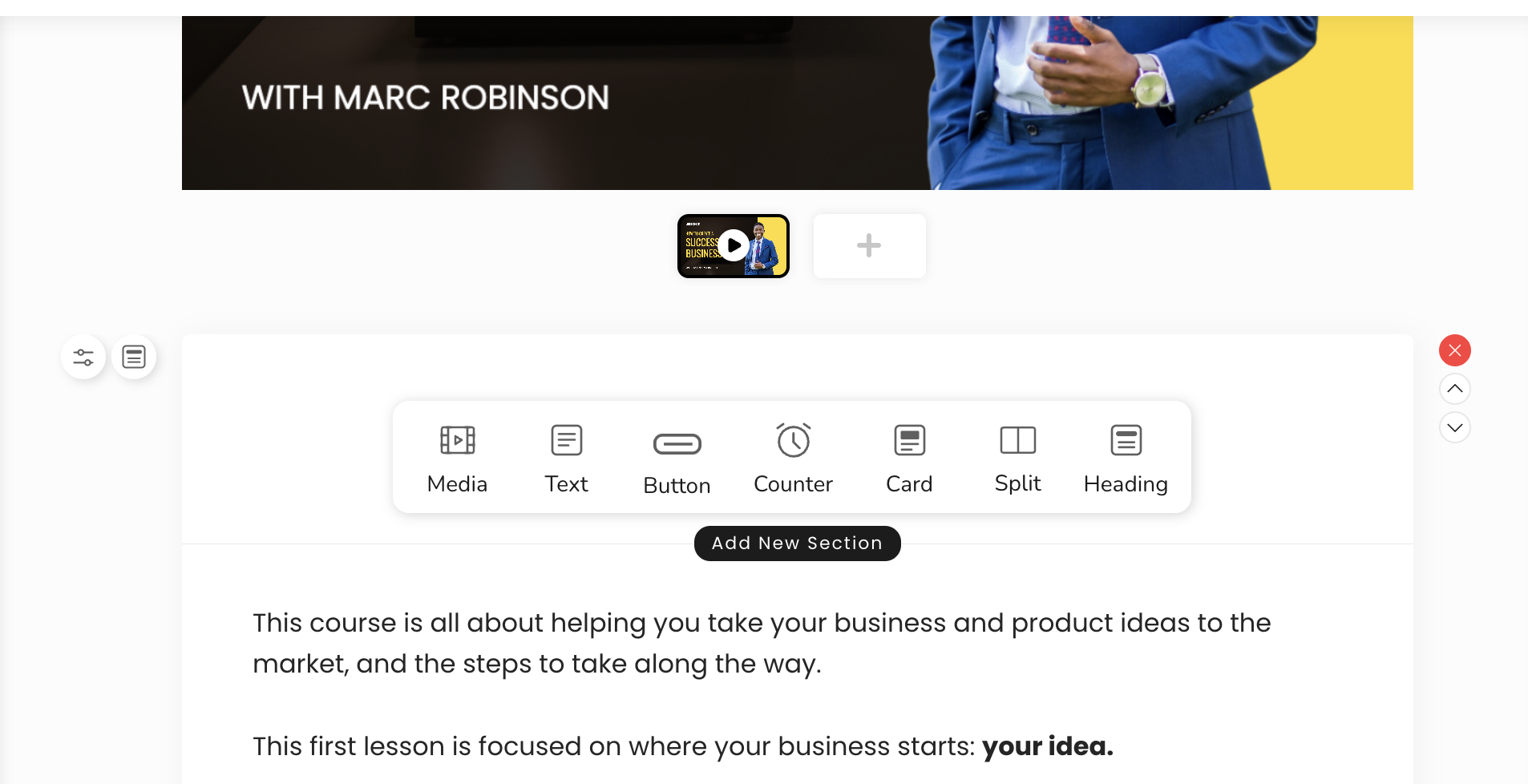
How to add a new page section
To add a new page section, click the "Add New Section" button within the content area of your lesson.
Media
Choose from any of the media available in the media selector including Videos, Image, Pixabay, Iframe, YouTube, Vimeo, and Embeds.
Title
Titles give you a number of controls over how your on-page healings look including Title Text, Text Color, Alignment, Font Size, Font Weight, Letters Spacing and Line Spacing - all controlled from the left side menu.
Text
Flows text allows you to write your page copy with a number of options in a full rich text editor including Paragraph, List, Checklist, Embeddable code snippets, Space, and Table. You can also adjust the alignment of your text and control options like bolding, italics, highlighting, linking, strikethrough, underline, and inline code.
Button
On-page buttons give you the option to perform multiple actions in lessons in addition to your main CTA button. Available button destinations include:
- Go to Lesson - Take students to a specific lesson of your courses
- Link to URL - Link to an external URL
- Lesson CTA - Perform the same action as your main lesson CTA
- Download a File - Add an optional file download
Counter
The counter section allows you to create evergreen and countdown timers for lessons, useful within courses for content that should be completed within a specific time constraint.
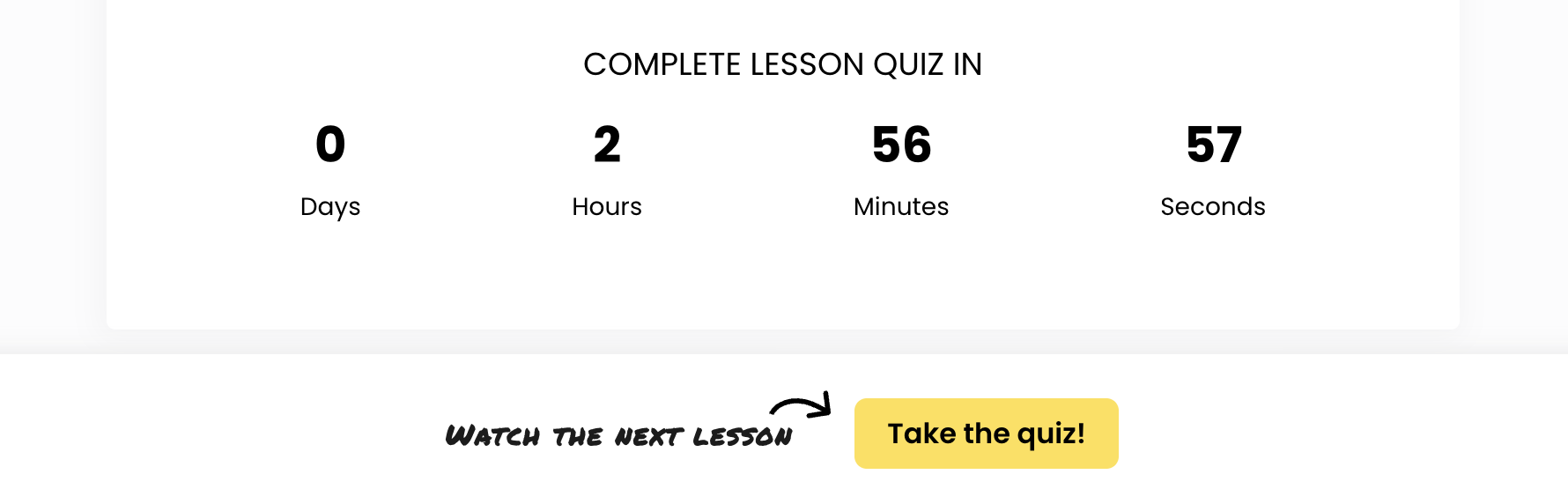
- Evergreen timers allow you to set a timer for a lesson that will expire at a set amount of time after a visitor has landed on your page. You can set a duration for your timer by setting your Timer Type to "Evergreen" and entering the number of days, hours, or minutes you would like your offer to appear for.
- Countdown timers allow you to set timers for your pages that expire at a set date. To set up a countdown timer, set your Timer Type to "Absolute" and then enter the date and time you would like your timer to expire.
- Expiry actions control where your students are redirected to if they visit your lesson once your timer expires. The available redirect options linking to another URL, to another lesson in your course, or no action.
Card
Cards are a simple way to format your pages across devices, and include 3 pre-loaded sections: media, text, and a button. Any of these options can be deleted
Split
Split sections let you divide your lesson content into two columns. You can add any element into Split Sections as you would full-width sections. On mobile split sections appear as normal full-width sections stacked on top of one another.
Section Settings
Control the Top Padding, Bottom Padding, Mobile Visibility, and Desktop Visibility (with mobile padding options as well) for your sections
Reordering and Deleting Sections
Reorder sections using the up and down arrows on the right of each section, and delete sections using the "X" button above the arrows.
Mobile and Tablet
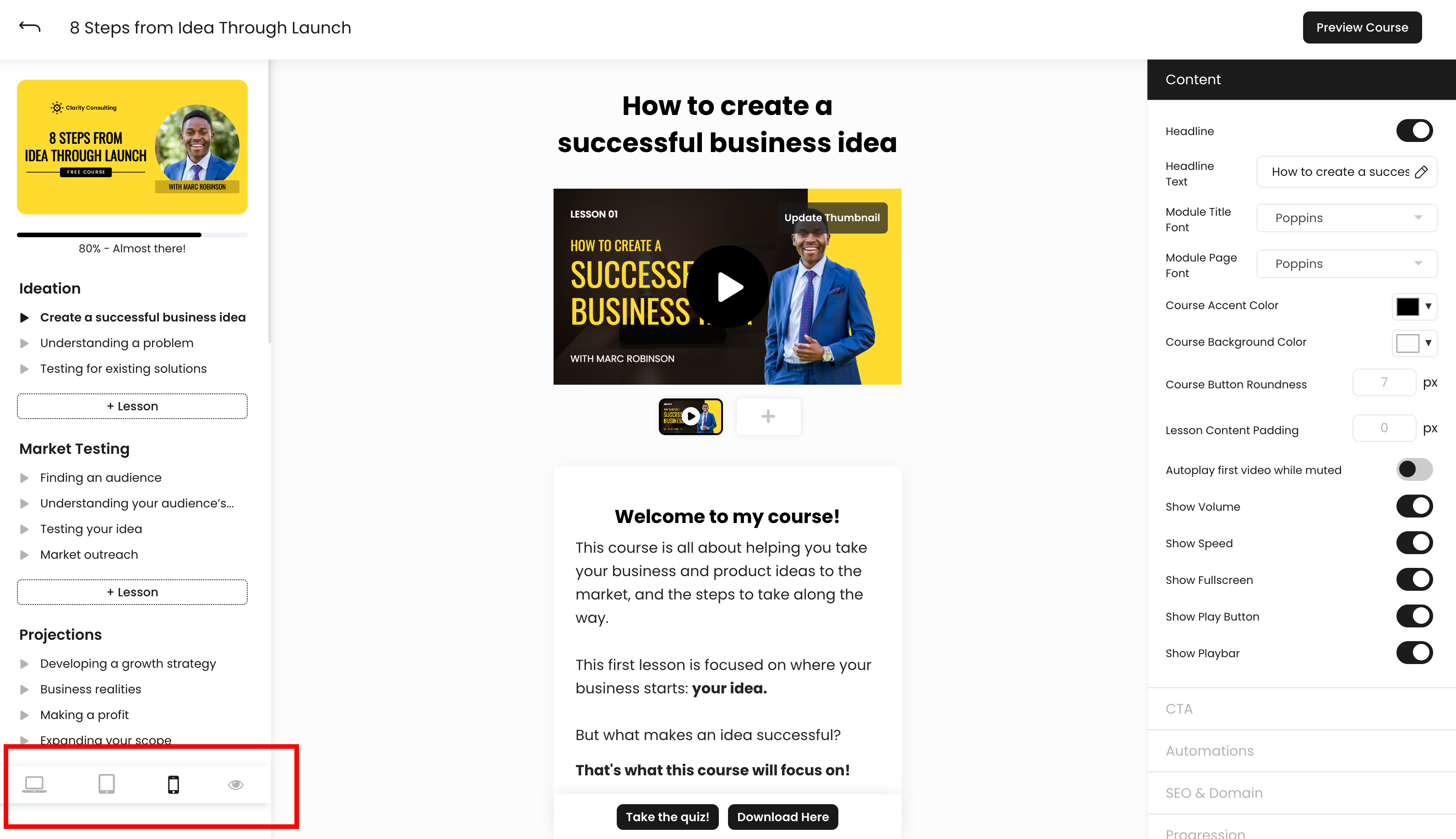
Mobile Scaling
To optimize how your lessons look on mobile, separate controls for each section can be accessed on the left side menu next to the section you’d like to adjust.
You can adjust padding, font sizes, and more to make your pages look and perform how you’d like on mobile.
Mobile scaling options that appear for lesson elements not contained in sections, like your main CTA, appear inside of the right side menu.
Mobile Visibility
You can toggle any section to only appear on desktop or only appear on mobile. This can be useful in specific cases where you may like to display different media, different text, etc. for different display sizes.
To toggle on or off your hidden elements on mobile or desktop, click the eye icon next to the devices at the bottom left of the Flow Builder.