VidSell's PWA feature allows for your Engagement Area's community to be installed as a Progressive Web App on your and your users' mobile devices enabling useful features such as native mobile push notifications!
To set this up, go to your Engagement Area editor and enable the Mobile PWA Settings toggle (your custom domain must already set up).
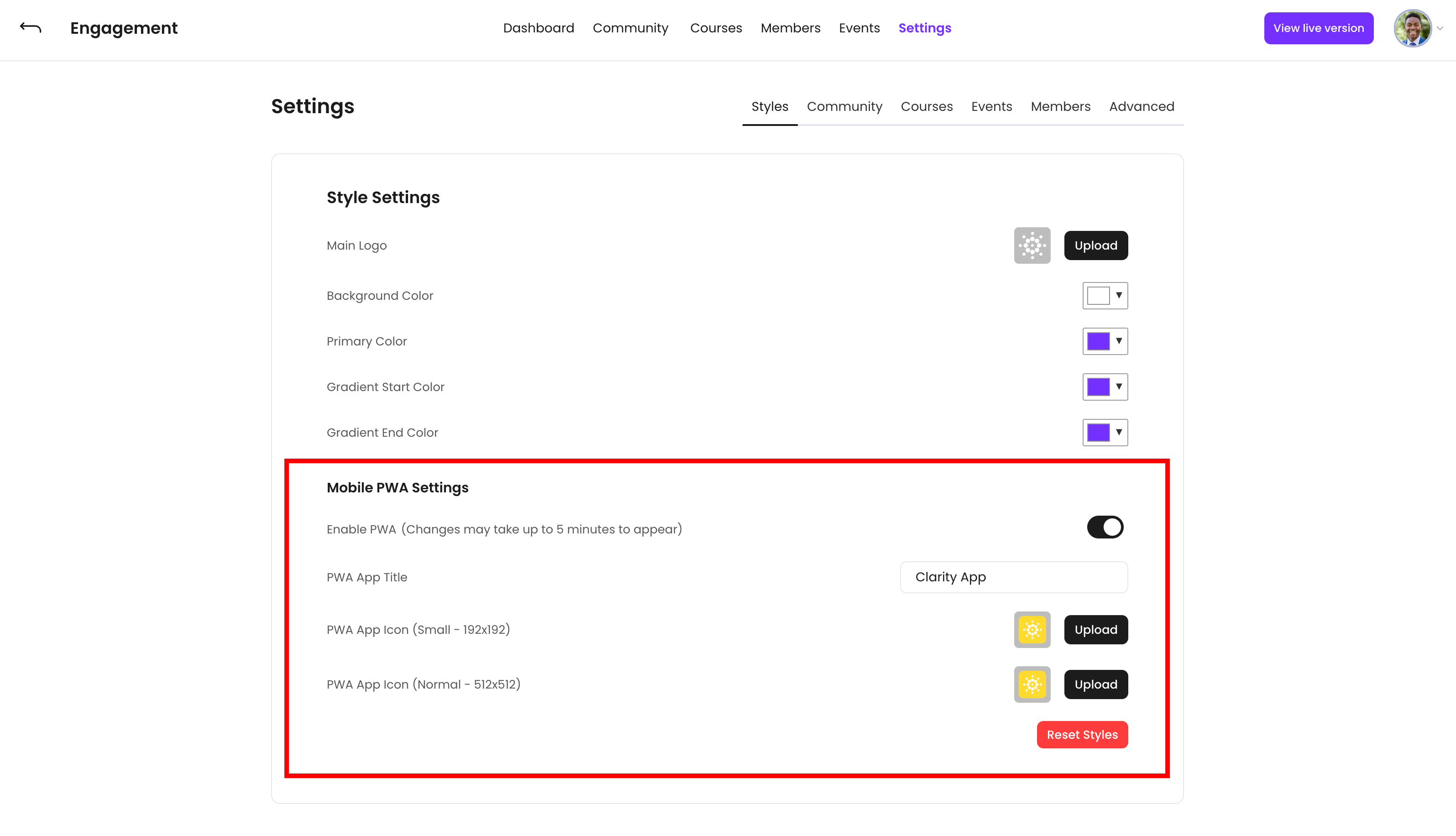
Here you can enter the App Title as it would appear on a mobile device's home screen (12 characters maximum) and choose your App Icons from your workspace's media folder (192px and 512px squares are preferred).
Note: Any changes in this area may take up to 5 minutes to propagate in the live engagement area. Changes in App Titles and App Icons require a deletion and reinstallation of the PWA on existing installs to reflect on a user's device.
App Installation
To install the application, first navigate to your Engagement Area on the mobile device's web browser (e.g. https://access.yourdomain.com/e/123456).
Android (Chrome)
1. Tap the triple-dot icon on the top right of the screen.
2. Select Install app (if available) or "Add to home screen".
3. Follow the prompts to add the app to your home screen.
4. Open the app and allow push notifications when prompted.
IOS (Safari)
1. Open the Share menu (by tapping the triple-dot icon near address bar).
2. Scroll down and select "Add to home screen".
3. Follow the prompts to add the app to your home screen.
4. Open the app and allow push notifications when prompted (iOS will have a double confirmation).
Notification preferences can be managed in your notification settings menu inside of the live engagement area on any logged-in device.