Sell virtually anything online with VidSell Purchase Flows from physical products, digital products, and subscriptions.
Stripe Connect
Before you sell your products and services with Purchase Flows, it is necessary to first connect your VidSell account with Stripe Connect. For more information on how to set up Stripe Connect, see our help article here.
Cart Options
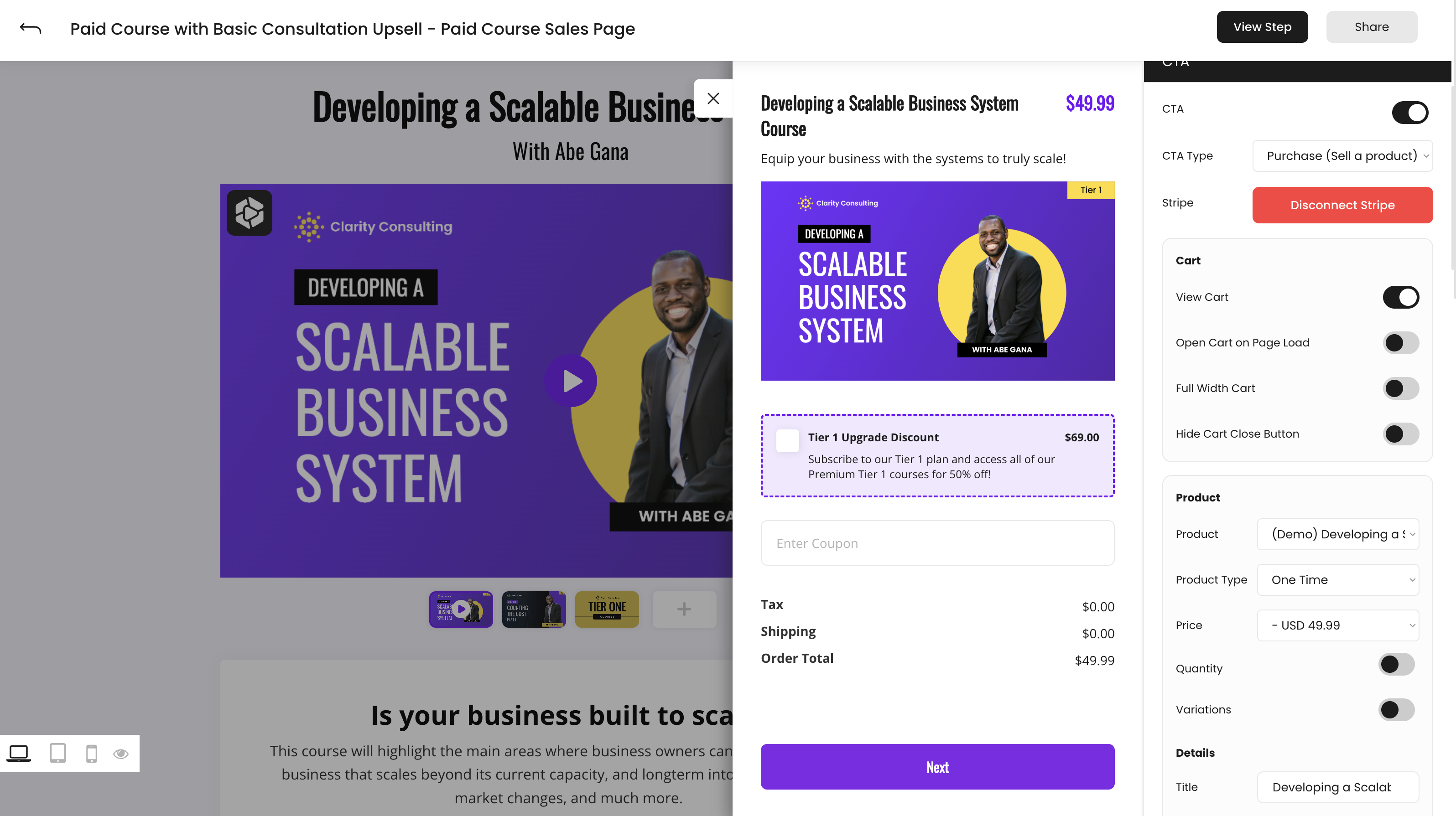
There are two possible cart configurations in VidSell to help you sell with flexibility: the pop-over cart, and the full width cart.
Pop-Over Cart
The pop-over cart option that allows your customers to purchase from you while they are watching your sales video, as the cart "pops over" the rest of your sales page without pausing your video.
Combined with CTA Timing, this option allows you to display your cart at just the right time in your message for a seamless sales and checkout experience.
Full Width Cart
The full width cart option allows you to create more traditional checkout experiences, where the cart takes up the customer's entire screen. When combined with the other cart options "Open Cart on Page Load" and "Hide Cart Close Button", the full screen checkout gives you the option to take your customers straight to checkout, rather than seeing the rest of your flow.
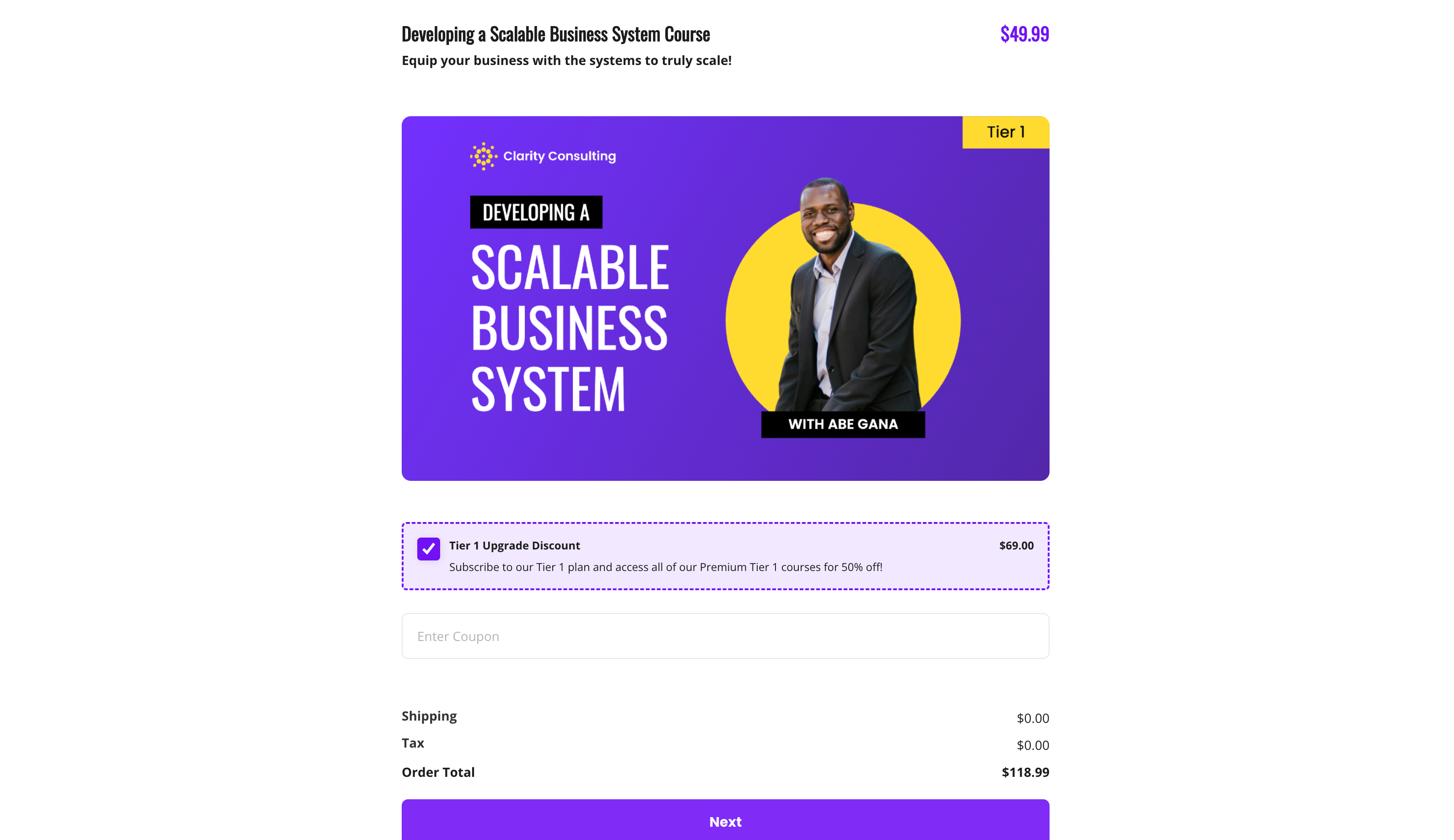
This can be useful to use VidSell as a streamlined, effective cart tool that reduces your overall setup time.
Products
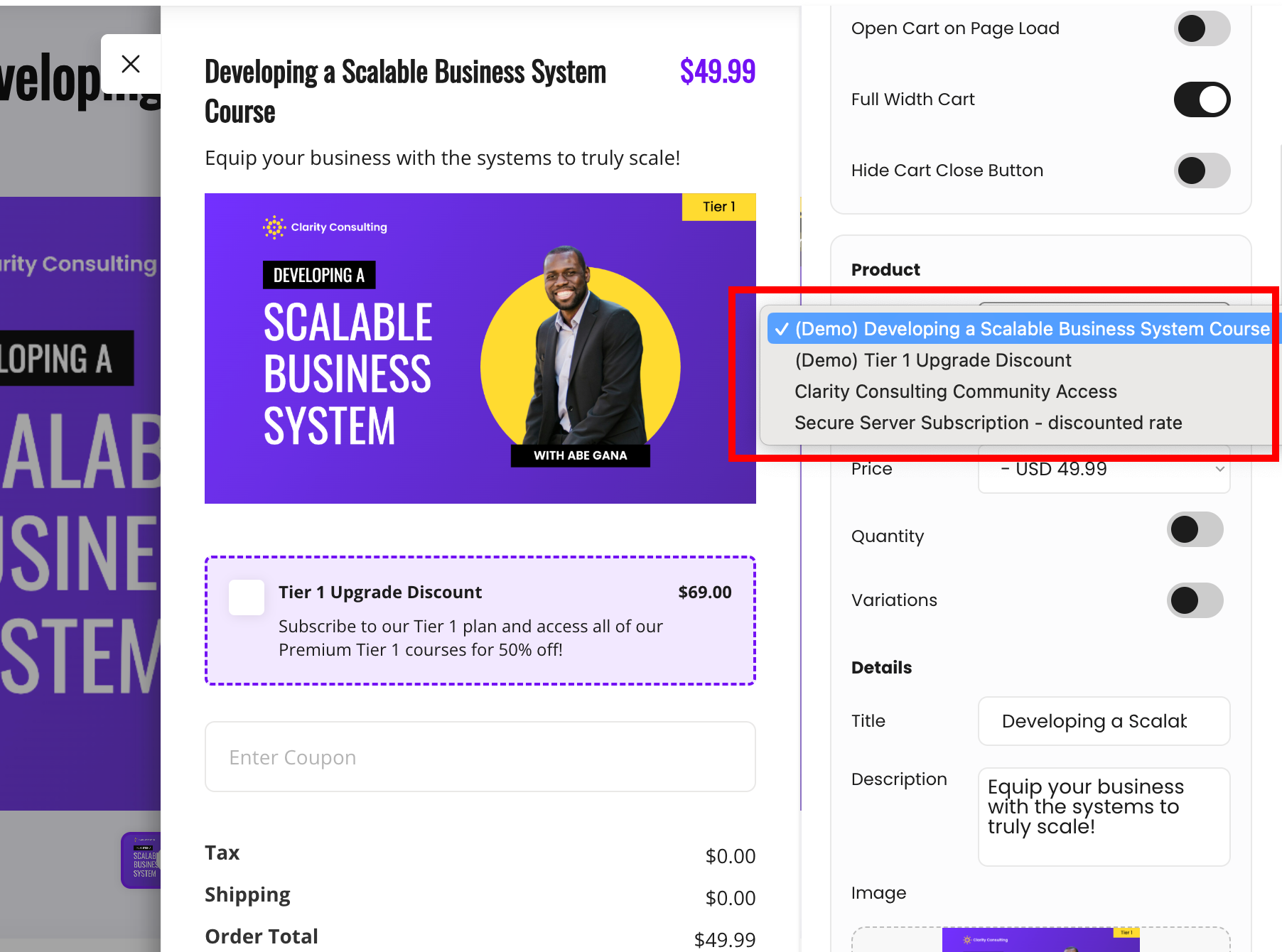
Products are automatically populated in your Products area from your Stripe Account. To add products, first set up Stripe Connect, then your available products will appear in the Product dropdown menu.
Product Type
One Time Products
One time products are products that have no ongoing fees. This can be single-time digital products like courses, or physical products. When the one time products are selected, two additional options will appear:
- Quantity - Allows your customer to add multiple quantities of the same item to their checkout.
- Variations - Allow you to sell multiple variations of a product, for example different colors of the same socks.
Subscriptions
Subscriptions are products that do have ongoing or reoccurring costs. Subscriptions can include things like software, community access, and more. When subscriptions are selected , two additional options will appear:
- Free Trial - Controls whether your subscription includes a free trial period before your customer is charged
- Billing Cycle Anchor - Controls whether you would like to set a specific day for all customers to be billed on. This option can help keep managing your billing simple - for example you can set every customer to be billed on the 1st day of every month, rather than on the different days they purchased.
Price
This option sets the cost of products or services sold and is controlled via Stripe. Any available prices for your products in Stripe will appear in the dropdown menu.
Product Details
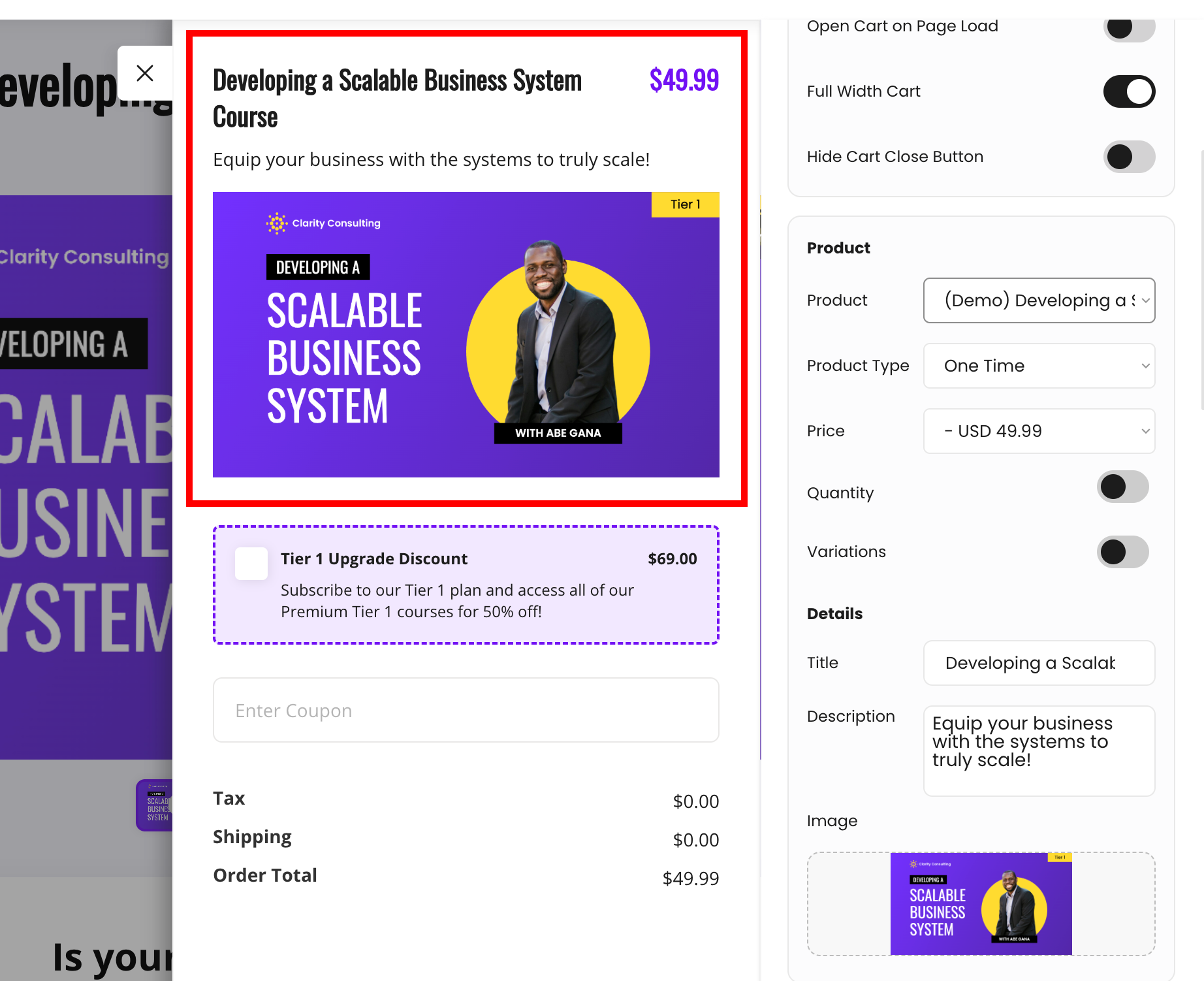
- Title - Sets a title for your product in your Flow's cart and any generated receipts (Thank You Steps). If not changed, this title will be automatically generated based upon your selected Stripe product.
- Description - Create a custom description for your product for your Flow's cart.
- Image - Upload an optional image for your product that appears on your Flow's cart.
Bump Offers
Bump offers are additional products you can add directly to your checkouts that allow you to bring more value to your customers and increase your overall potential cart value. Setup is very similar to setting up your primary products.
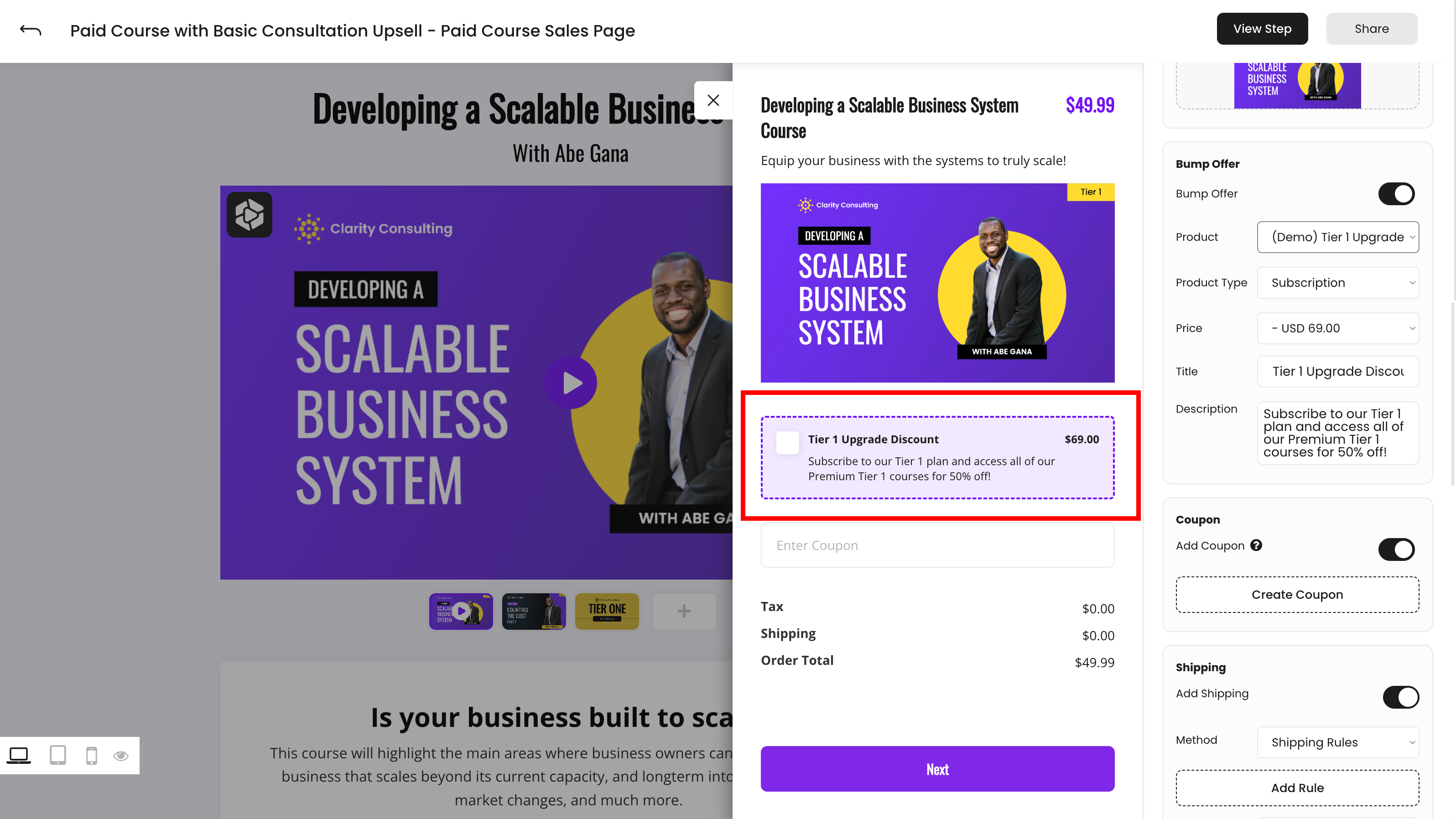
- Product - Choose a product from the dropdown menu from your available products connected via Stripe
- Product Type - Choose between selling a one-time product and a subscription.
- Price - Choose from a price you have set up inside of your Stripe account.
- Title - Enter a title for your bump offer that will appear in your checkout area.
- Description - Enter a description for your bump offer that will appear in your checkout area.
Coupons
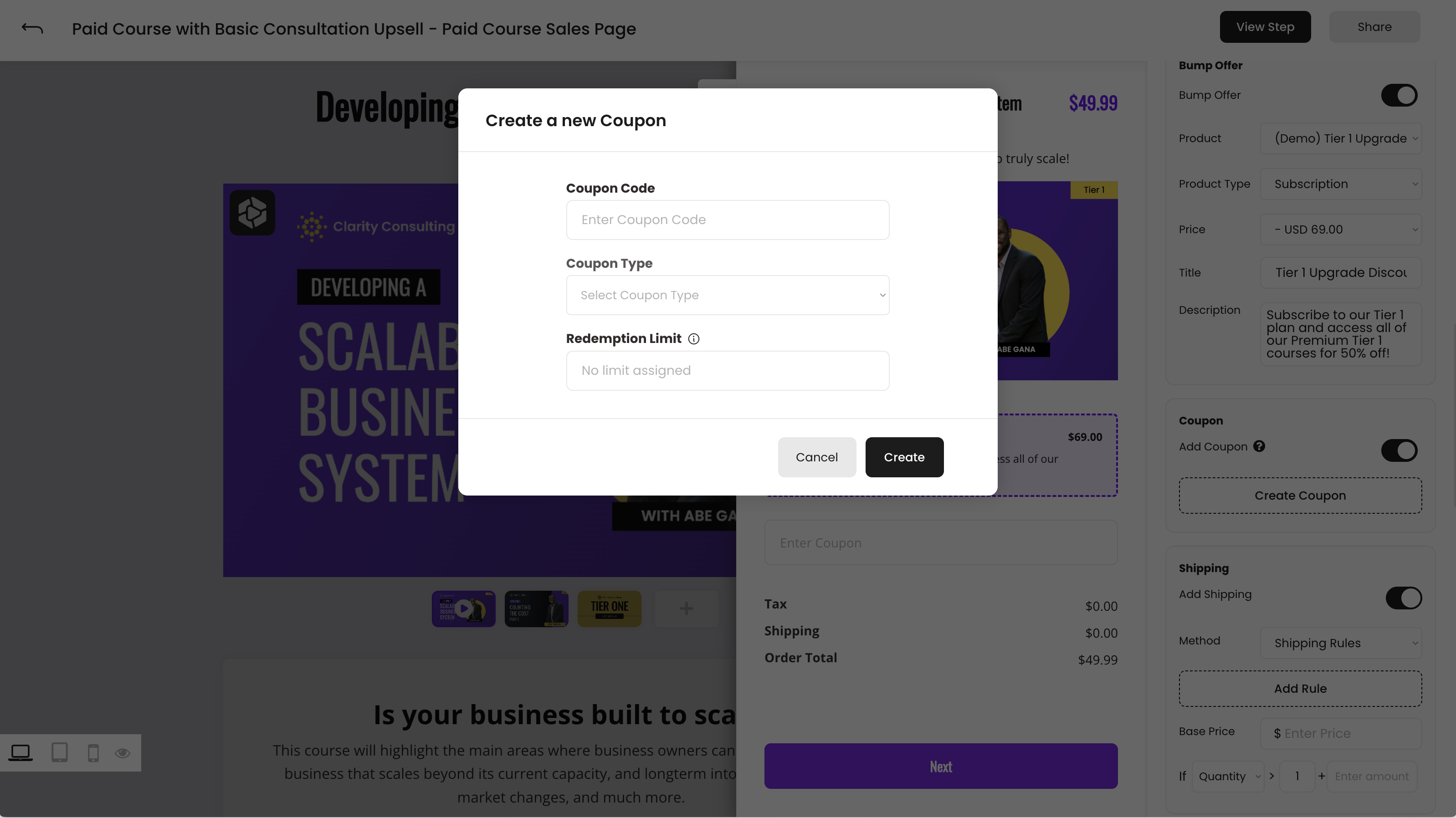
Coupons give you a way to run discount offers on your existing products for those who have the right code. Coupons will only apply to your main product, and not upsells or bump offers. If your main product is a subscription, coupons are managed in Stripe.
There are two types of coupons available:
- Amount Off - Allows you to take off a fixed dollar amount from your main products’ price
- Percentage - Allows you to take a percentage off of your main products’ price
Shipping
Create estimated shipping costs for physical products either with custom shipping rules or with standard options including:
- Flat Rate - Allows you to charge a flat, fixed dollar amount for shipping.
- Percentage - Allows you to charge a percentage of your product price as a shipping cost.
Shipping Rules
Custom shipping rules allow you to set different shipping costs based upon multiple variables:
- Base Price - Set the flat rate price as a starting place for your custom shipping rule.
- Bump offer - Add additional shipping costs at a flat rate if your customer purchases a bump offer. (Example: If Bump Offer is purchased, add $7.00 to shipping costs)
- Quantity - Add additional shipping costs at a flat rate if your customer purchases multiple quantities of a product. (Example: If Quantity > 3, add $5.00 to shipping costs)
Tax
Tax can be added to applicable products in two ways:
- Stripe Tax - Automatically calculate tax costs with Stripe Tax
- Percentage - Set a custom tax rate based upon a percentage of the cost of your product
Customer Details
Choose which details you would like to collect from your customers at checkout.
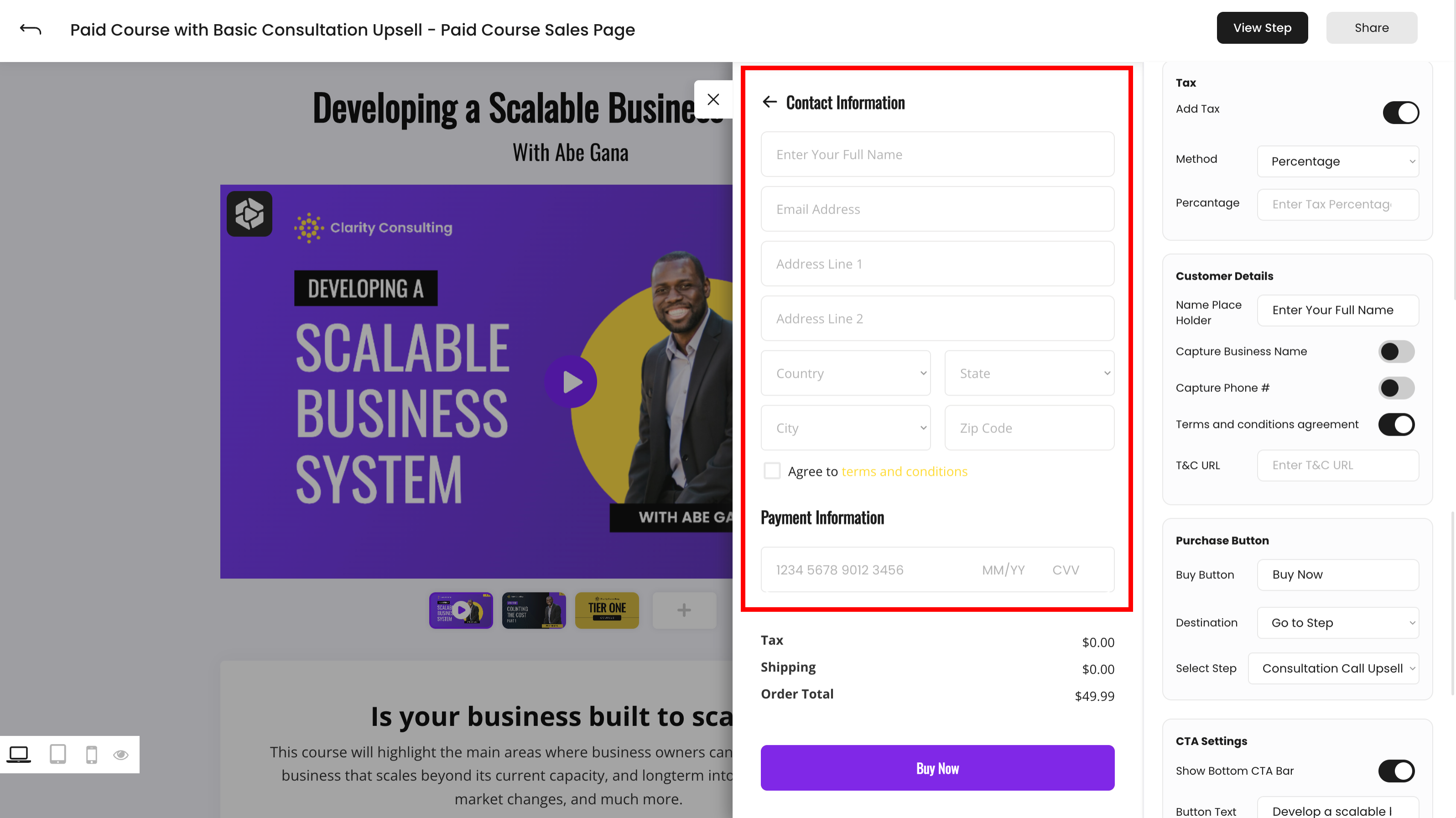
- Name Place Holder - This is the placeholder text for your customers' name field
- Capture Business Name* - Collect the business name of your customers (optional*)
- Capture Phone Number* - Collect the phone number of your customers (optional*)
- Terms and Conditions Agreement - Include a terms and conditions agreement for your products or services (required when added)
- Terms and Conditions URL - Upload the URL to your terms and conditions agreement
Purchase Button
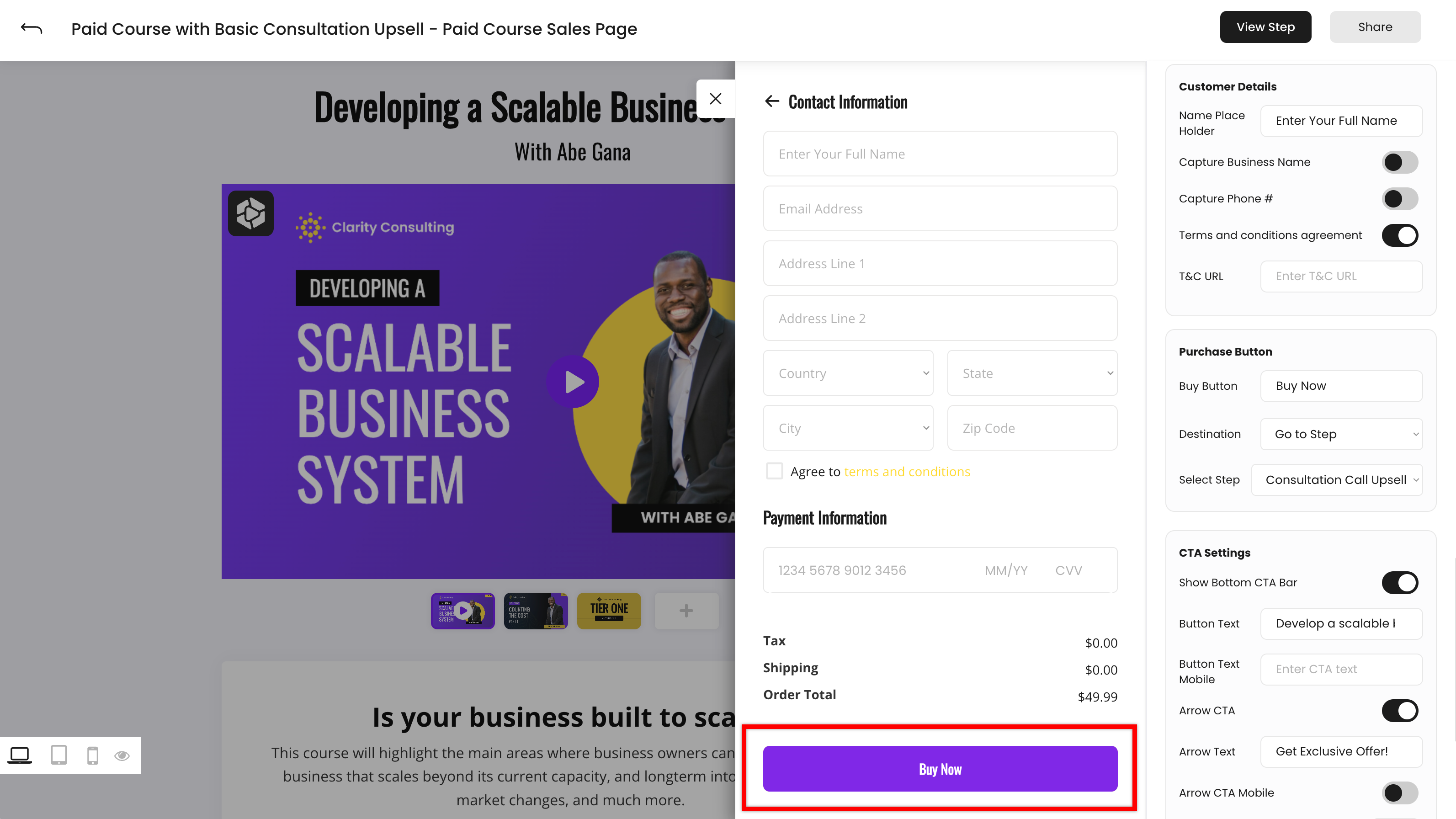
- Buy Button - Enter the text you'd like to display for your buy button
- Destination - Choose where your customers will go after they purchase - No additional destination, link to an external URL, or to another step of your Flow (like an Upsell or Thank You Page)
- Open New Tab - Choose if the Destination URL you have entered should open in a new tab after purchase
- URL - Enter the destination URL where your customer should go after purchase