Every area of work inside VidSell is done within workspaces from Dashboard, to Videos, Flows, Engage, and People. Each workspace has the ability to add one custom domain and one engagement area. You can add multiple workspaces underneath one account (email address).
Account Profile
Your account profile contains basic information about your account including full name, email address, and a password management area where you can change your current password.
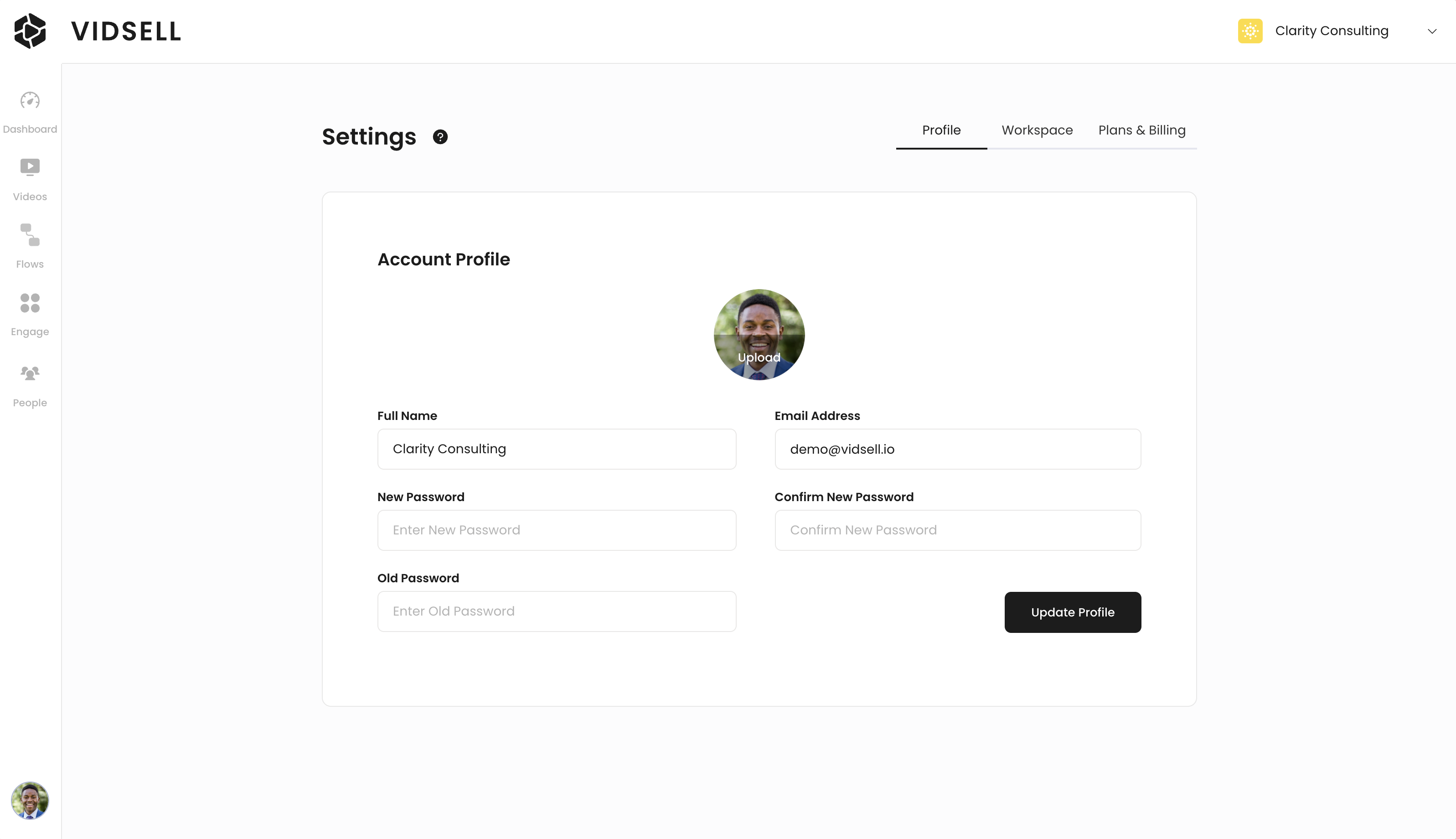
Note: Your account details are separate from your community profile. Your account name and email is only visible to you and other workspace team members in the team area.
Workspace Configuration
There are a number of customizations for your workspace that affect how it appears to you and others working inside.
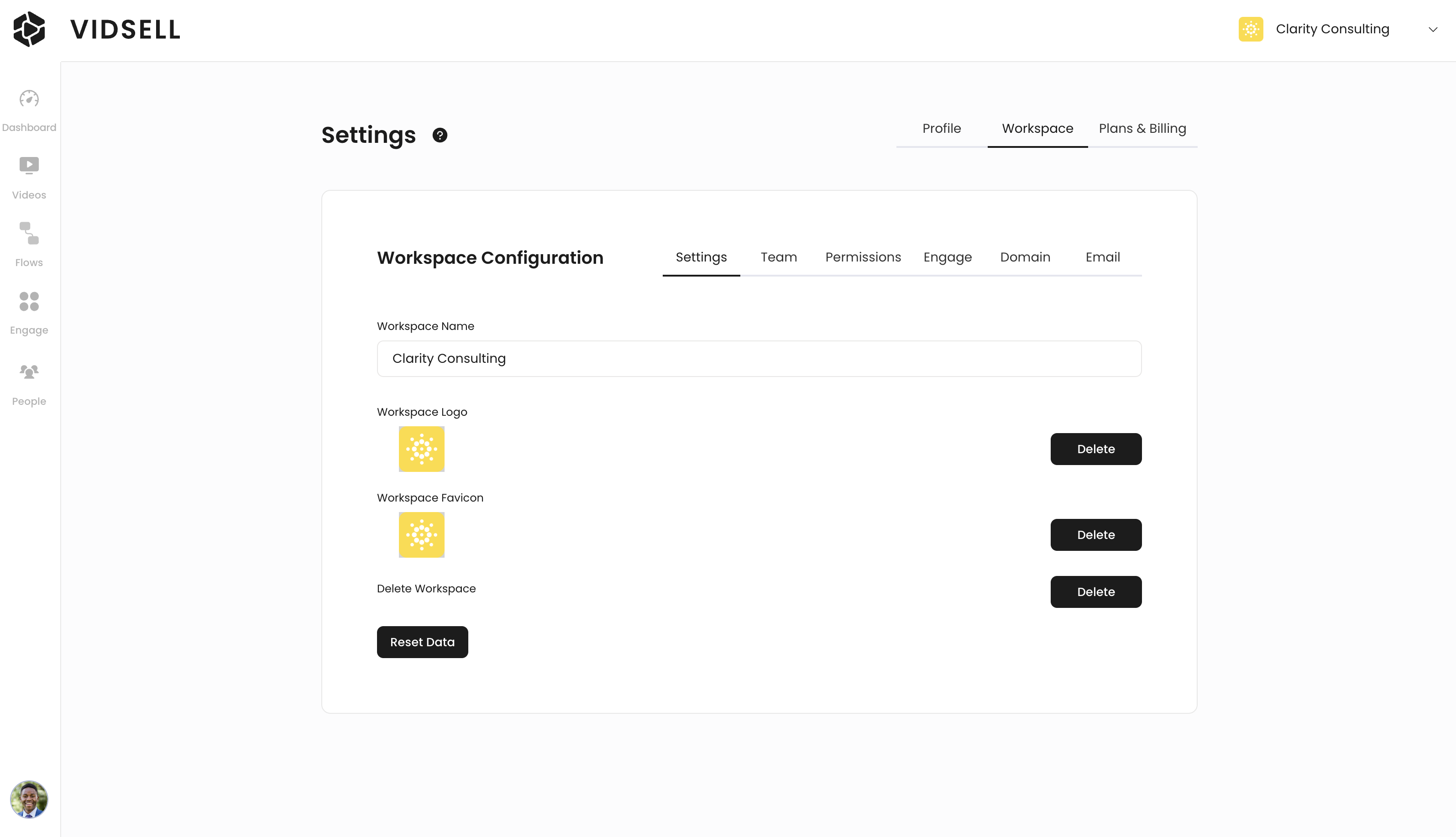
- Workspace Name - Choose a name for your workspace that will display both in browser and inside VidSell.
- Workspace Logo - Choose a logo for your workspace that will display inside VidSell next to your workspace's name.
- Workspace Favicon - Your workspace's favicon will appear next to your workspace name in your browser (square image recommended 256px x 256px).
- Delete Workspace - You can choose to delete your workspace and all data associated with it. This option will ask you to confirm your decision before proceeding.
- Reset Data - This option will reset all workspace data to 0 (video views, sales information, people, etc.)
Team
You can invite team members to work alongside you in your workspace, and assign custom permissions and roles to each member. The number of team members you can add is determined by your plan details.
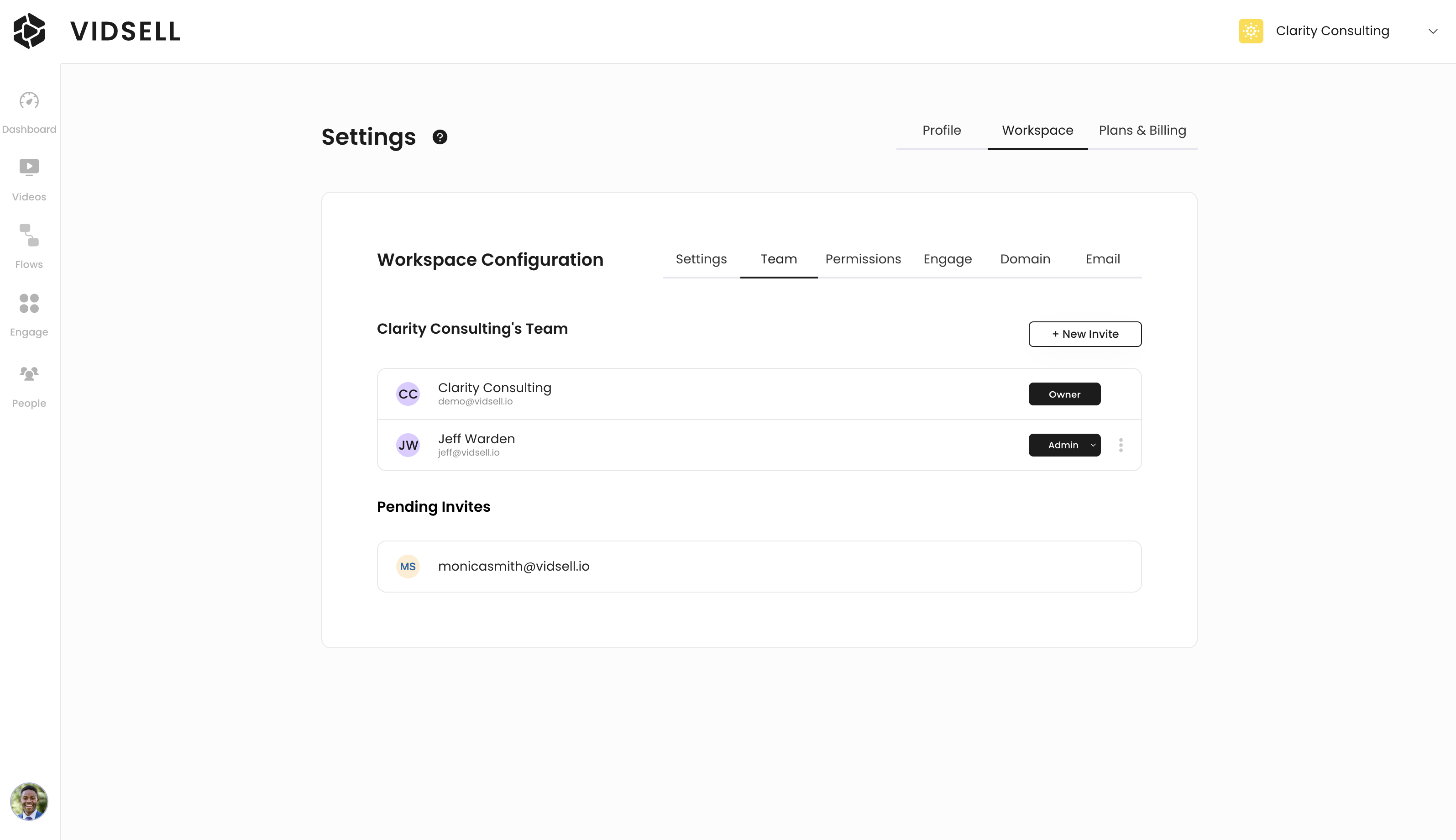
Add New Team Members
To add new team members click the "+ New Invite" button. From there enter the email address for the person you'd like to invite into the New Member field and choose their role as either Editor or Admin and click "Invite".
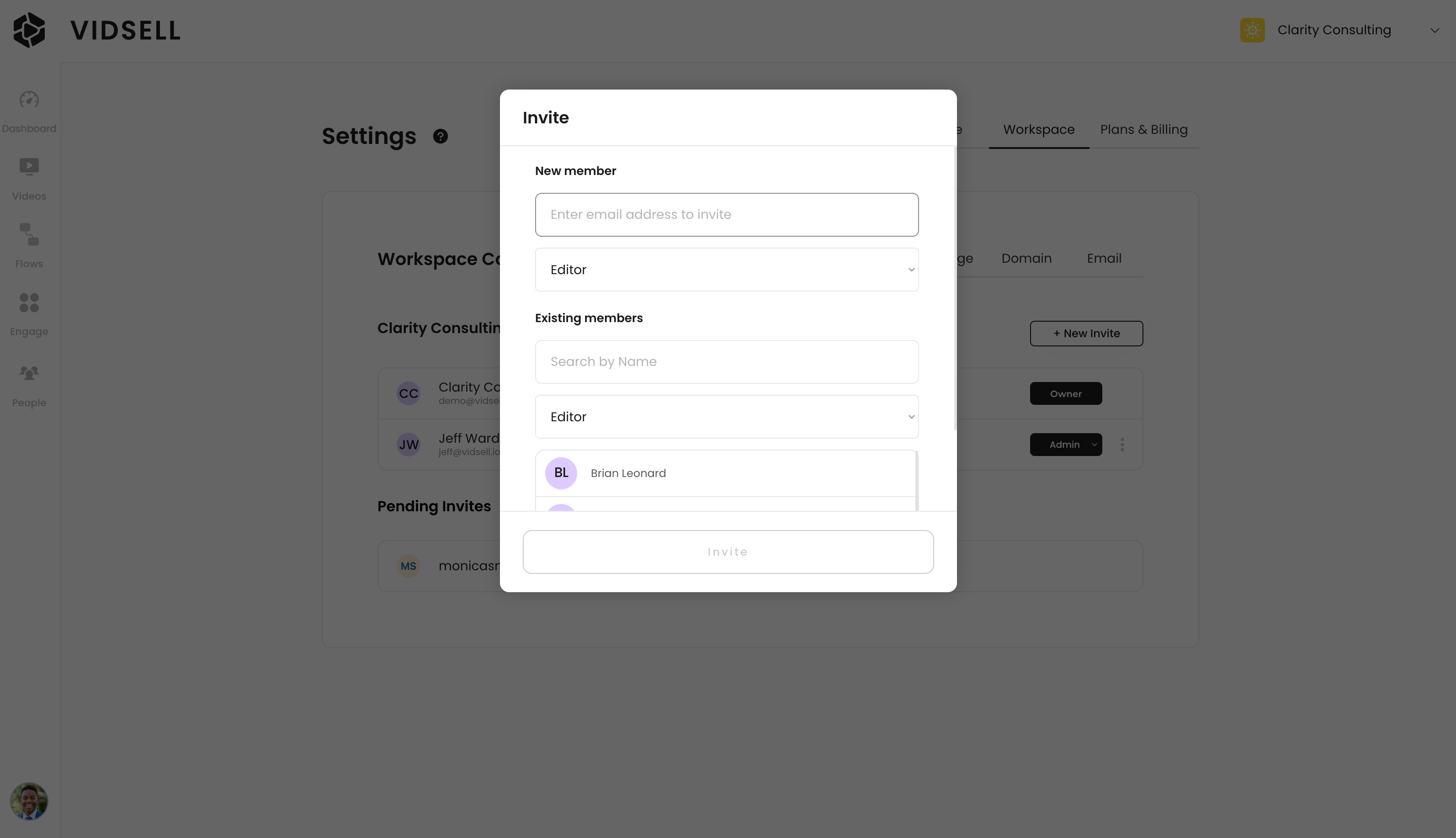
Add Existing Team Members
If you have previously added a team member to another workspace, you can easily add them to a new workspace by searching their name or email address, and choosing them from the list of available people underneath Existing members.
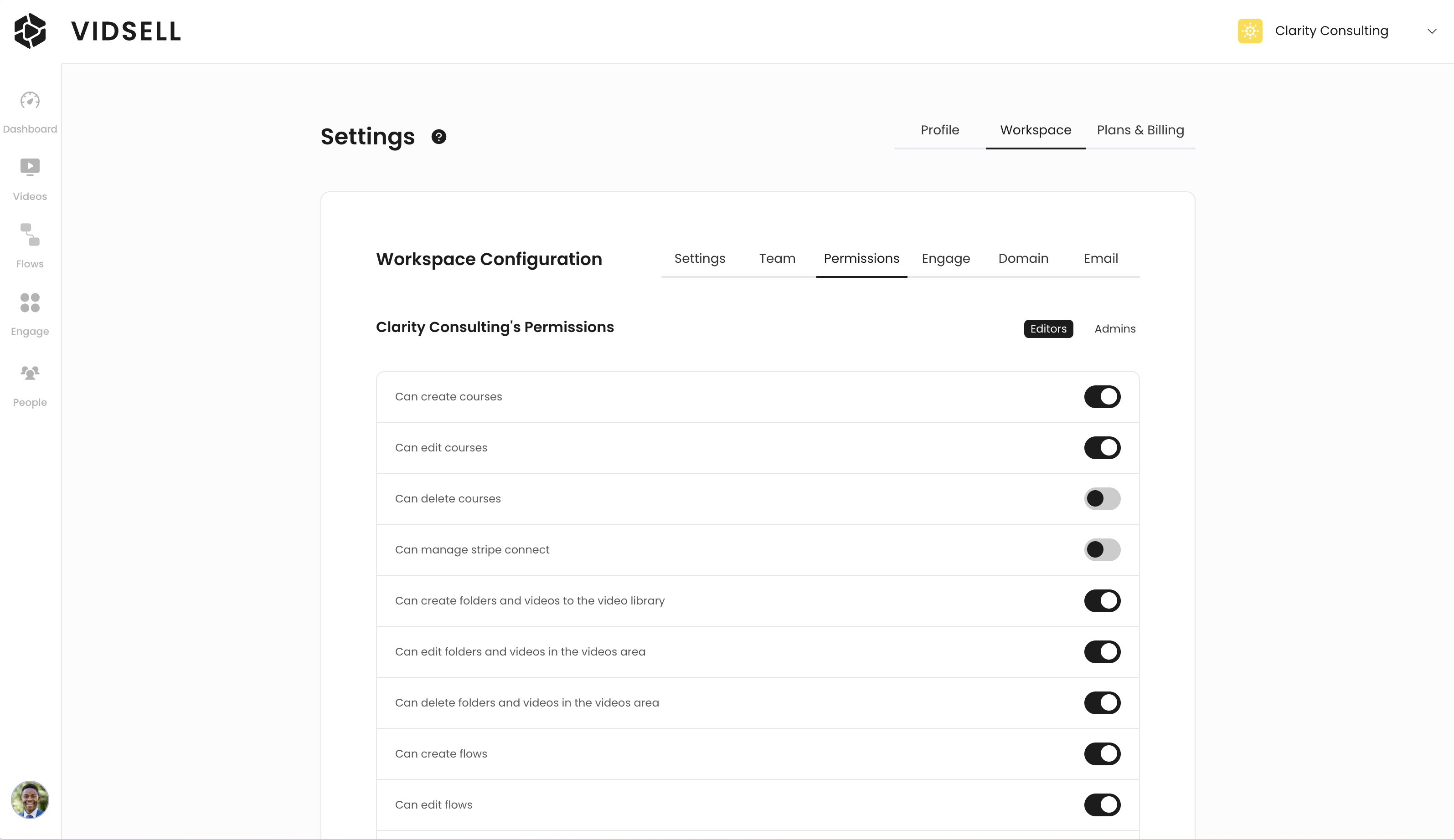
Permissions
Every team member you add will be assigned a role either as an Editor or an Admin within your workspace. Permissions for both of these roles can be customized with options that cover Videos, Flows, Engage, and People.
Plans & Billing
Your Plans & Billing area is where you can view, manage, and update your VidSell plan.
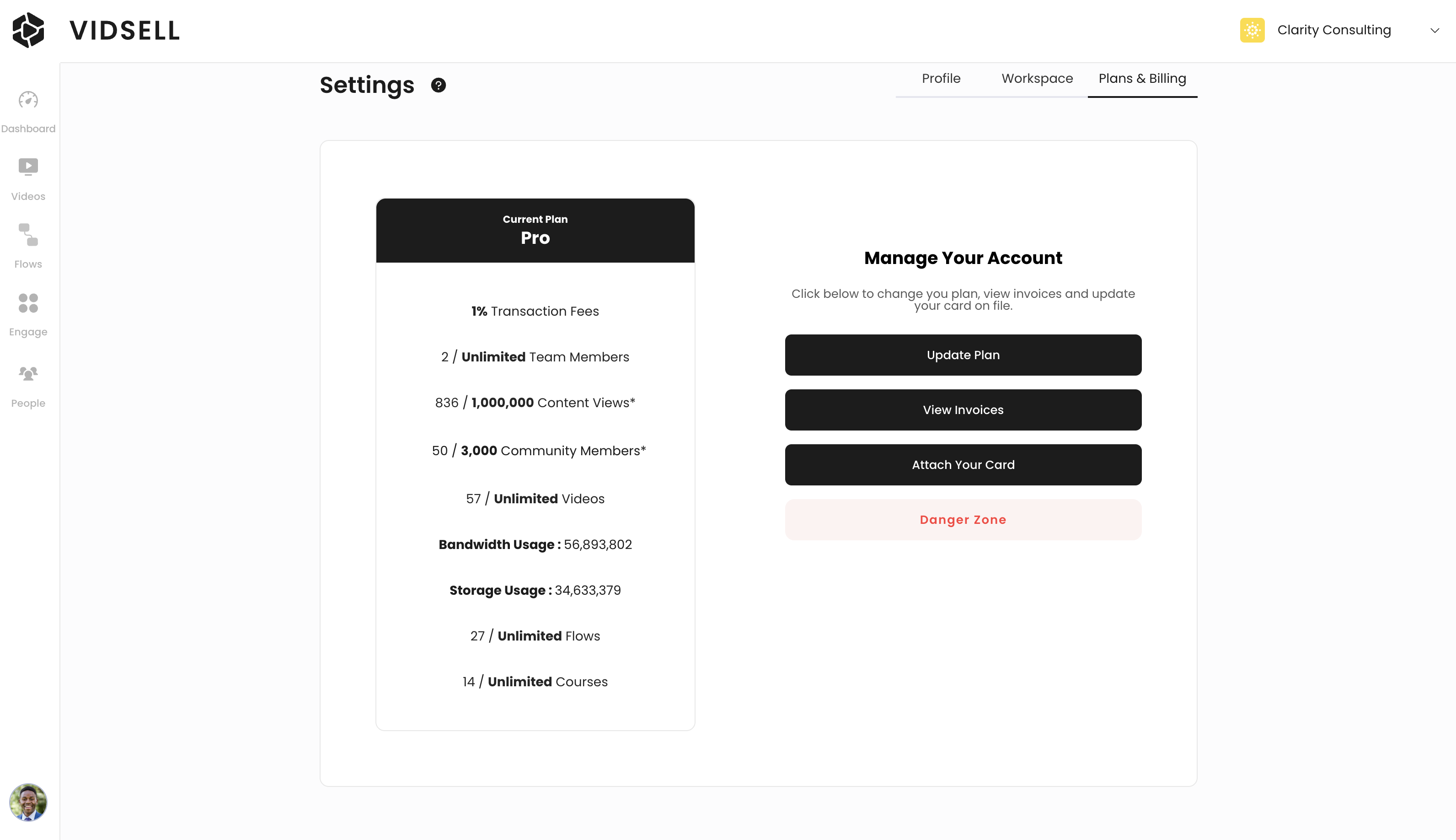
Current Plan
Your current plan shows your current usage and plan details including:
- Transaction Fees - Displays your current transaction fee rate for sales made within your account.
- Team Members - Displays how many team members are invited to your workspace (exclusive from community members).
- Content Views* - Displays how many times your Videos and Flows have been viewed (loaded).
- Community Members* - Displays how many members have been added to your Engage area/online community.
- Videos - Displays how many videos have been added in the Videos Area (all video types: YouTube, Vimeo, Direct URL, and VidSell Hosted)
- Bandwidth Usage - Displays your current bandwidth usage for the VidSell Video Hosting Add On (What units? Bytes?)
- Storage Usage - Displays your current storage usage for the VidSell Video Hosting Add On
- Flows - Displays how many Flows you have created within your workspace
- Courses - Displays how many courses you have created within your workspace
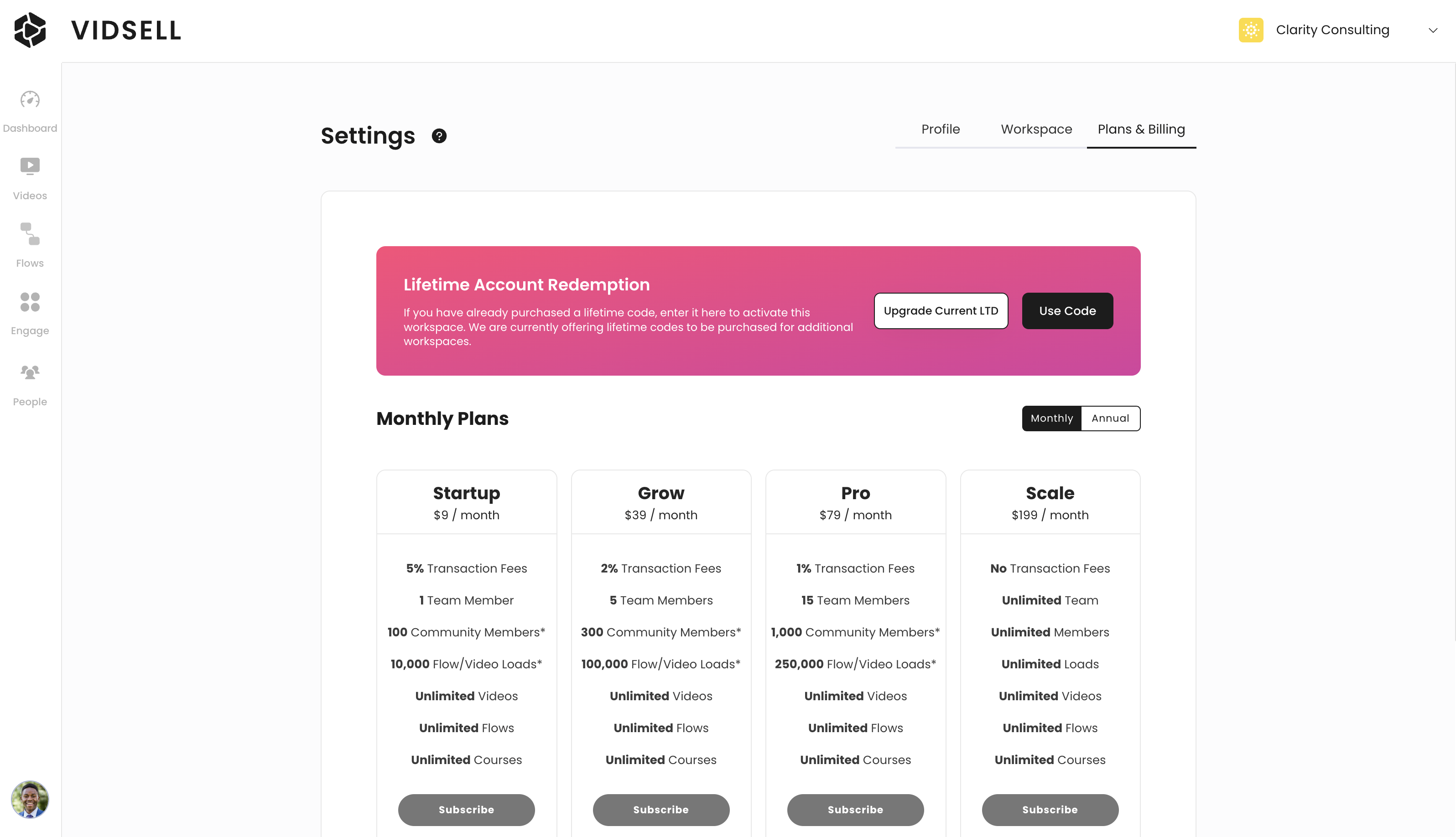
Update Plan
Updating your plan allows you to change from one plan to another, either upgrading or downgrading based upon your current plan. Here is also where you can redeem additional codes for lifetime workspaces while available.
View Invoices
Invoices will appear here for any plans that have reoccurring billing like the VidSell Hosting Add On, usage overages charges, or monthly/annual subscriptions.
Attach Your Card
Add multiple credit cards to your account for account-related charges and payments.
Delete Account
This option will delete your entire account, including all workspaces, content, and data associated with your account. Please contact our team to confirm this option.