Flow automations allow you to perform in-depth workflows within and outside of VidSell like selling course and community access in VidSell Engage, or communicating with 3rd party platforms.
Step Types
Automations including Tags and Webhooks can be utilized on CTA types that include form submissions or purchases include the
Step Types:
- Opt-In (Collect email addresses)
- Purchase (Sell a product)
- Upsell (Sell additional products)
Webhooks
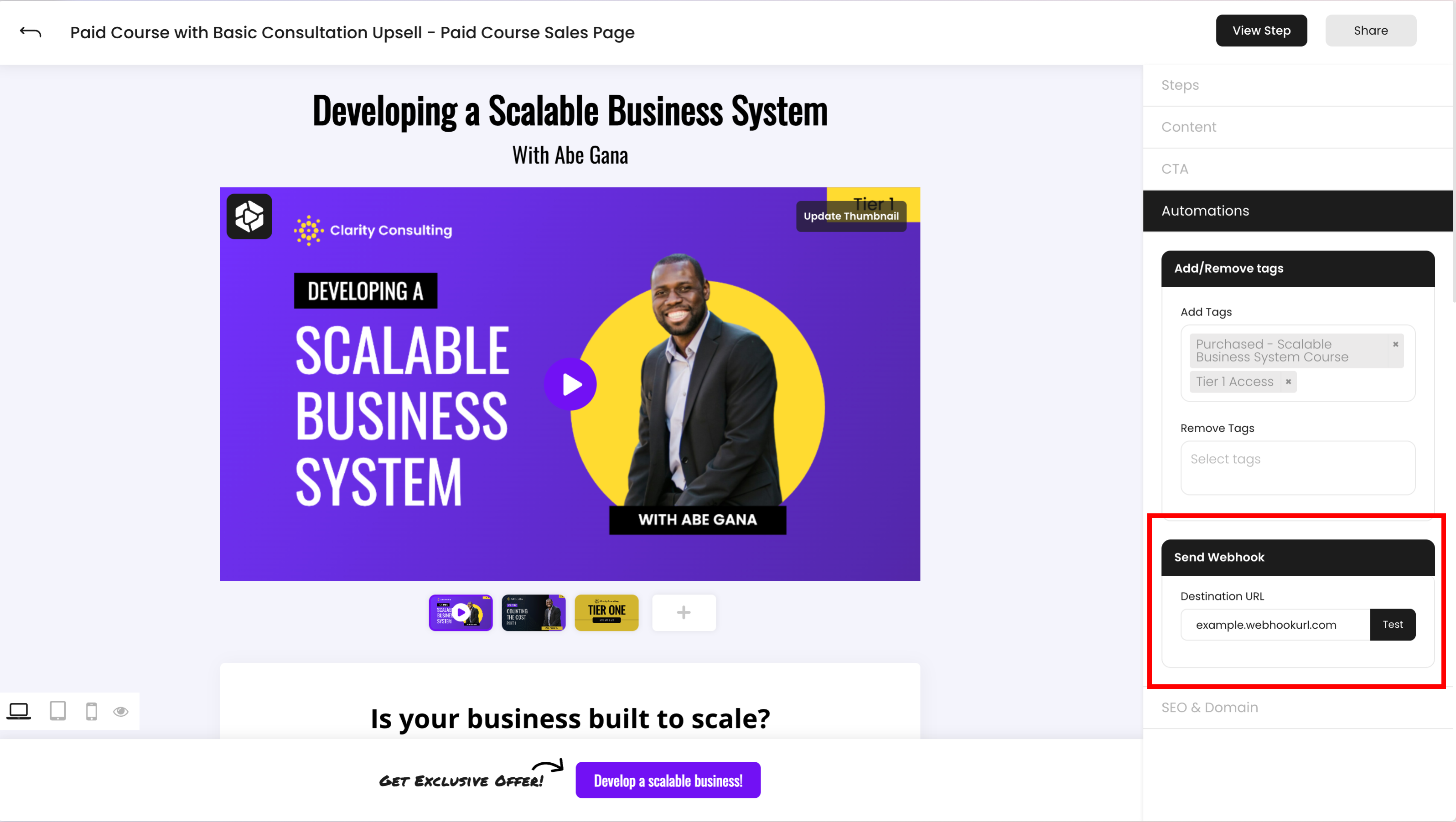
Send Webhooks
Send your lead data from email capture forms to 3rd party platforms like autoresponders, CRM's, or other automation platforms using contextual webhooks. Simply enter in the destination URL for where you would like your information to go, and VidSell will automatically send the data in a webhook to your specified platform.
Test Webhooks
It is recommended to test your webhook workflow before sending real traffic through your email capture forms. Use the "Test" button next to your Webhook Destination URL field and if your webhook is set up properly you will see a success message in the top right of your screen.
If additional setup is needed, an error message will occur with some next steps.
Tags
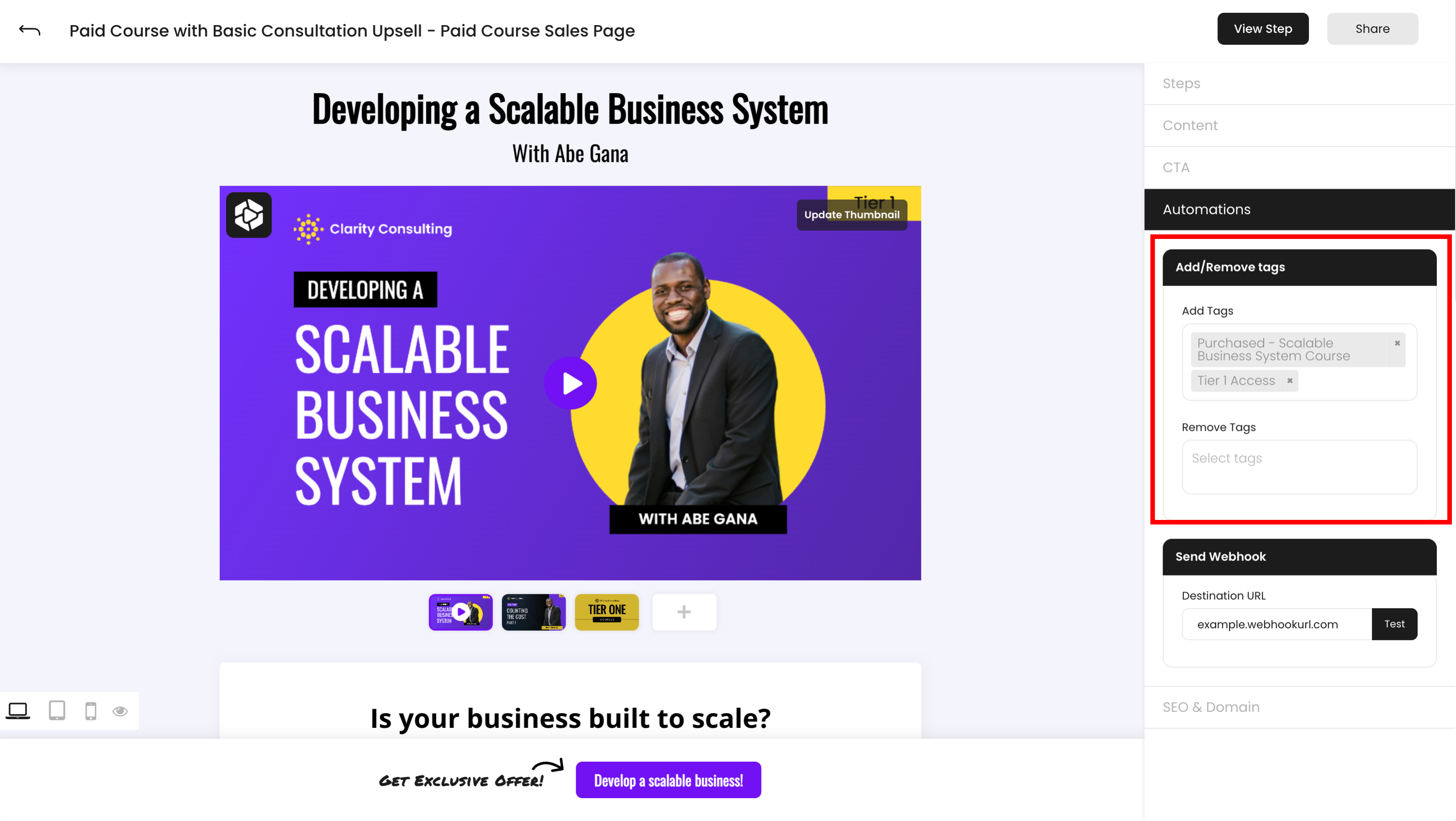
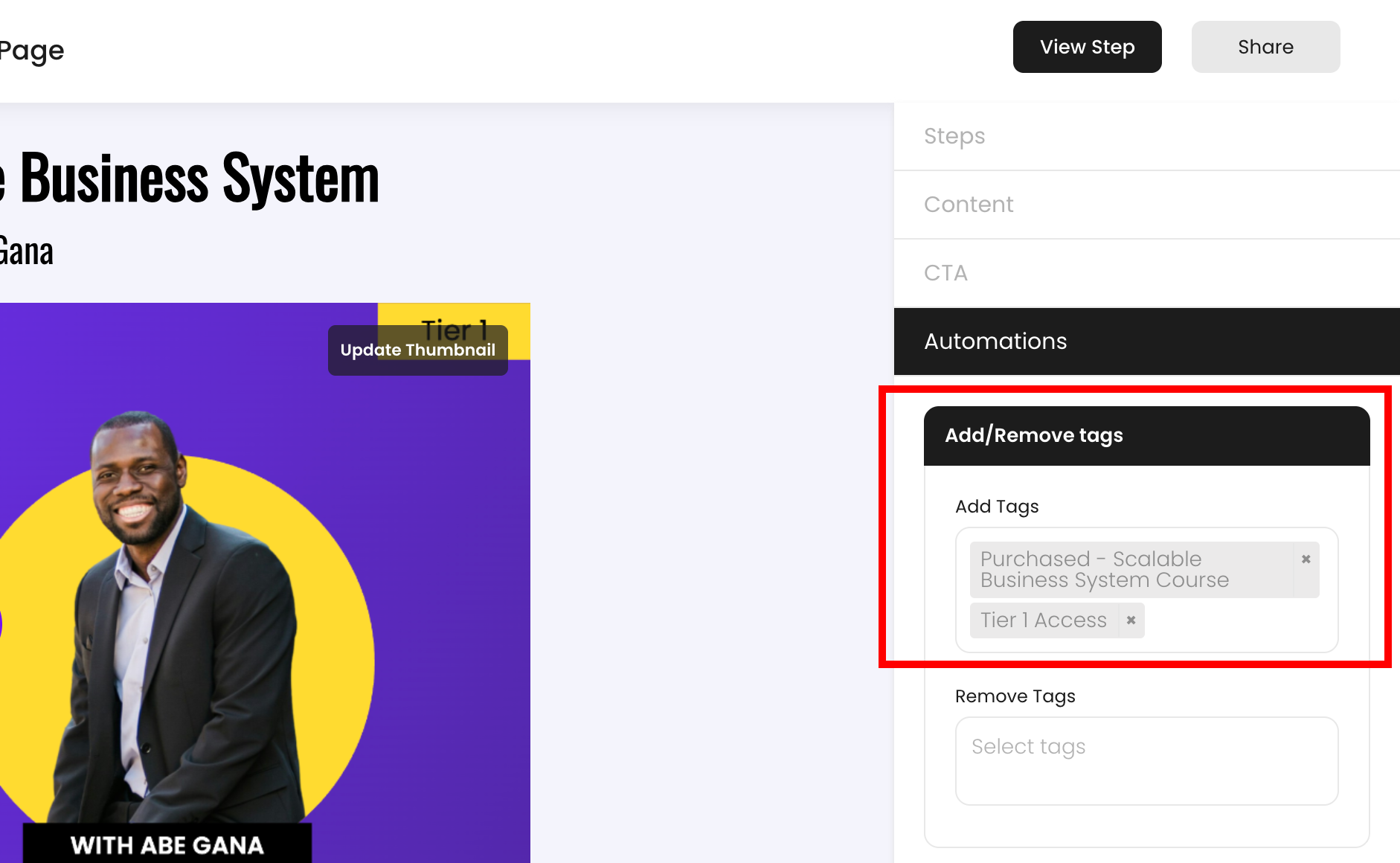
Add and Remove Tags
New tags in VidSell can be added by typing the name of the tag you would like to create and pressing the "Add" button.
When someone performs the main CTA action on your pages (opt-ins, purchases, or upsells), the tags you set up will automatically either be added or removed from that person inside of VidSell People.
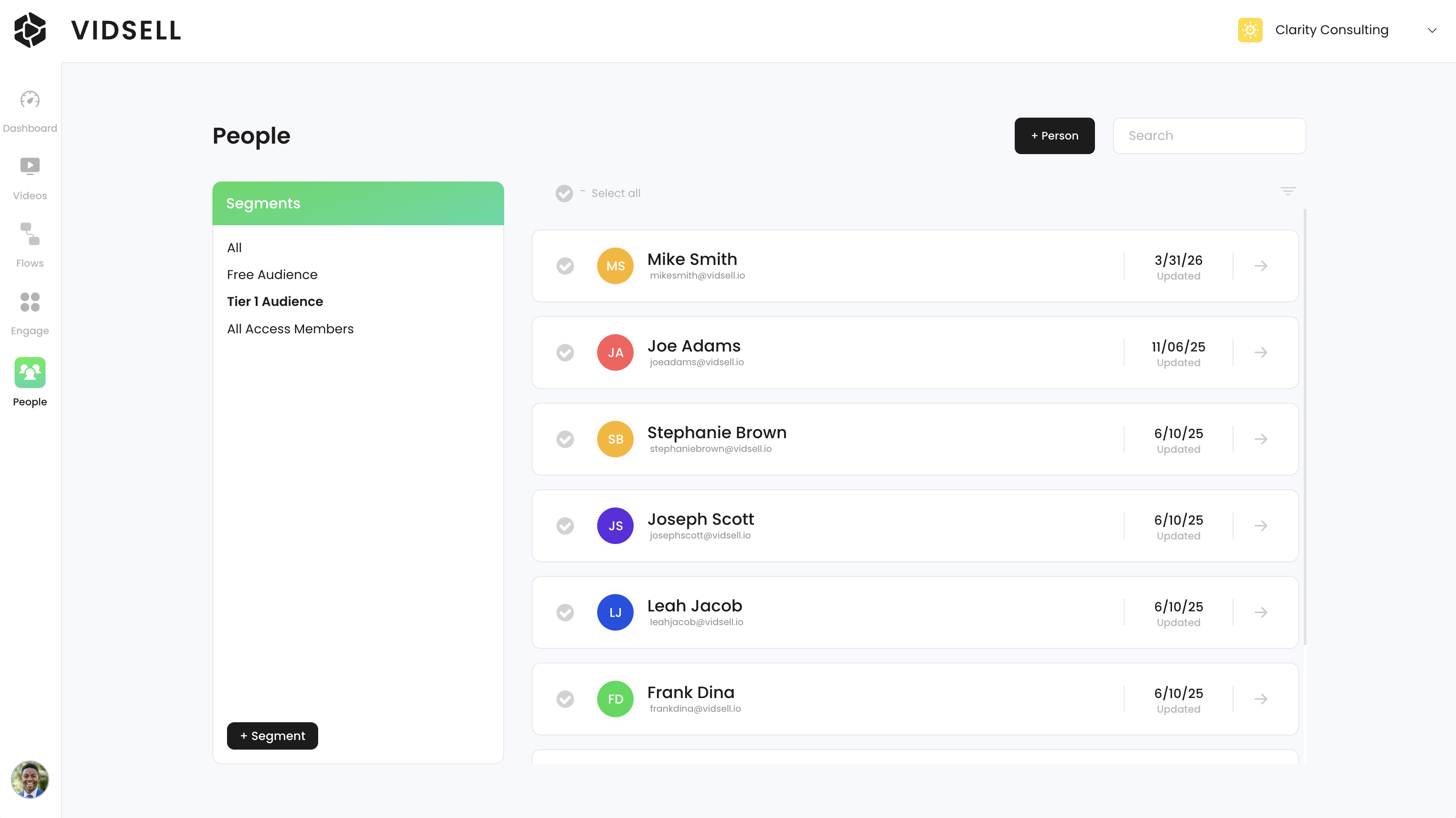
Audience Segmentation
Once tags are added to people, you can then segment them into different audiences in the People Area. You can also manually add or remove tags here as well. For more information on this, see our help article on
VidSell People.
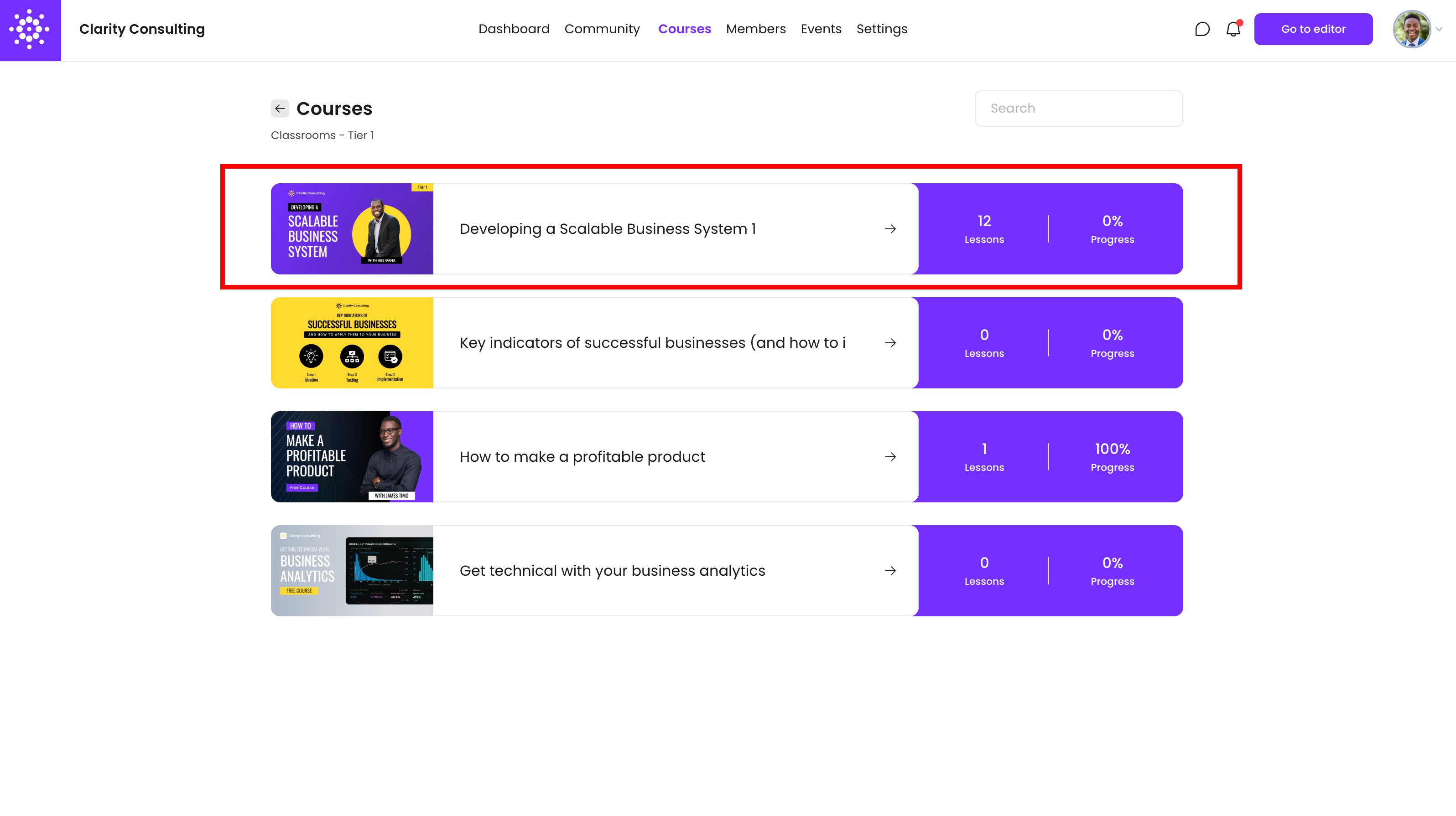
Unlock Course Access with Tags
One of the biggest uses of tagging in VidSell is the ability to automatically give access to content and subscriptions within VidSell Engage, though tags added within Flows.
Unlocking VidSell course access with tags is easy to do with few simple setup steps:
Step 1: Add the access tag you'd like to set to unlock your course purchase. An example tag is "My Course Name - Purchased".
Step 2: In your Engage Area, click the settings icon for course you'd like to unlock and turn on the toggle that says "Show to users who have specific tags only"
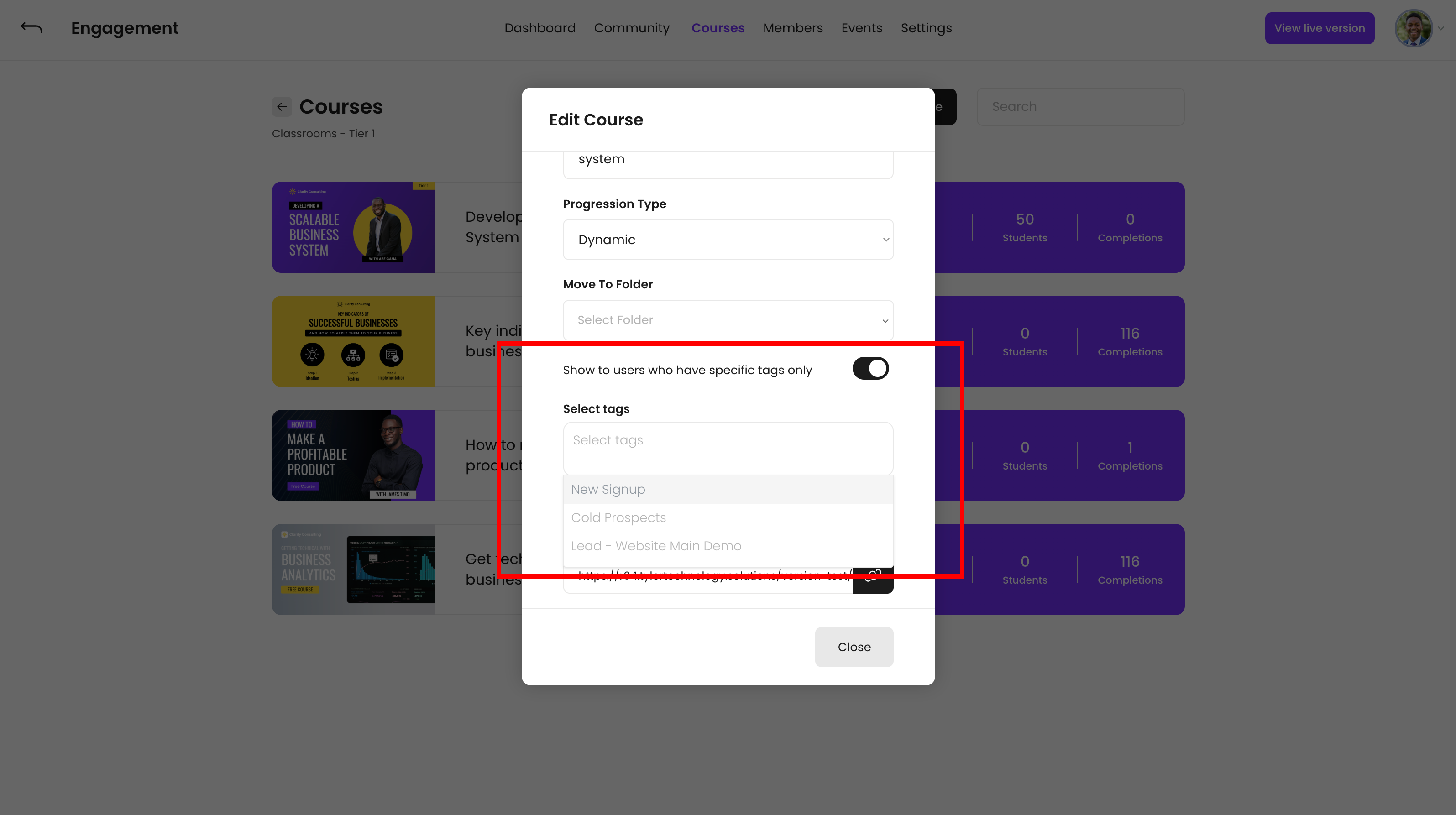
Step 3: Add the same "My Course Name - Purchased" tag from your Flow.
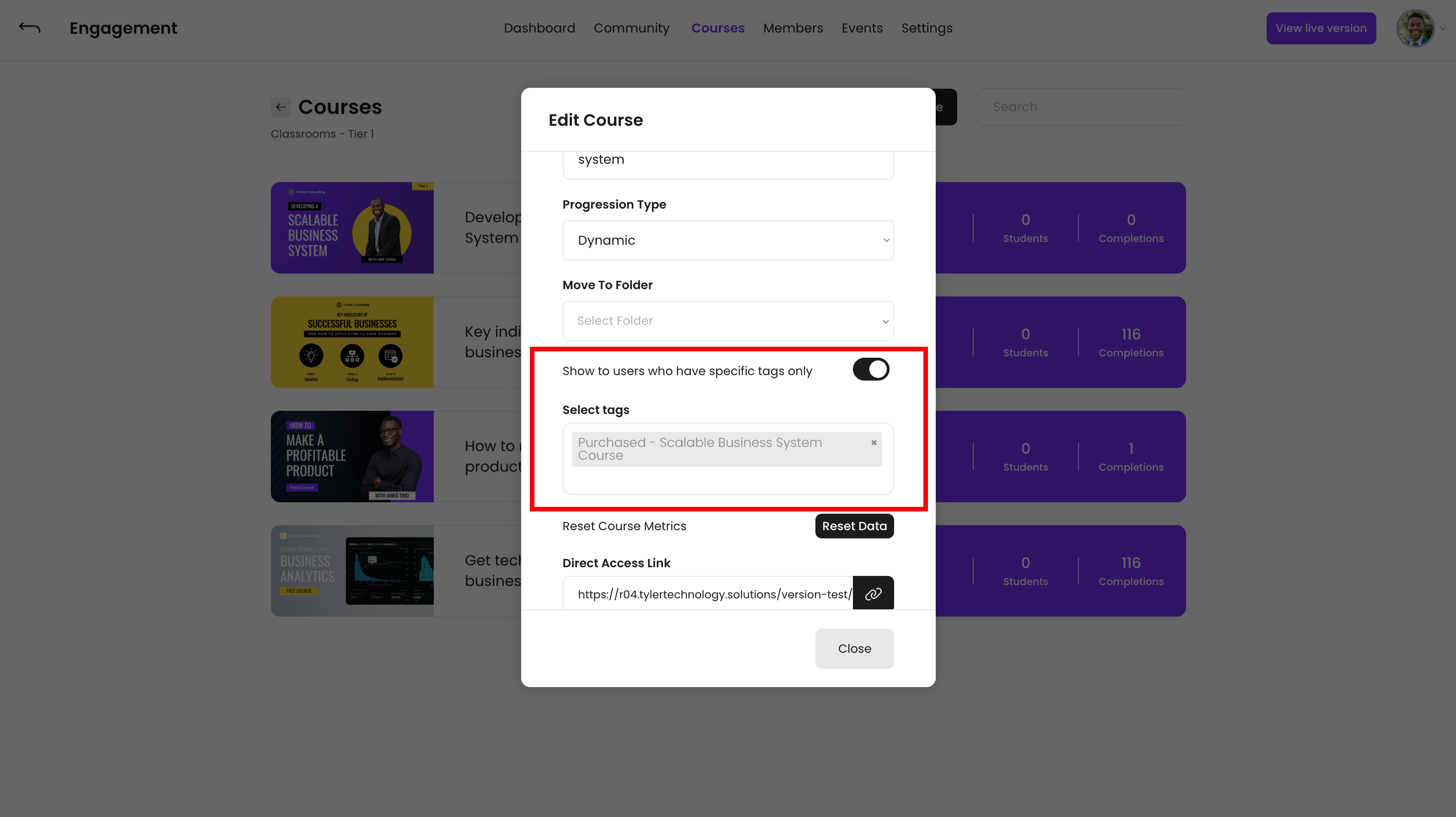
Step 4: Now when your customer purchases this flow, they will automatically have access to it inside of your Engage area once they log in.
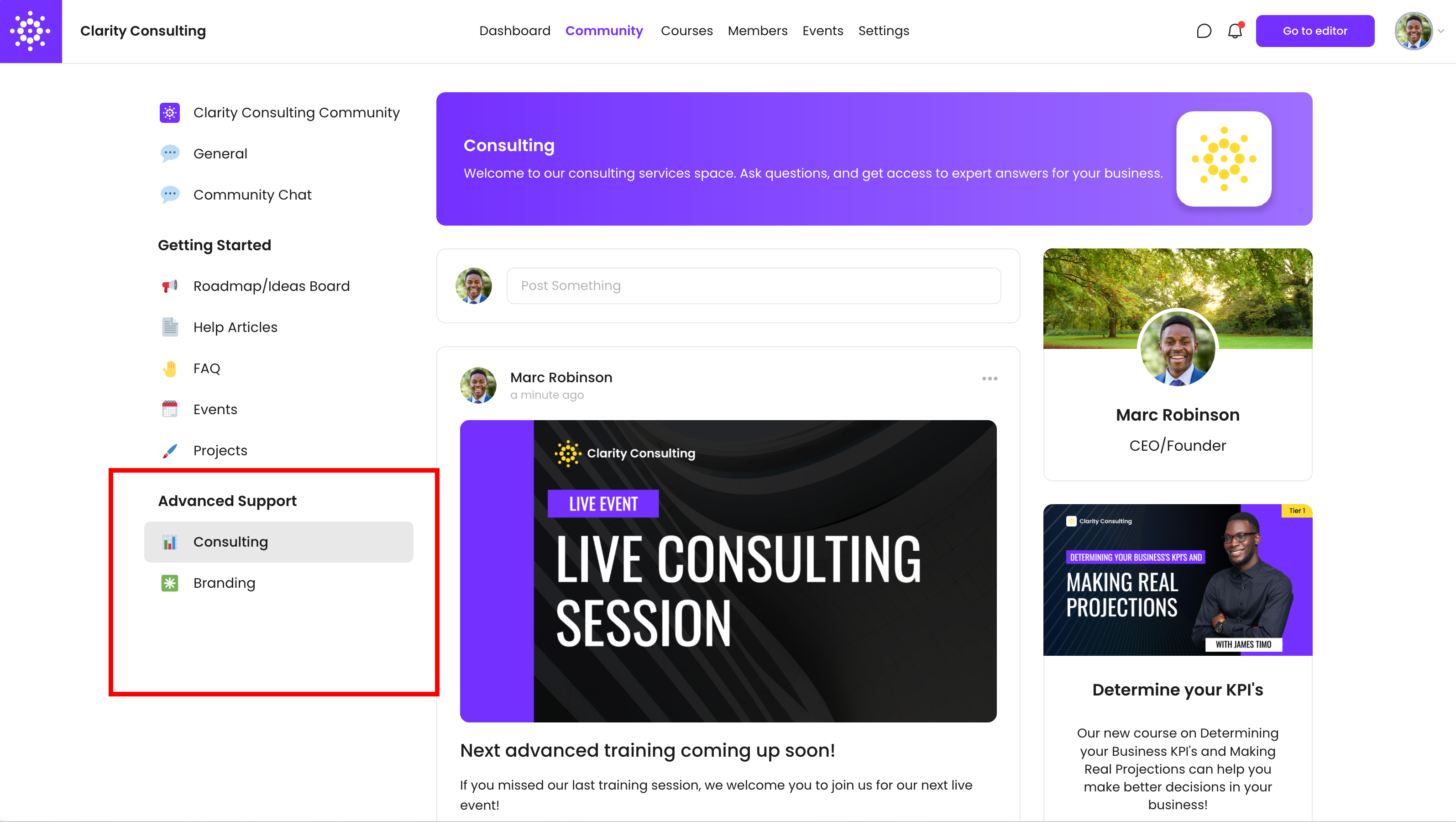
Unlock Community Access with Tags
To unlock access to specific spaces within your community, repeat the process outlined above for courses, except use a tag that will designate which community space you'd like to sell access to.
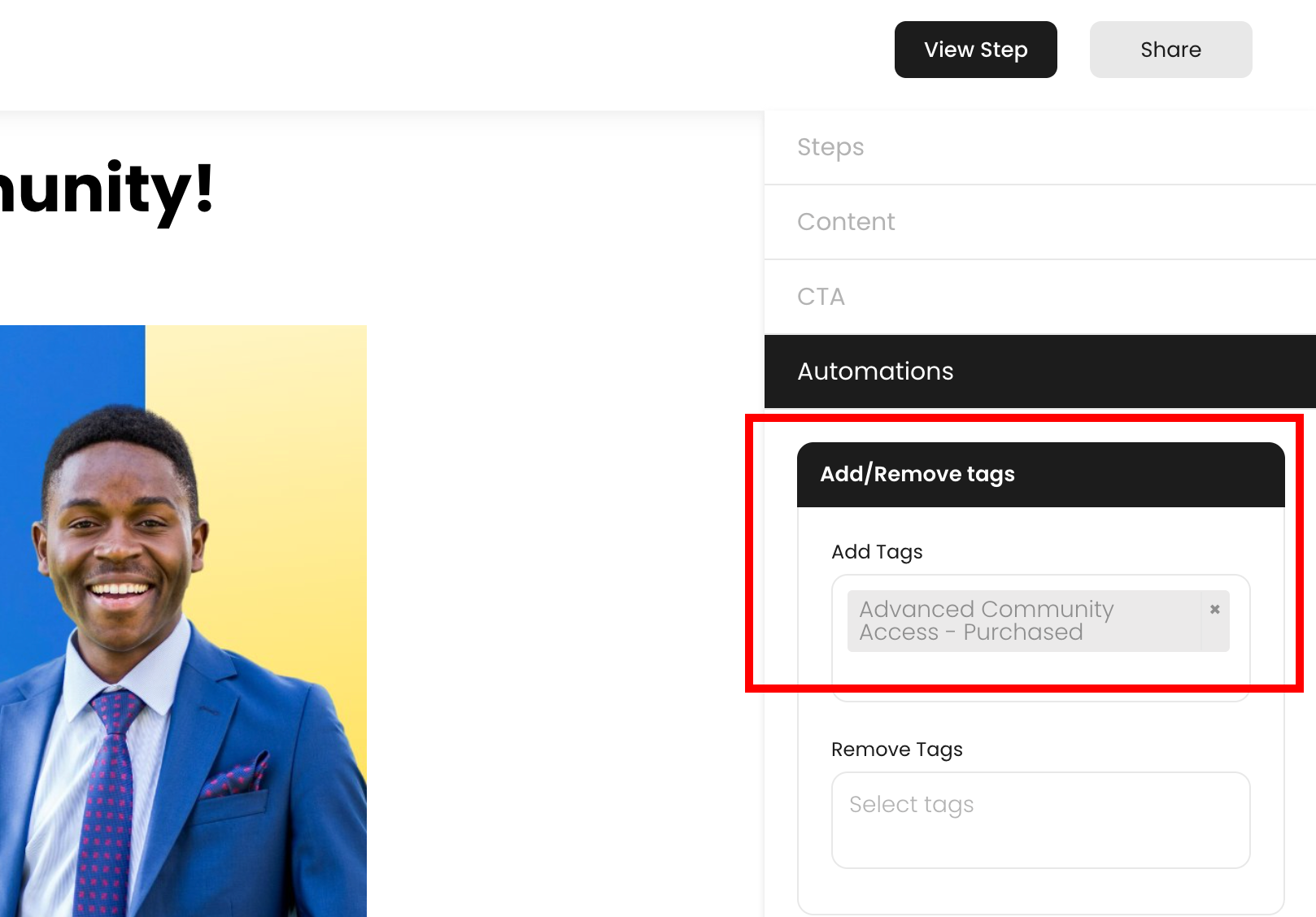
Step 1: Add the access tag you'd like to set to unlock your community purchase. An example tag is "Advanced Community Access - Purchased".
Step 2: In your Engage Community Area, click the edit icon (the pencil) for the community space you'd like to unlock and turn on the toggle that says "Show to users who have specific tags only"
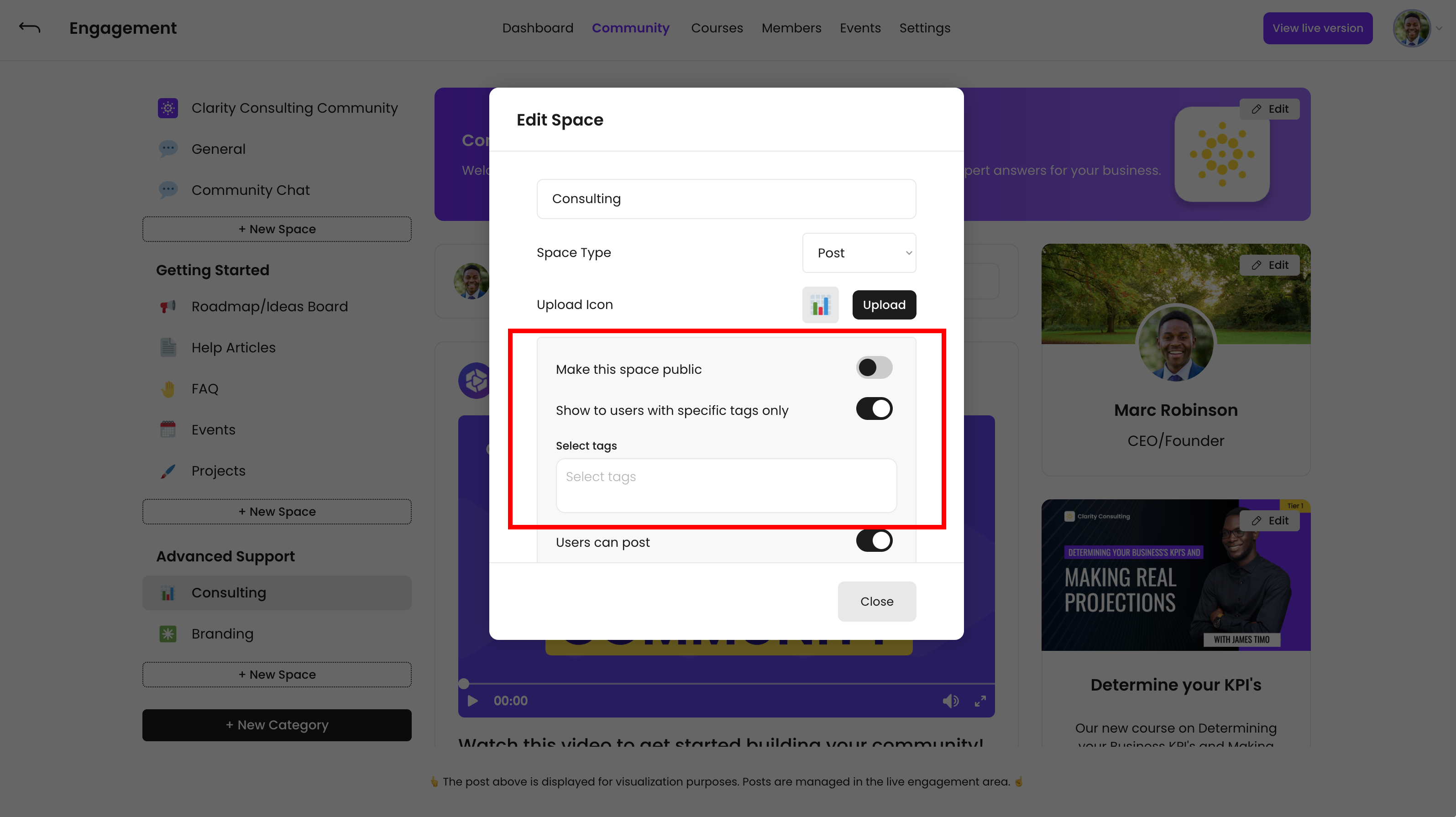
Step 3: Add the same "Advanced Community Access - Purchased" tag from your Flow.
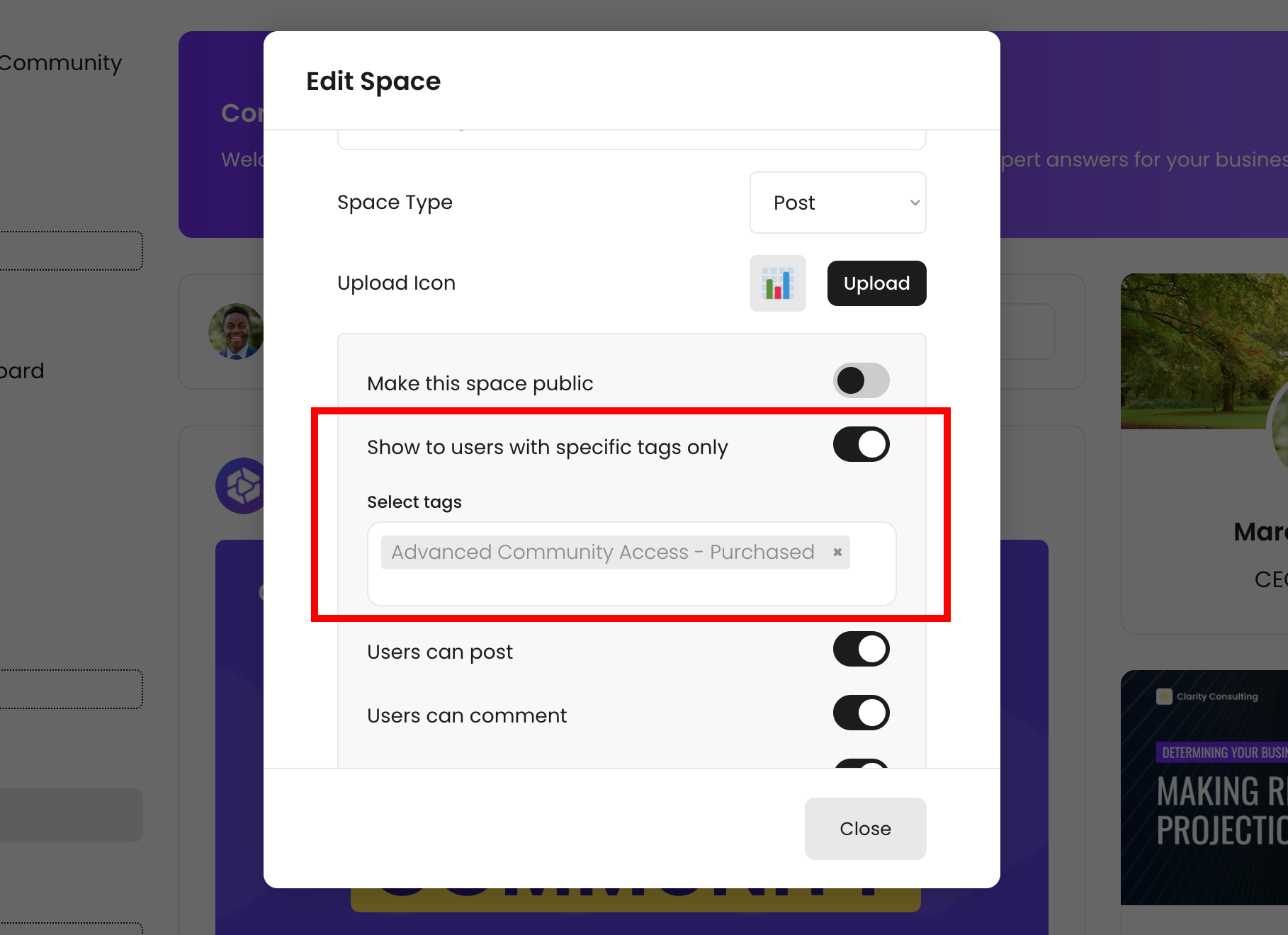
Step 4: Now when your customer purchases from this flow, they will automatically have access to the space you have tagged inside of your Engage area once they log in.