VidSell Flows are SEO optimized, multi-step sequences that can have multiple CTA's, different CTA types for different goals, and more to help you convert and sell with video. Here is what to expect when building out your flow steps:
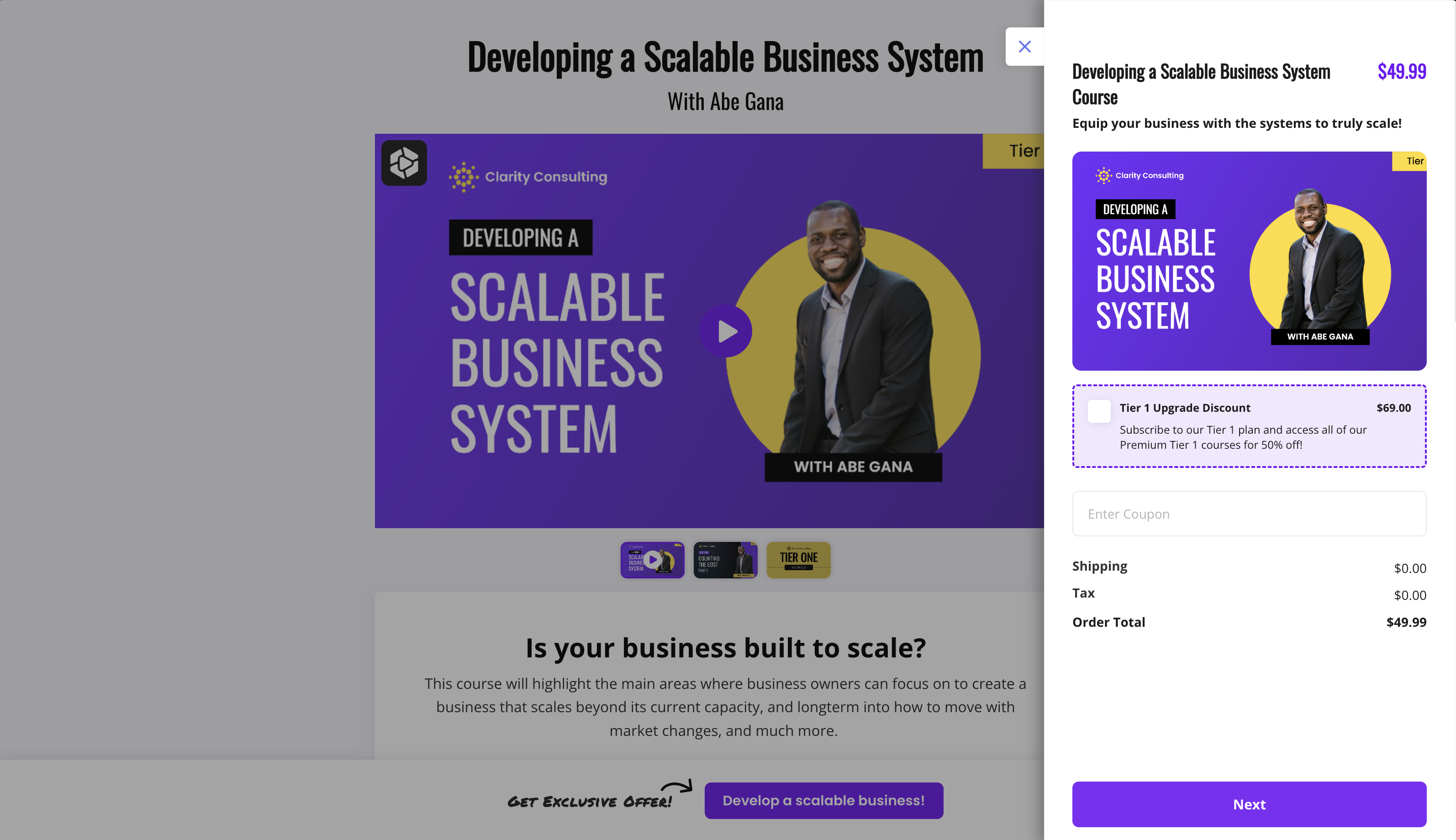
Adding Steps
Adding steps to your Flow is simple. If you're using a Flow Template, existing steps already loaded in your Flow appear in the "Steps" area on the right side menu of the Flow Editor.
From here you can also click the "New Step" button to add a new step to your flow.
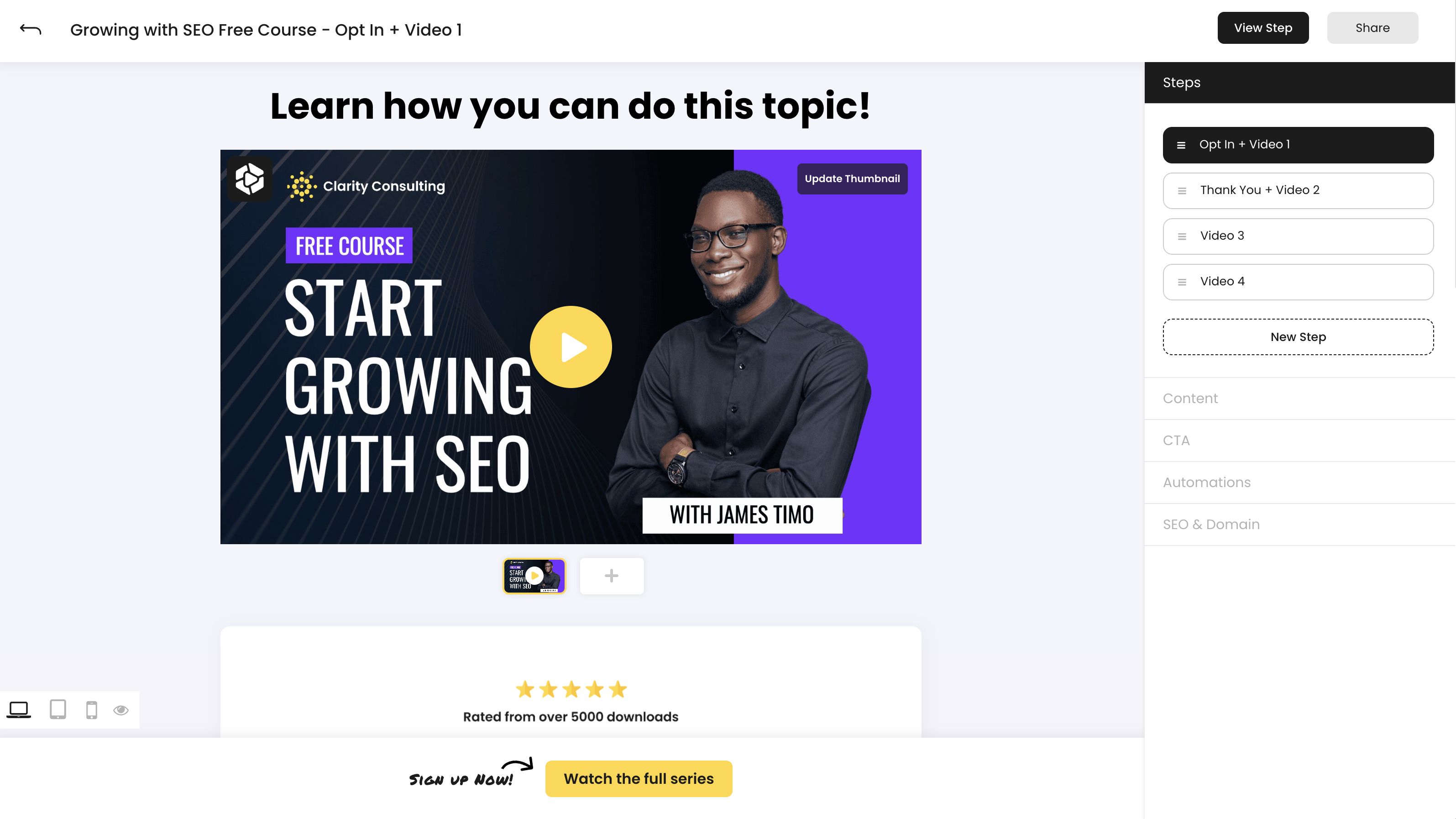
Step Types
There are 6 available step types based upon you can choose from to add to your Flows, based upon available types of CTA's for each step.
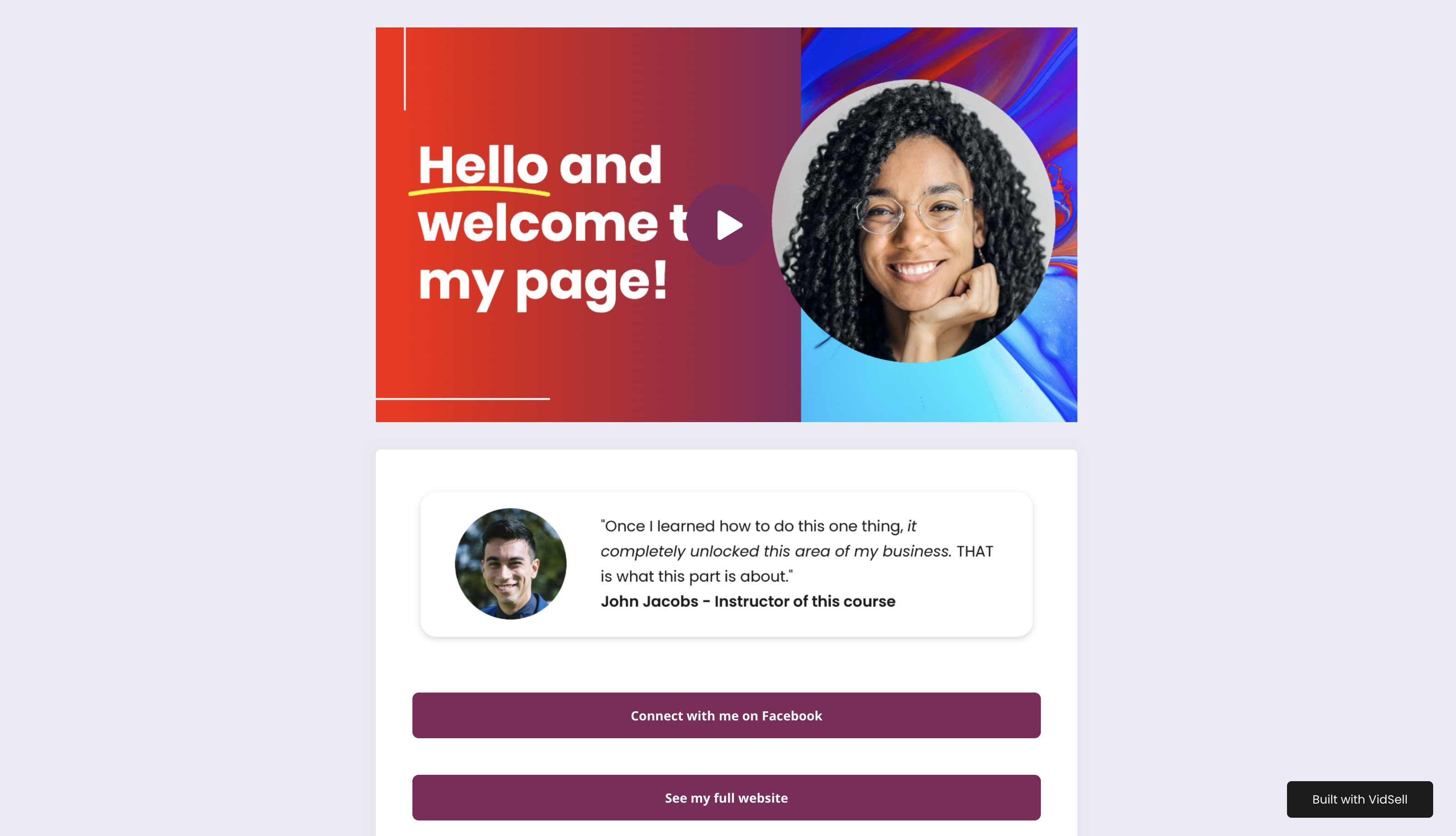
No Call To Action (None Step Type)
Adding a step with no CTA allows you to share information with your audience that does not require immediate action, or share links without using the default CTA bar at the bottom of your page, and much more. A common example of a Flow with no CTA is a Link-In-Bio Flow where no primary CTA is needed, besides the on-page linking options.
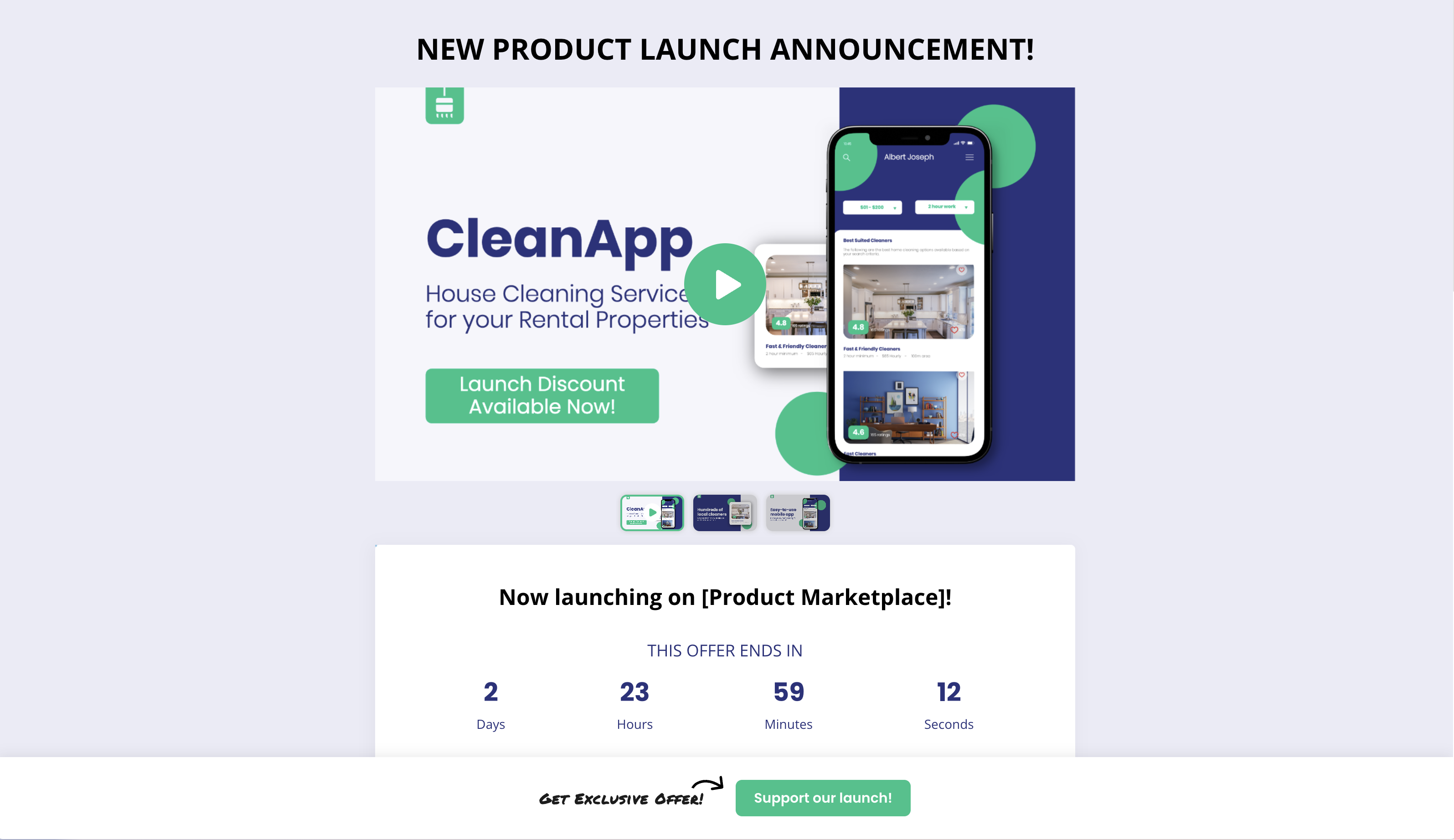
Share a Link (Link Step Type)
The link step type allows you to link your audience to other sites, and can be useful for things like product launch announcements, webinar announcements, or other similar events where a link is the main CTA.
Gather Leads (Opt-In Step Type)
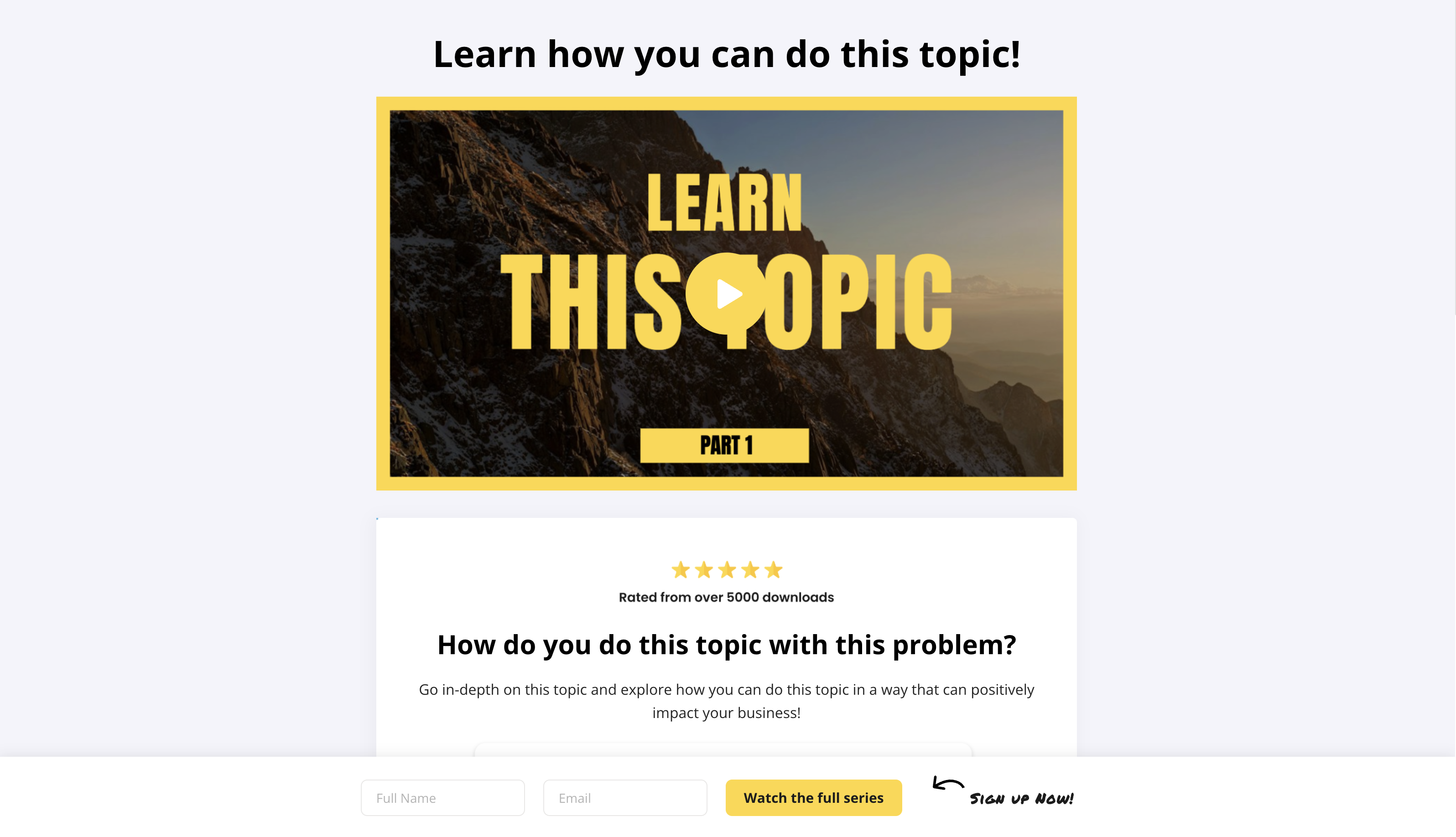
Opt-in steps allow you to create valuable offers and gather leads through your Flows. Examples of opt-in steps may include things like Newsletter signups, free course signups, digital download opt-in's and more.
Sell Products (Purchase Step Type)
The purchase step type in VidSell provides you with an expansive online cart solution while making it simple to sell your products online. Common examples of purchase flows include physical product sales (micro e-commerce) like product highlights, digital products like online courses, and online community subscription sales - both of which can be created directly within VidSell's Engage area.
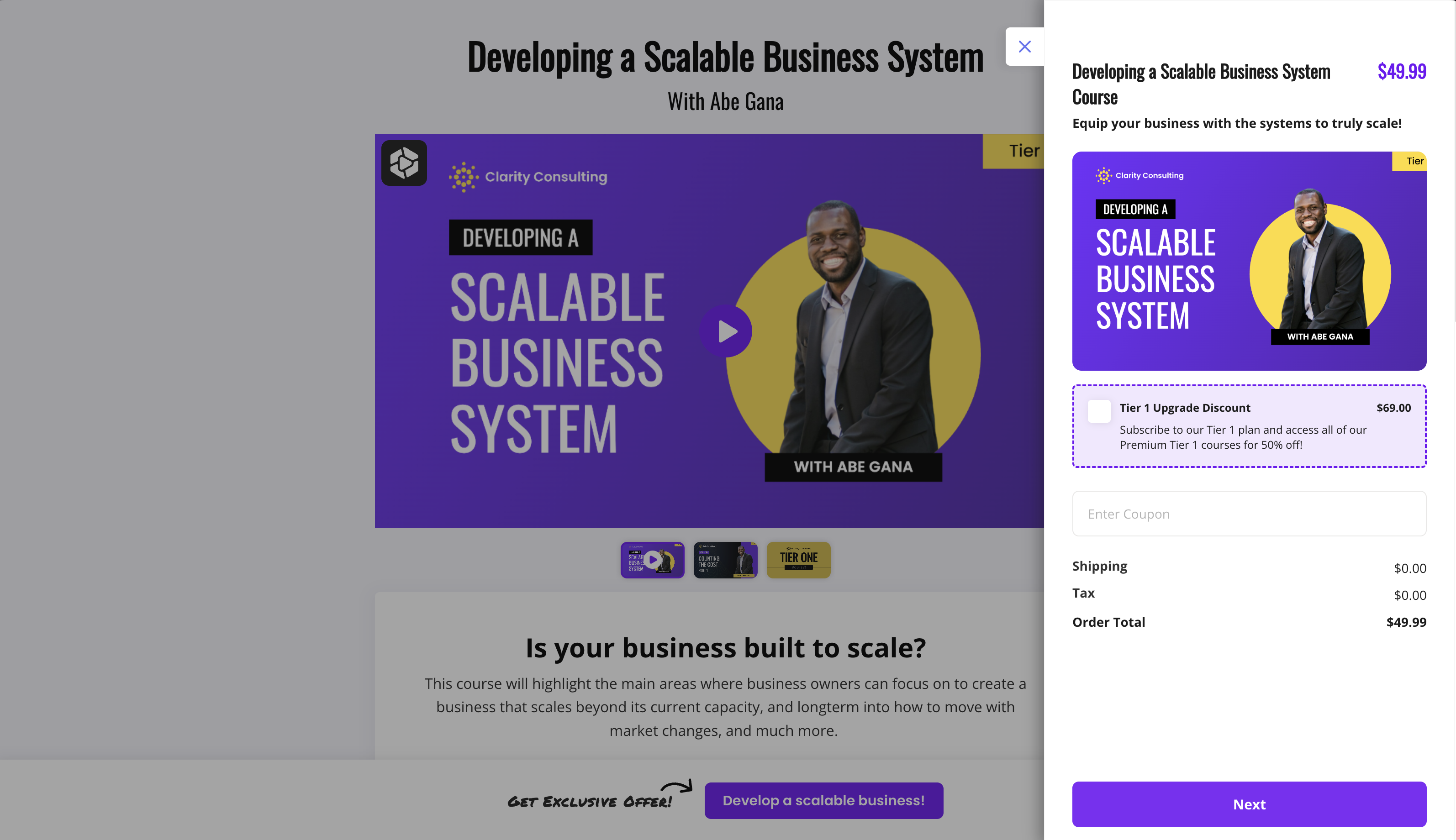
For more information on how to sell with VidSell, see our help article Purchase Flows.
Upsell Customers (Upsell Step Type)
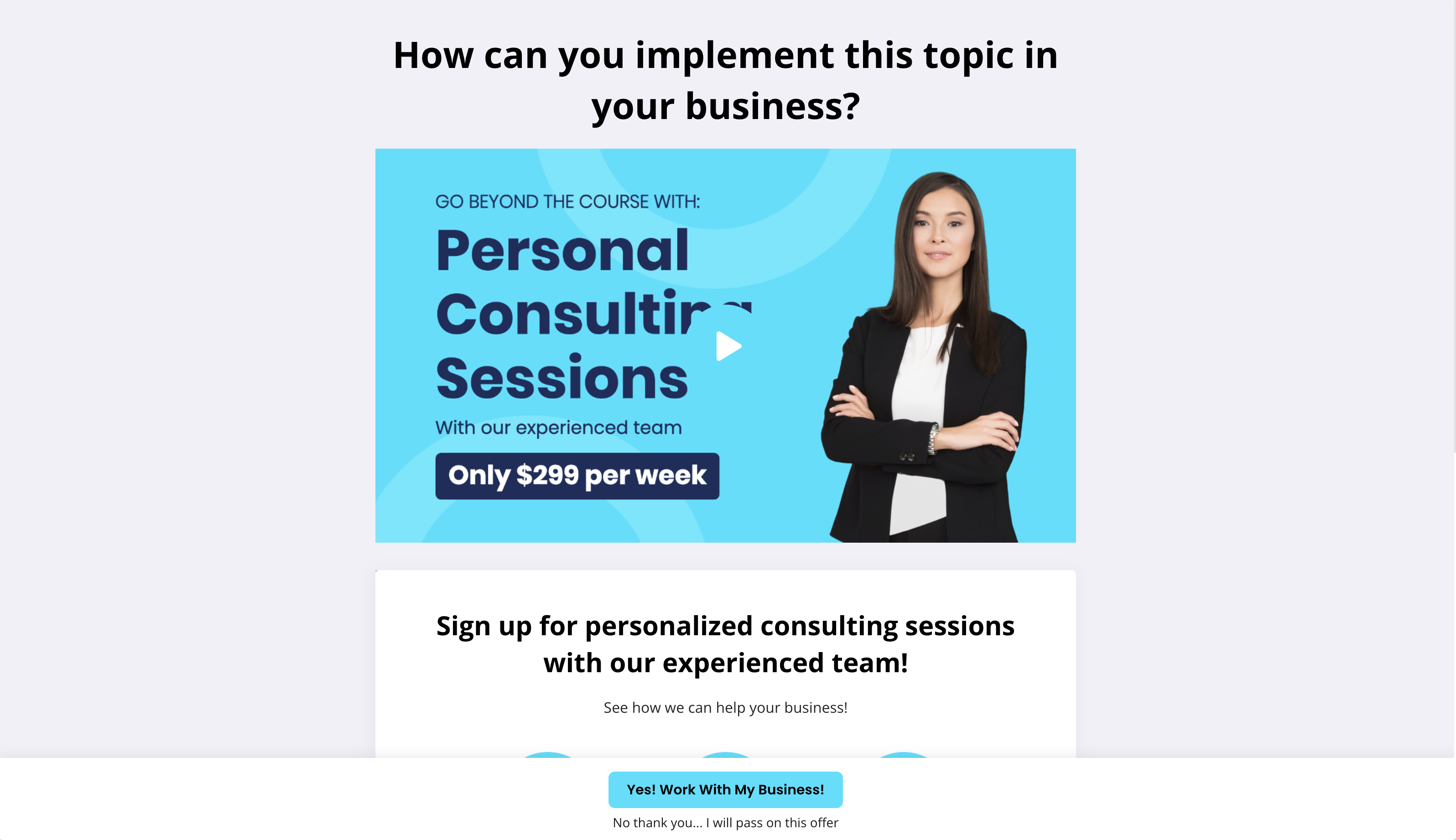
The upsell step type allows you to create one-click upsells for your Flows using the information your customers have already entered in a purchase step. Common examples of one-click upsells include related products or services such as consultation calls, online courses, or upgrades to a main product like expanded software account limits.
Say Thank You (Thank You Step Type)
The thank you step creates an automatically generated receipt of your customers' purchases and includes all available products you've included in your flow whether it be your main product, bump offers, or one-click upsells.
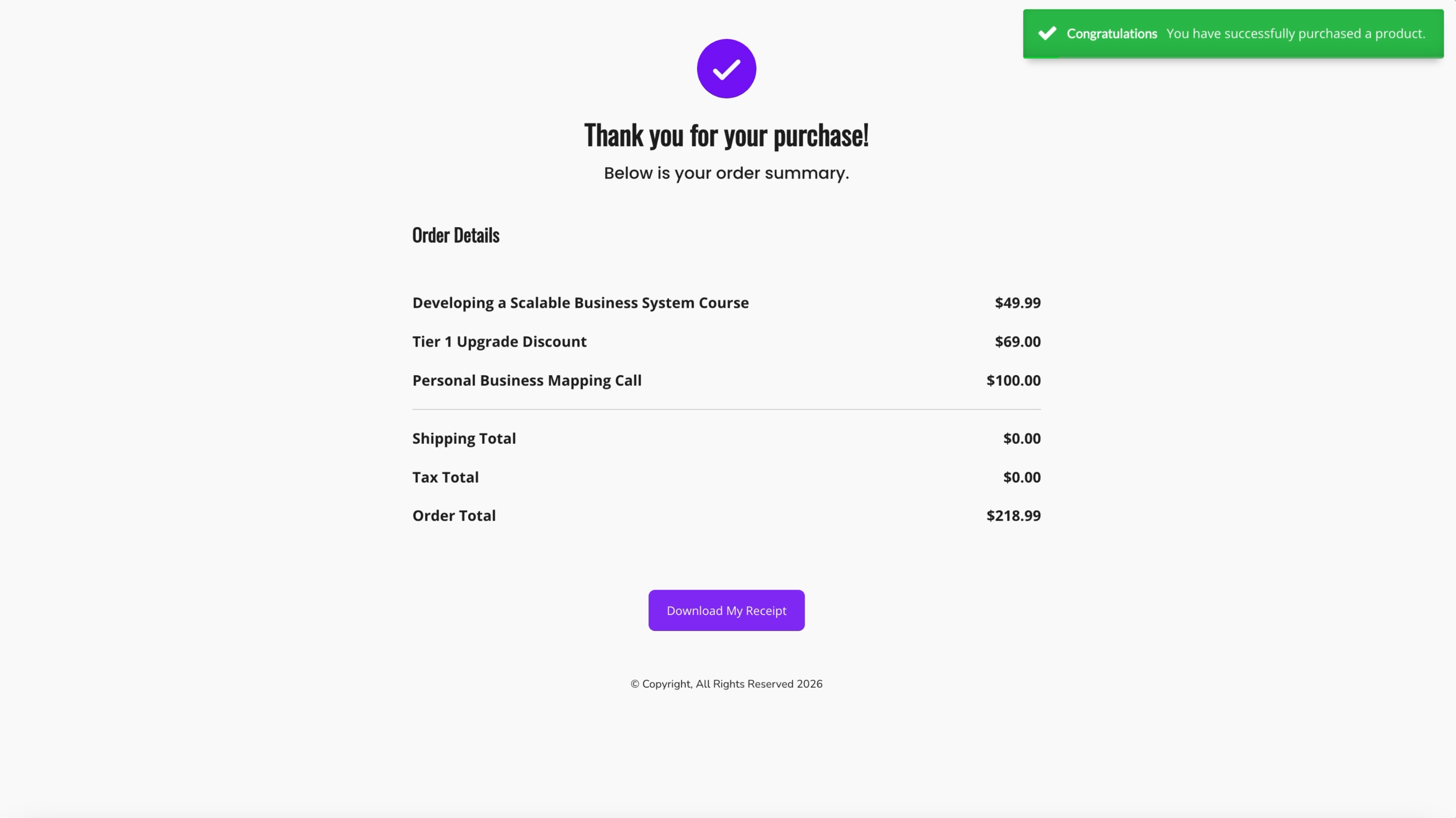
The thank you step also includes an option for your customers to download a copy of their receipt as well as an additional area for you to include digital file downloads. This can be useful for including digital products your customers purchased like downloadable guides, or for PDF's, further instructions, or more.
View Step
The "View Step" button displays the live URL for your step to see in real time.
Note: Flow content is saved automatically in the Flow Editor. Any changes made are viewable immediately on your live Flow pages when you choose to view your steps.
Share Step
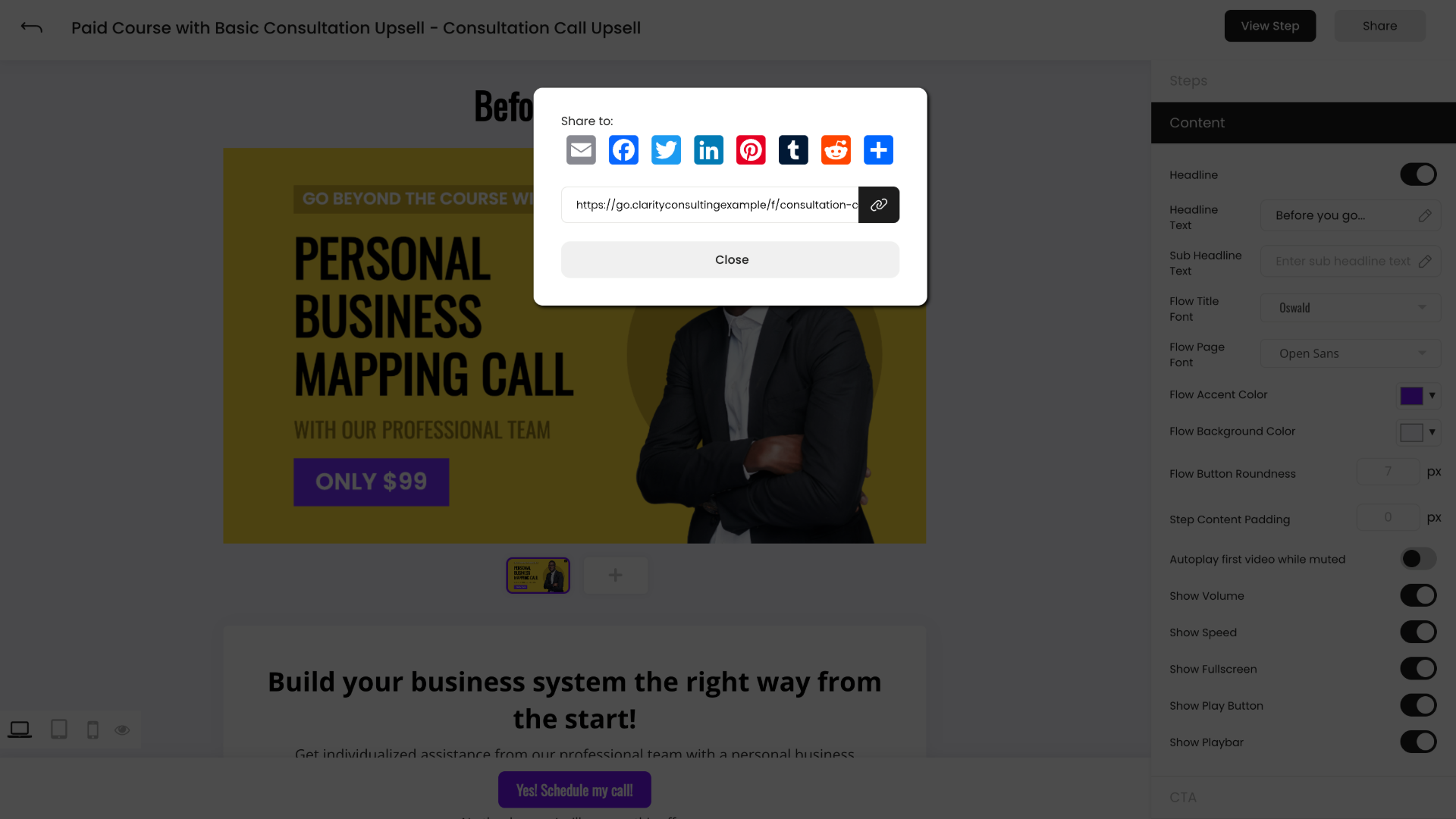
Sharing your step allows you to link to your Flow either directly with a copyable link, or to social media with included sharing options for:
- X
- Tumblr
- And more (Threads, Bluesky, WhatsApp, etc.)
CTA Settings
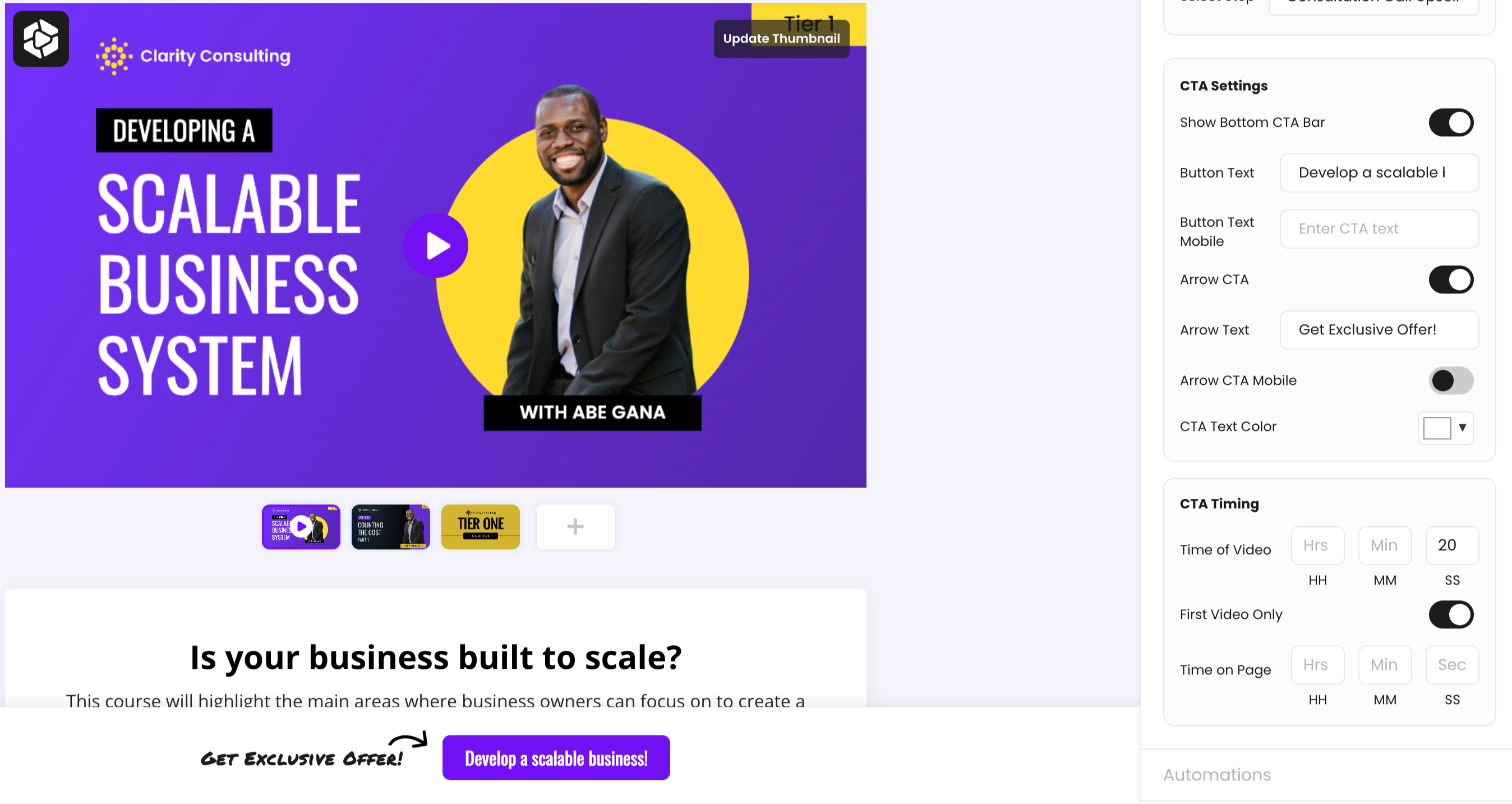
Your CTA settings control the CTA bar at the bottom of your Flow pages and include multiple customization options for desktop and mobile displays.
- Show Bottom CTA Bar - Displays the CTA bar in the Flow Editor
- Button Text - Choose the text for your CTA button
- Arrow CTA - Choose to include an optional arrow CTA next to your CTA button
- Arrow Text - Choose the text for the optional arrow CTA next to your button
- Smallest Screen Guide - Show editor guidelines for how your CTA will display on the smallest* (common) screen size (320px wide)
- CTA Text Color - Choose the text color for your CTA button (background button color will be applied from your Flow Accent Color in the Content Tab)
CTA Timing
CTA timing controls when your CTA bar appears at the bottom of your screen so you can call your viewers to action at the time you choose.
- Time of Video - Set a specific time in your main page video where your CTA button will appear. (This will only apply if the video is playing.)
- Time on Page - Set a specific time after your visitor lands on your page where your main CTA button will appear
Flow SEO
Flows include built-in SEO options to give you control over how your pages rank and display in search engines.
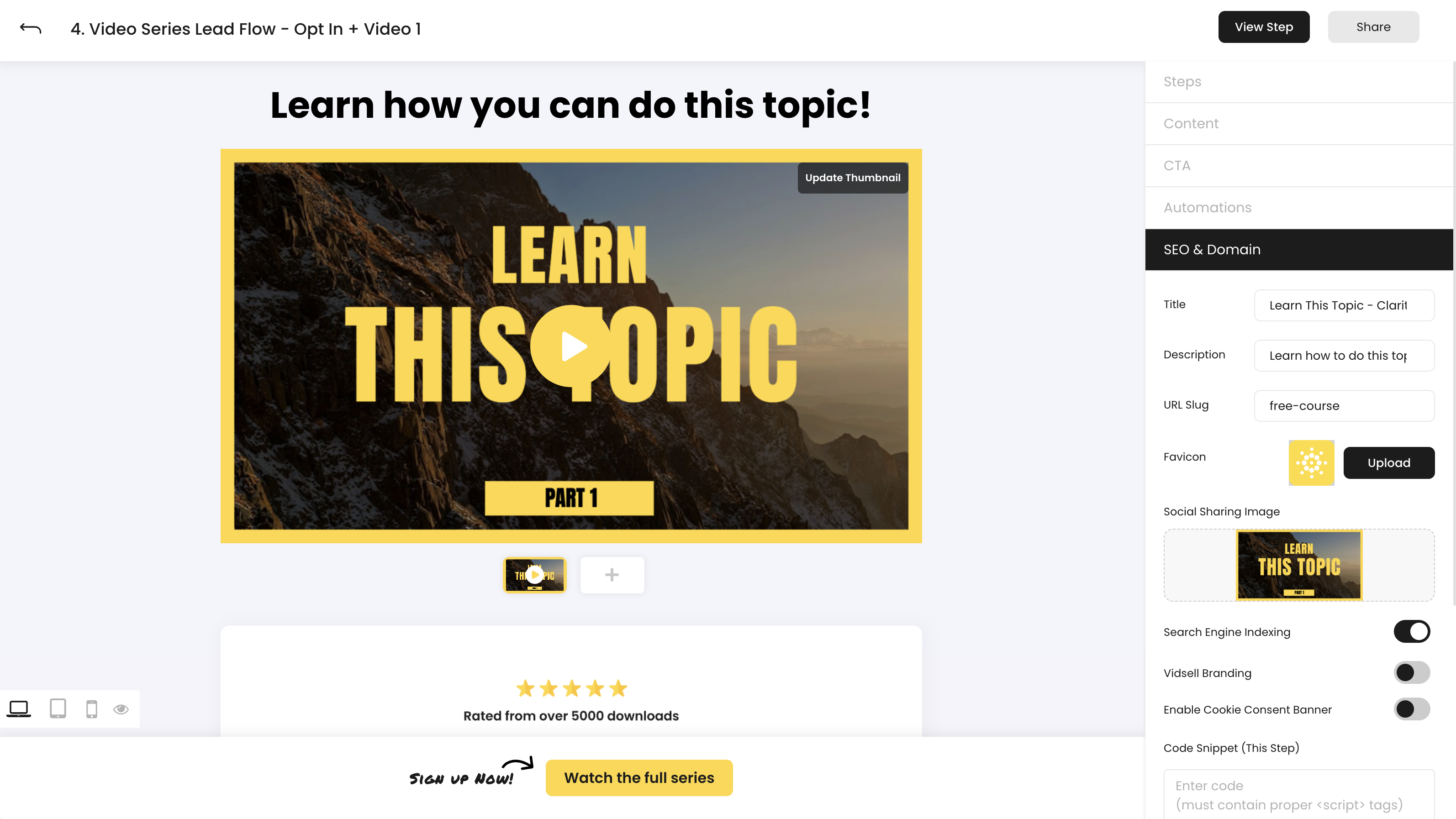
- Title - Controls the SEO meta title of your Flow step
- Description - Controls the SEO meta description of your Flow step
- URL Slug - Controls the URL slug for your flow steps. All Flows load default with a unique randomly generated URL slug. Updating your URL slug will change this randomly generated value.
Note: Your Flows load by default on VidSell's Flow domain (vsll.link). To load your Flows on your custom domain, first set up your custom domain inside of your account settings area.
- Favicon - Your favicon controls the small, square image that appears next to your page name in search engine results, and in browser tabs. Recommended Favicon size upload is 256px x 256px
- Social Sharing Image - Your social sharing image appears when sharing links the your Flows on social media. Recommended size is 1200px x 630px ( a 1.91:1 aspect ratio) for compatibility with most social platforms.
- Search Engine Indexing - Controls whether you would like your Flow pages to be indexable to appear in search engine results. Turning this toggle off causes your pages not to index in search engine results pages (SERP's) like Google search.
- VidSell Branding - Allow an optional on-page message in your pages' footer "Built with VidSell".
Code Snippets
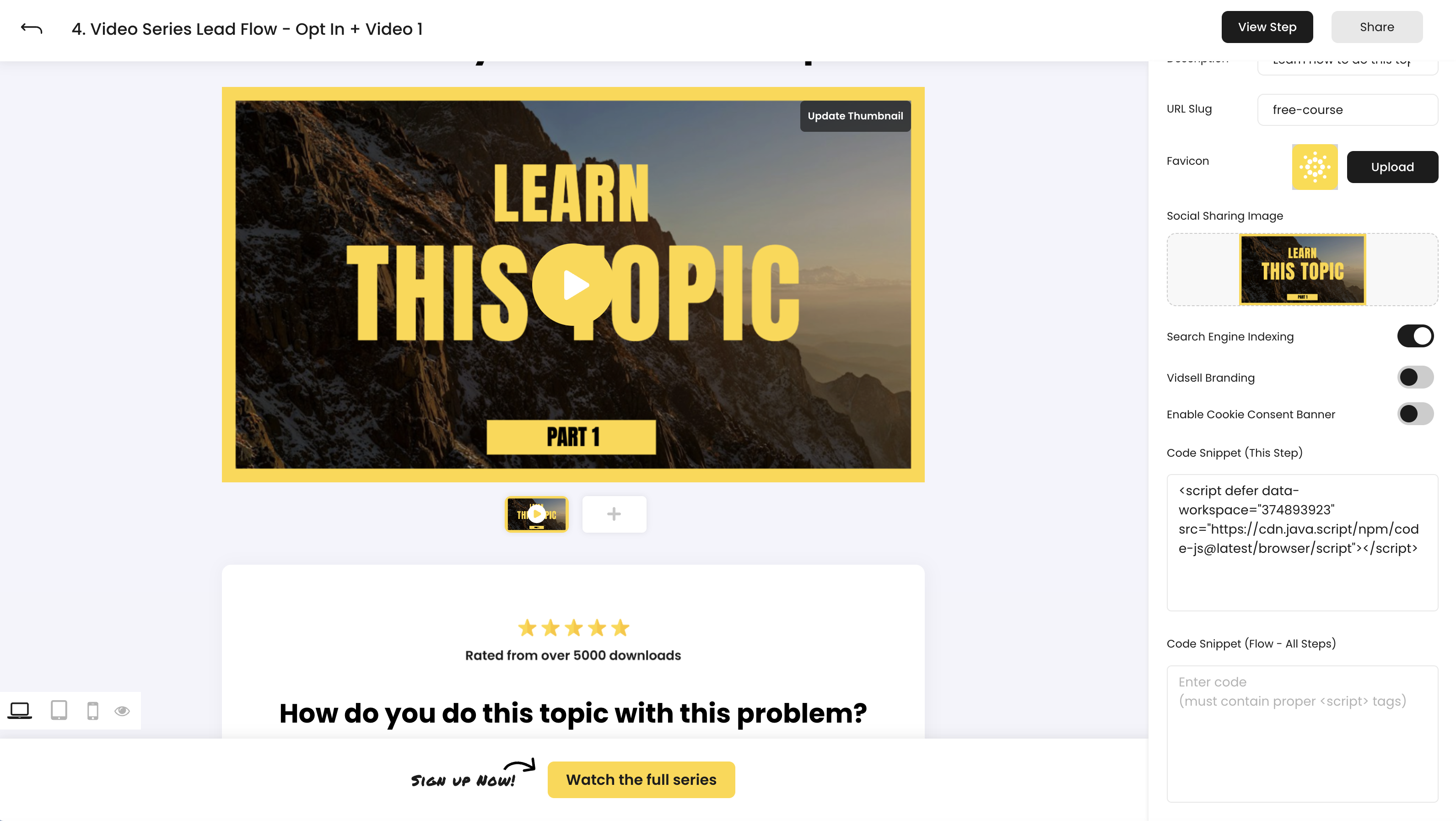
Custom code snippets allow you to run on-page code for things like tracking your Flow performance in 3rd party analytics platforms like Google Analytics or Mixpanel, using a chatbot or a help widget, adding accessibility or translation tools and more.
Single Step Code Snippets
Utilize code snippets on only a single step of your Flow, useful for gathering information, or running actions on only a single step.
All Steps Code Snippets
Upload a code snippet once to use across all steps of your Flow, useful for tracking and other actions across multiple pages.
Cookie Consent
Create in-depth cookie consent banners to give your Flow visitors control over their cookie preferences. This helps with compliance with appropriate online data and privacy laws.
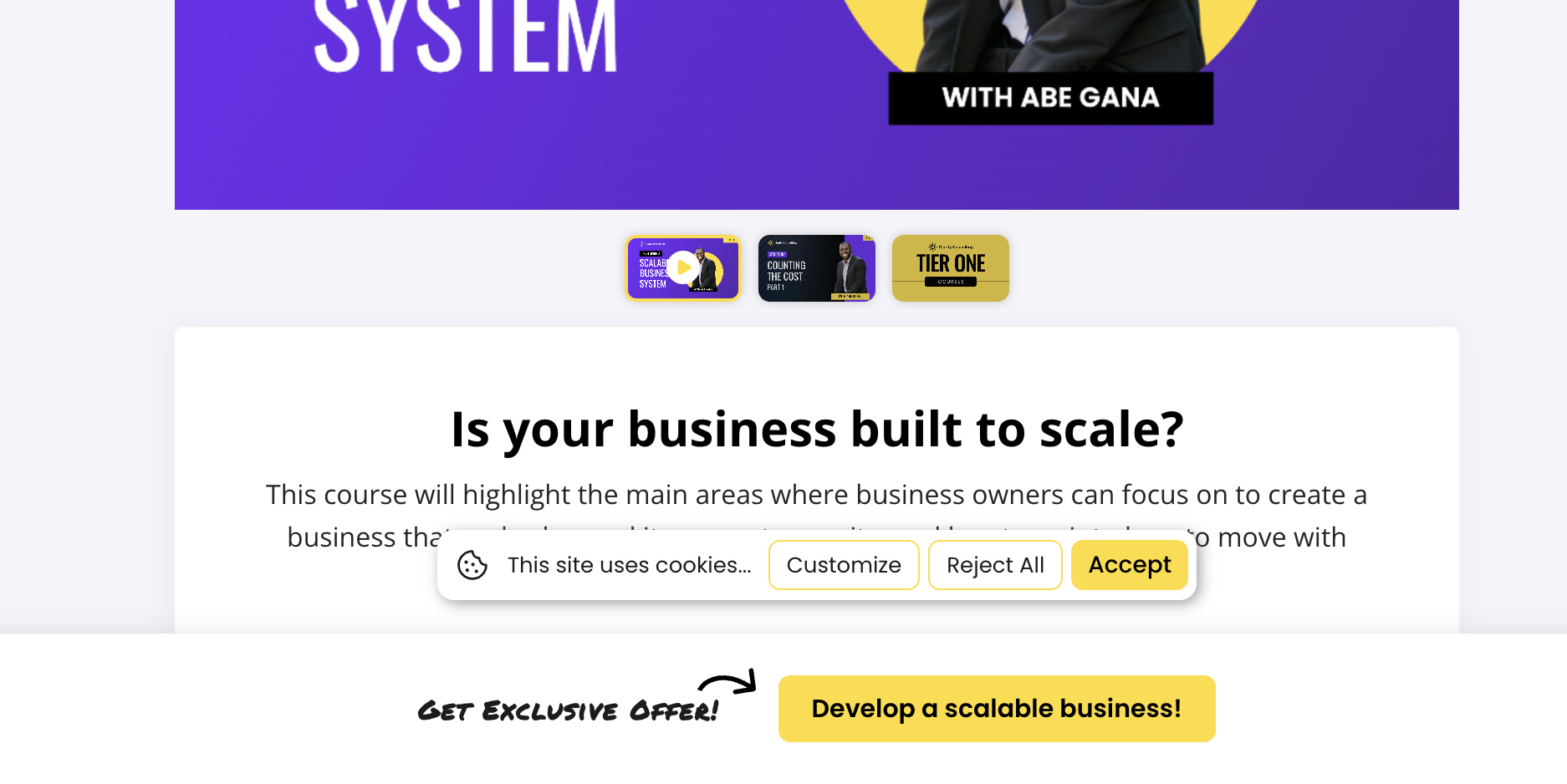
Note: Based on your visitors' cookie preferences, custom code snippets can either be enabled or disabled depending on the category (Necessary, Functional, Performance, Advertising)
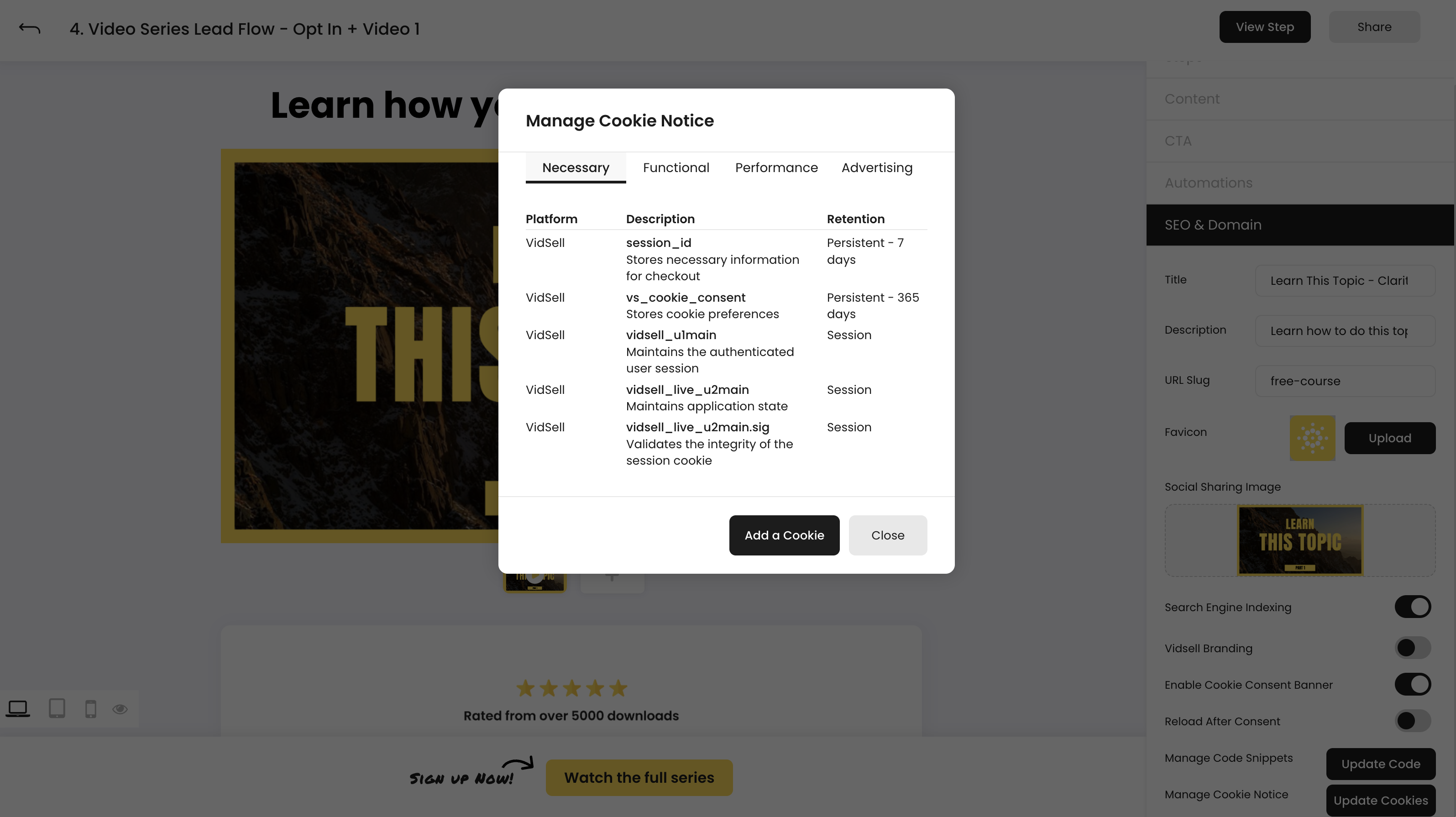
- Necessary Cookies - Required cookies for basic website functionality (always loads)
- Functional Cookies - Helps with useful/non-essential site features (requires consent)
- Performance Cookies - Helps understand how the site is being used (requires consent)
- Advertising Cookies - Used to deliver more relevant advertising to you (requires consent)
Reload After Consent
This toggle will cause the Flow page to reload after a visitor consents to cookies which allows 3rd party codes that only function on initial page load to properly run.