The VidSell Courses area is your own LMS (Learning Management System) connected to your video business where you can create and sell full online courses, create training and onboarding sequences, within multiple classroom settings for different segments of your audience.
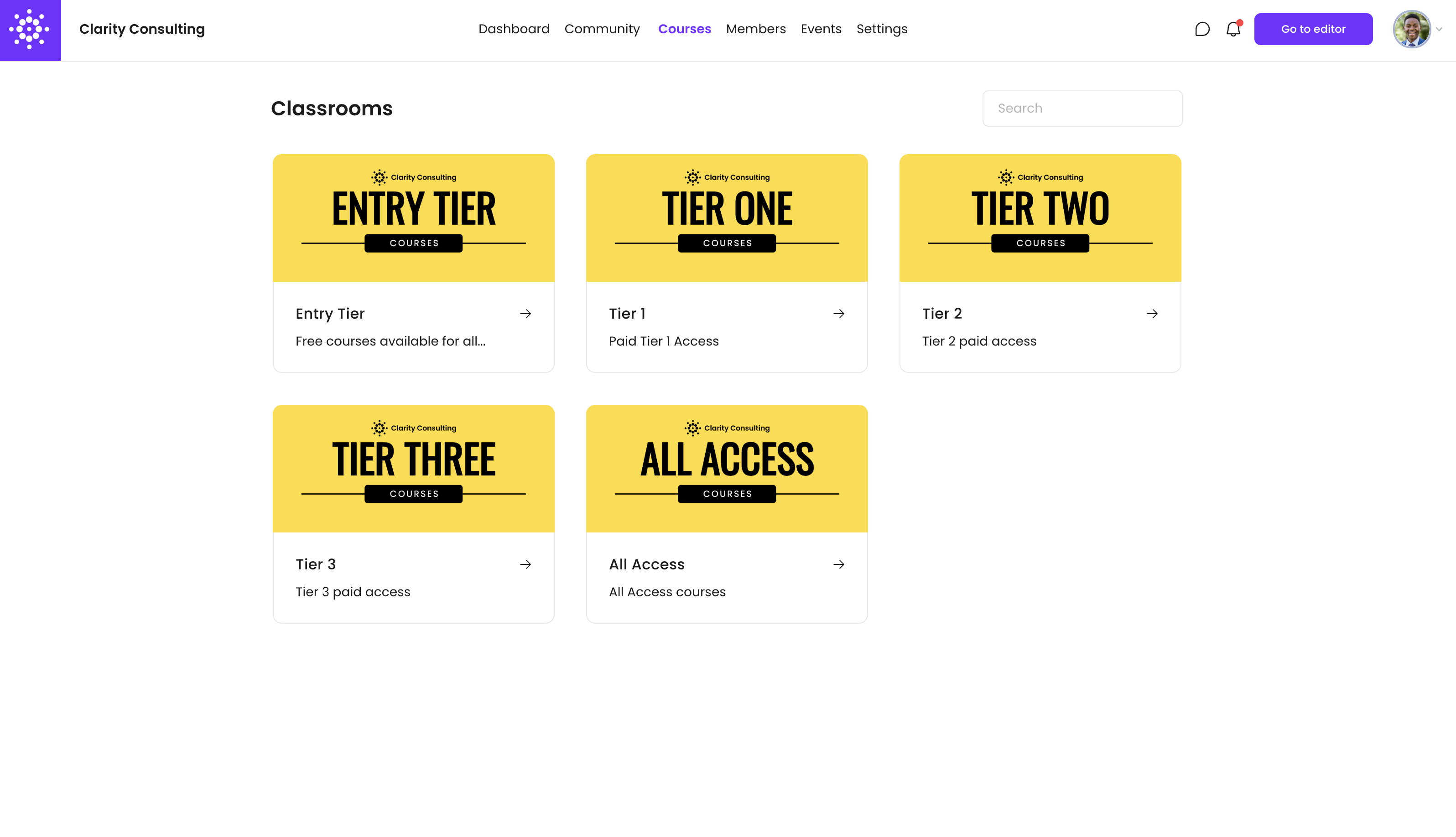
Classrooms
Classrooms are the first layer of structure for your Courses Area. They allow you to include multiple groups of content and segment your students' course access based upon tags you set.
Adding a New Classroom
To add a new classroom, click the "+ New Classroom" Button. From here you will have the option to upload an image for your classroom, a title, and description. If no image is selected, your classroom will default to the gradient colors set inside of your Engage Style Settings.
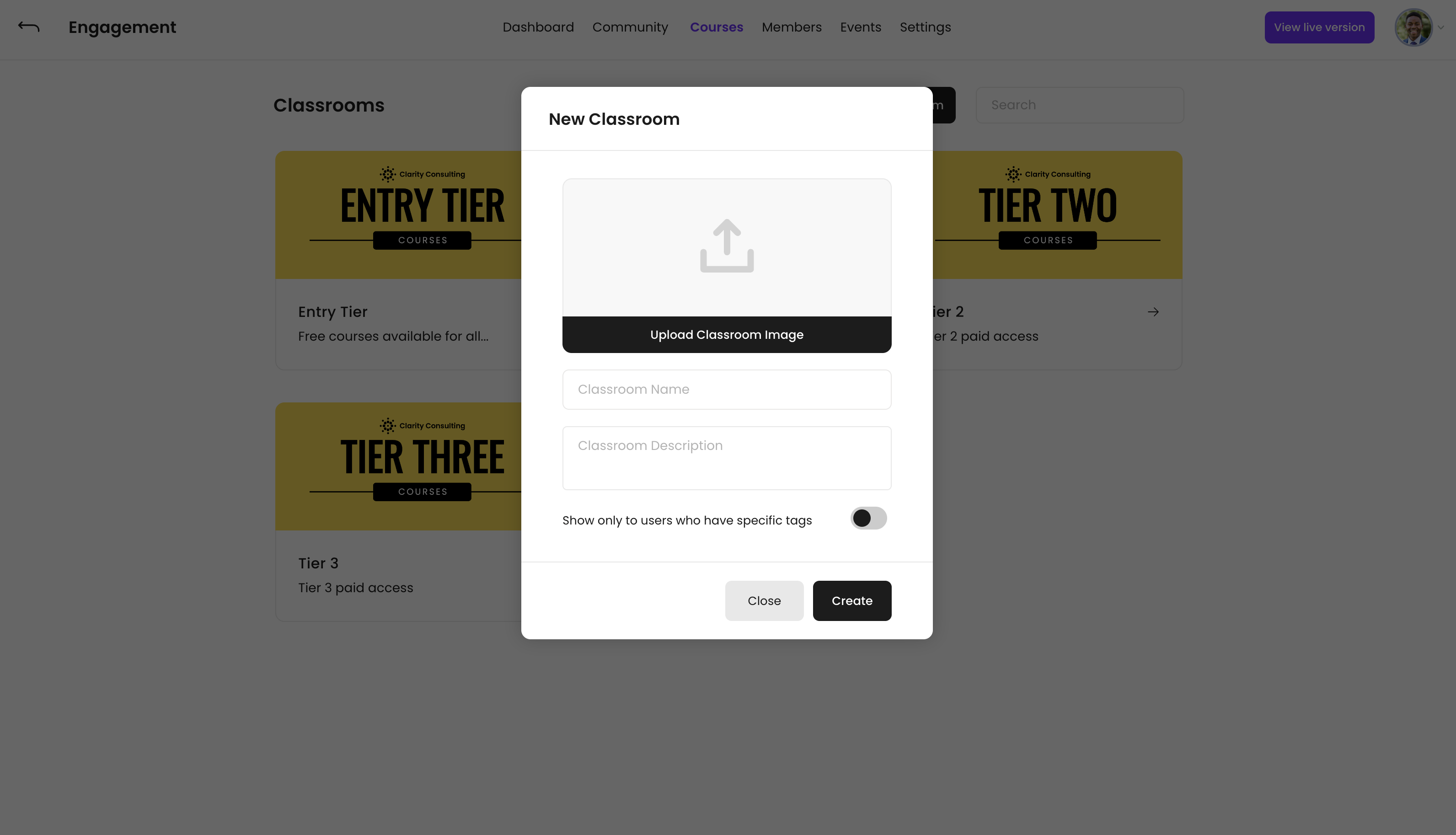
Classroom Visibility (Show only to users who have specific tags)
You can choose to make your classrooms visible only to members who have specific tags. This can be useful to segment your courses into manageable groups, rather than giving all of your members access to all content at once, as well as selling multiple bundles of courses, creating tiered subscription packages with different classroom access, etc.
For more information on how to unlock classroom and course access by tags, see our short video here: How to sell online courses with VidSell.
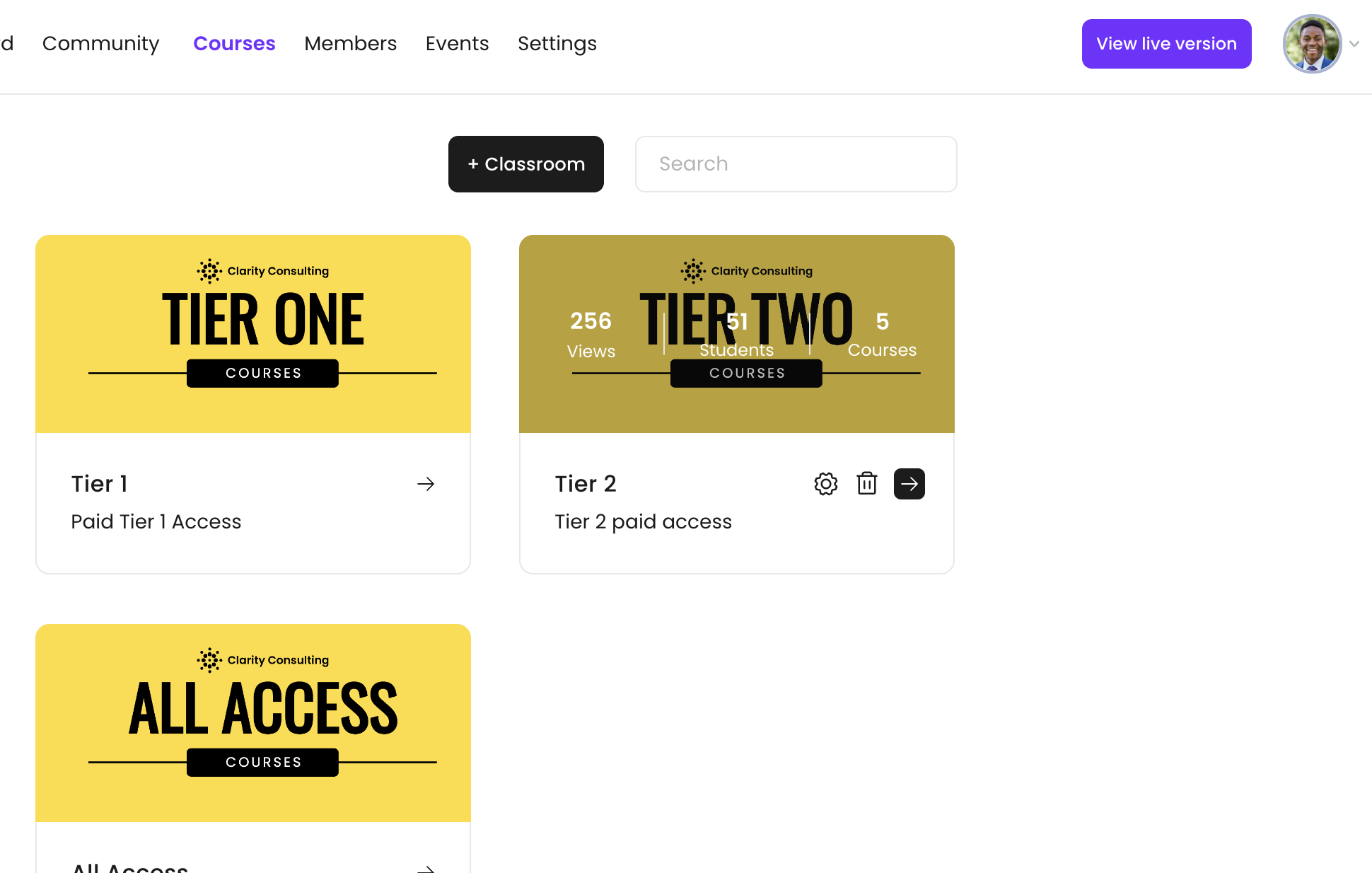
Classroom Statistics
Your classroom statistics show you how many courses are contained within a classroom, how many students are enrolled in that classroom, and how many views courses in this classroom have received.
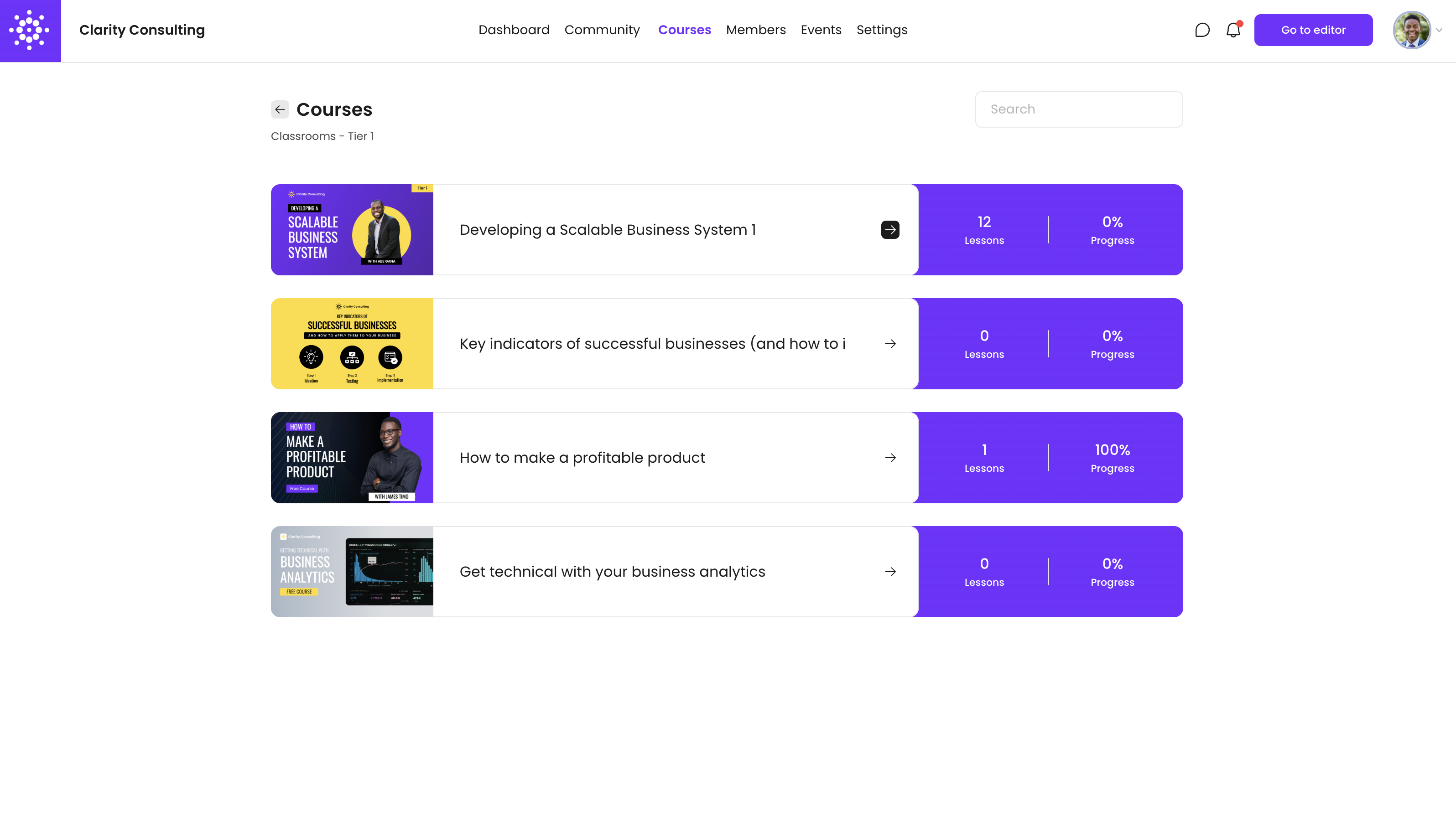
Courses
Your courses in VidSell are where you can educate your audience with dynamic value-packed content. There are multiple customizations for your courses to fit your business goals.
Creating a New Course
To create a new course, click the "+ Course" button.
You can choose from the options to either start from scratch, or to generate a course structure using AI. For a full walkthrough on how to use VidSell's AI Course Generation, see our detailed help article.
For courses created from scratch, you can then upload a course image, enter in a name for your course and choose an optional course slug which specifies the URL slug you would like to set for your entire course.
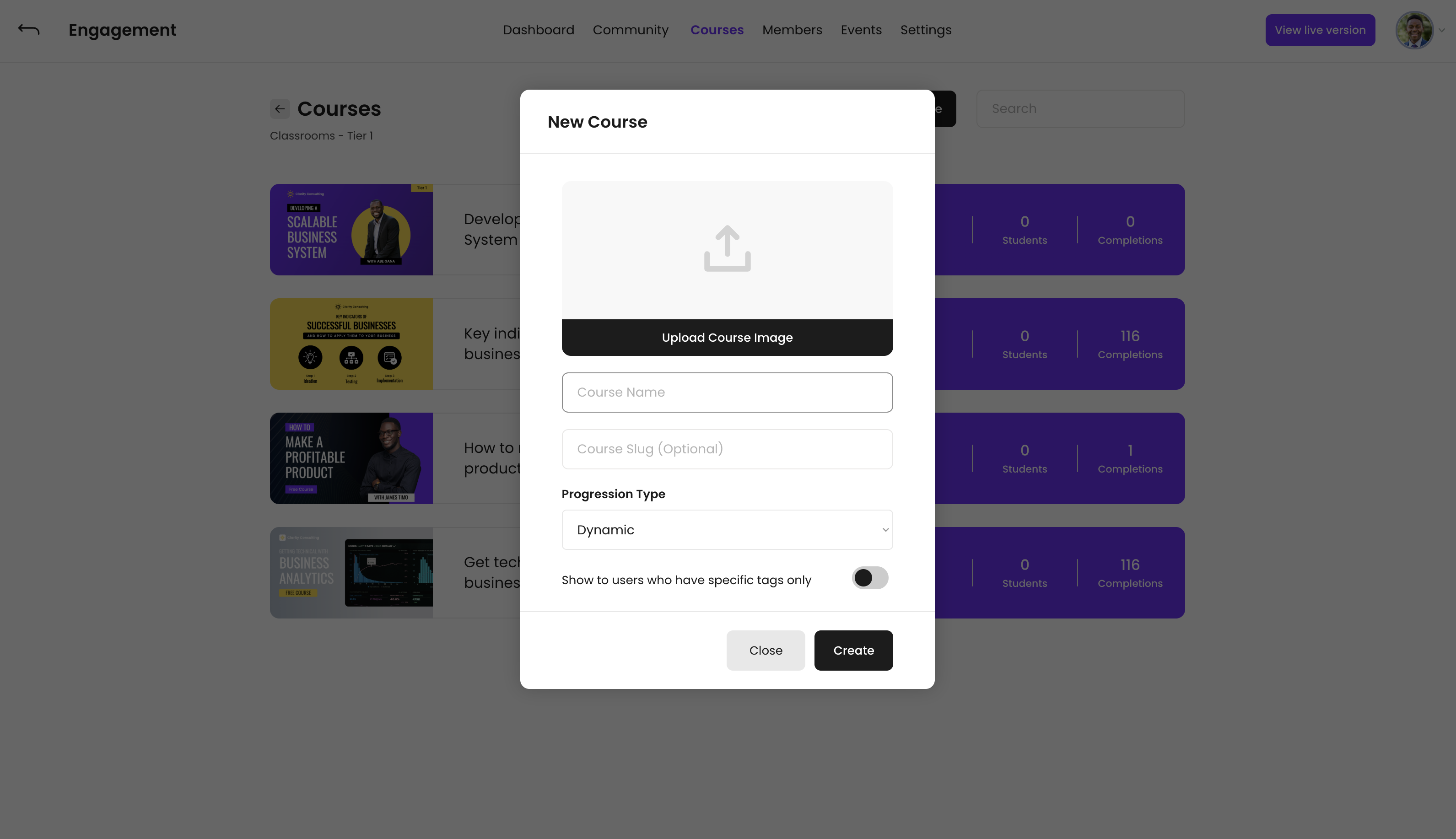
Progression Type
Progression type controls how you would like your members to progress through your course content, specifically the different modules in your course. There are two options to choose from:
- Linear - Each module in your course needs to be completed before the next module is available.
- Dynamic - Any module is available to complete without restricting which are available first.
Note: Progression Type at the classroom level applies specifically to module progression. You can also control lesson progression within modules from within the course builder (e.g. you would like members to be able to dynamically choose any module, but you would also like them to view each lesson within those modules linearly.
Course Visibility
Just like classrooms, you can choose to allow courses to "Show to users who have specific tags only" which allows you to only unlock courses after members have the proper access tags, whether through purchases with Flows, or other actions where you apply tags.
Course Statistics
View how many students are enrolled in your course, what percentage of your course they have completed, how many students have completed your course, as well as your students' information from the People Area.
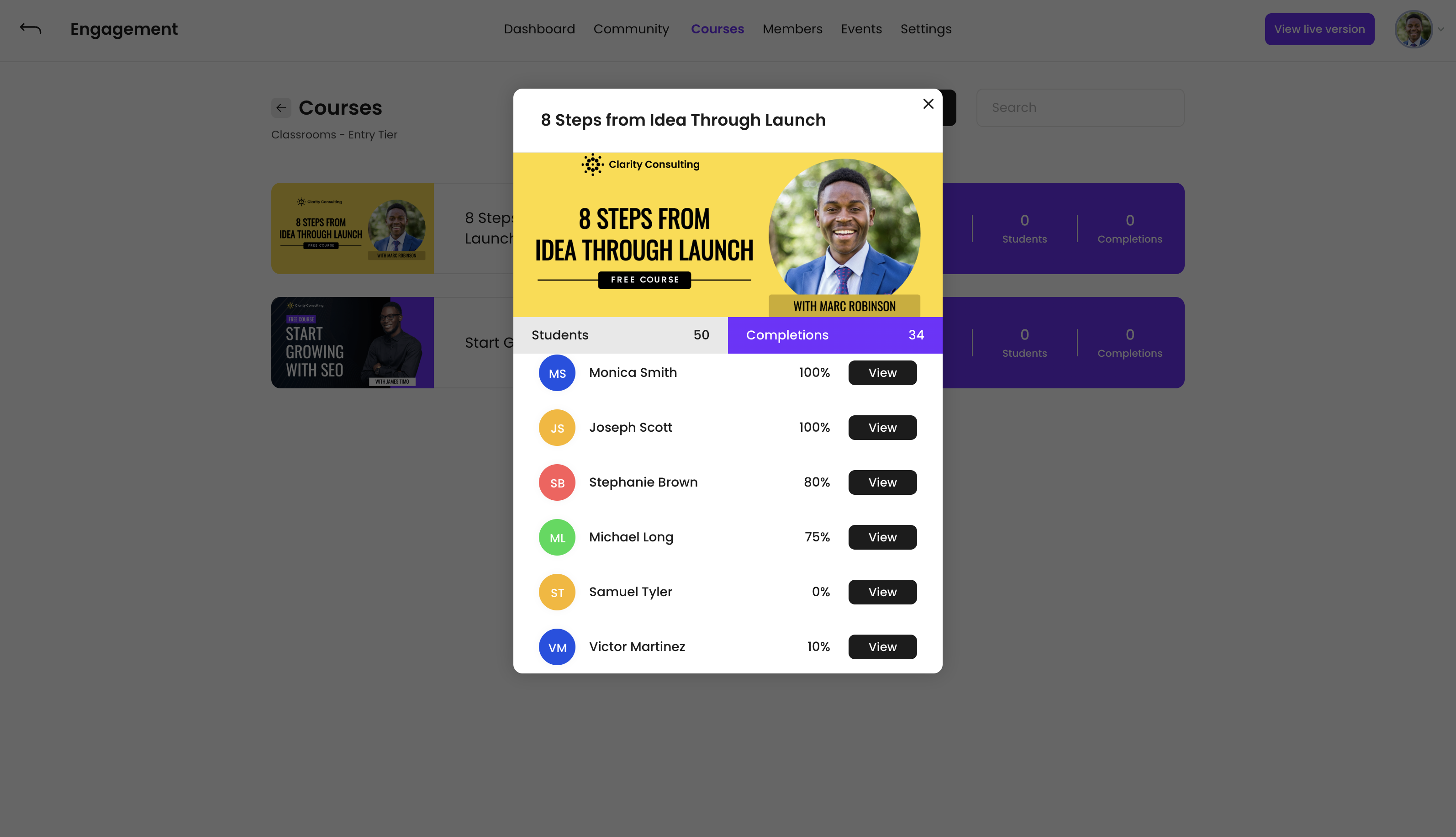
Course Editing, Duplication, and Deletion
- Edit a course - Hover over the course you'd like to edit and click the gear icon. From here you can edit your course details, reset your course statistics to 0 views and completions, and copy the direct access link to your courses.
- Duplicate a course - Hover over the course you'd like to delete and click the multi-page icon.
- Delete a course - Hover over the course you'd like to delete and click the trash icon. You will be asked to confirm this decision before proceeding.
Direct Access Link
Your course's direct access link is a unique link that gives any member automatic access to the course, regardless if they have paid or not. If any access tags are required for course access, this link will automatically apply the necessary tags for a student to access the course.
Modules
Each lesson within your courses is contained within a module.
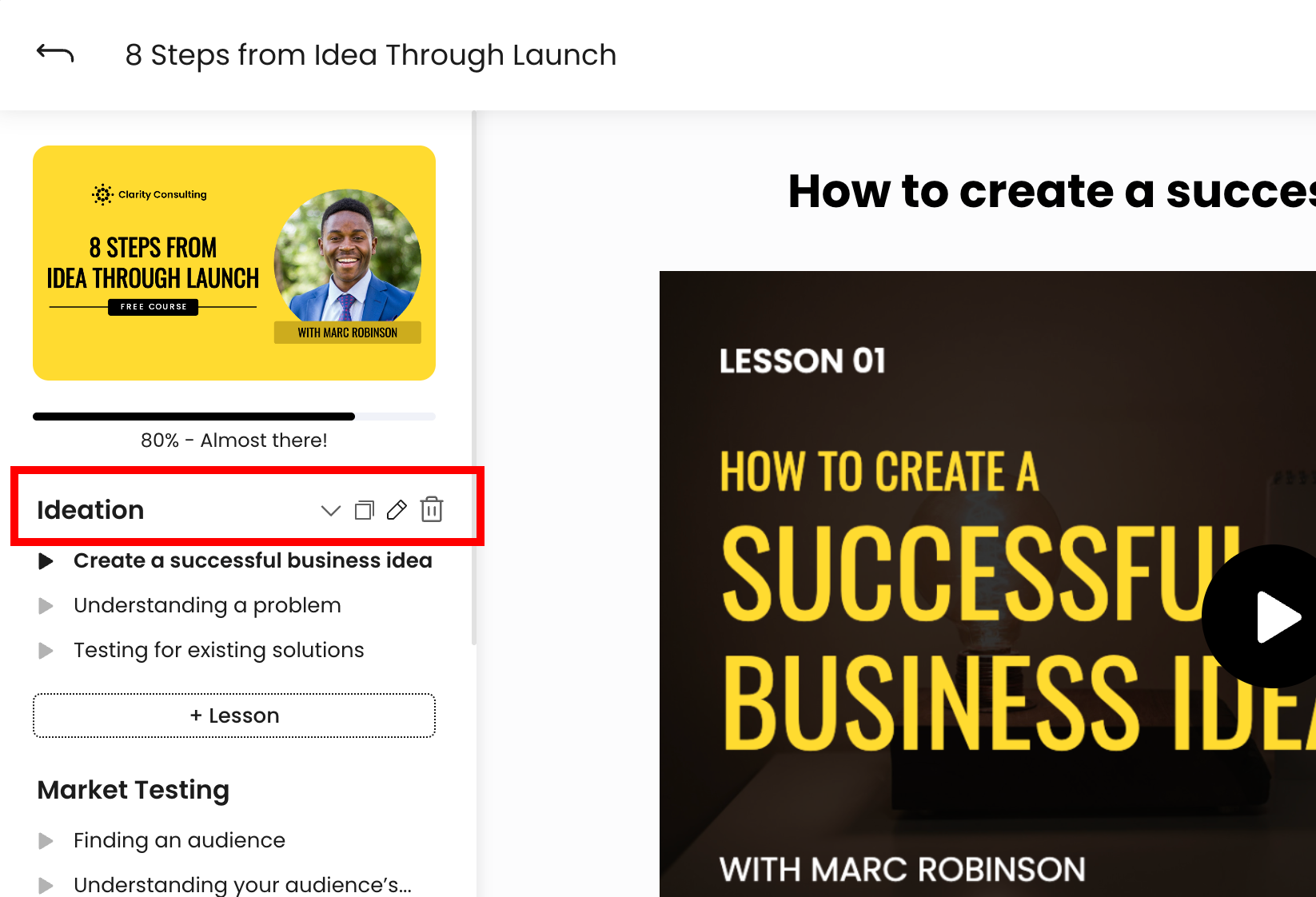
Creating New Modules
To create a new module, click the "+ Module" button on your course's left side navigation menu.
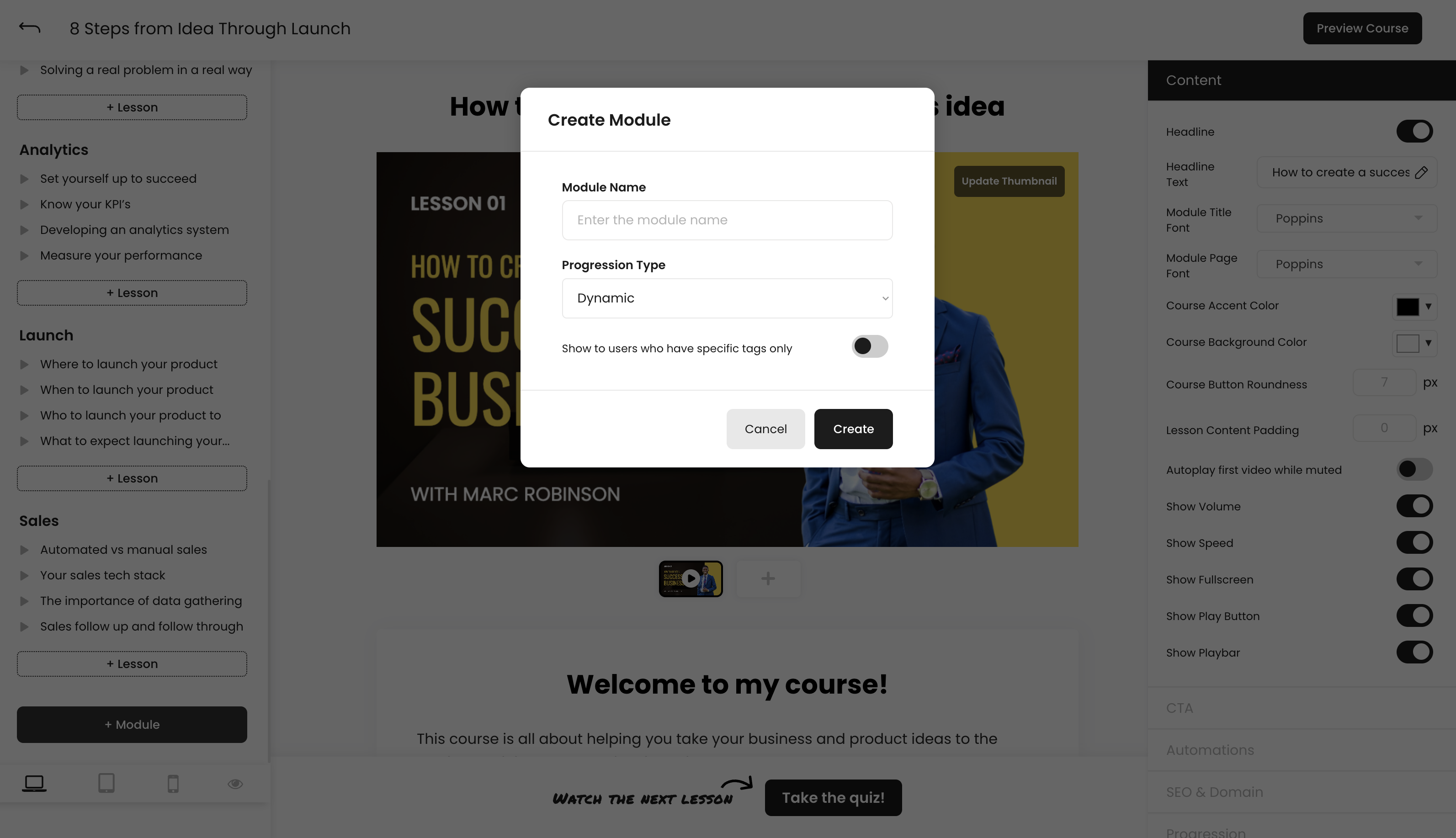
Module Progression
There are two ways your students can progress through the lessons within a module: linearly and dynamically.
Linear - Students can progress from one lesson to the next in order, each lesson unlocking the next after the progression action is taken (e.g. completing a quiz, clicking the CTA button, watching a certain time of the video)
Dynamic - Students can view the lessons within a module in any order.
Module Visibility
Choosing the option to "Show to users who have specific tags only" allows you to only unlock modules after members have the proper access tags, which can be unlocked within courses through actions like completing a quiz, clicking the CTA button, watching a certain time of the video. See more on course automations in our article Course Building.
Module Direct Access Link
Your module's direct access link allows you to link to any module within your course and automatically apply the necessary access tags for that module. This can useful for things like drip feeding content over email or within communities over a period of time.
Lessons
Your course content is contained within lessons. These can include multiple actions, and customizations for engaging learning experiences.
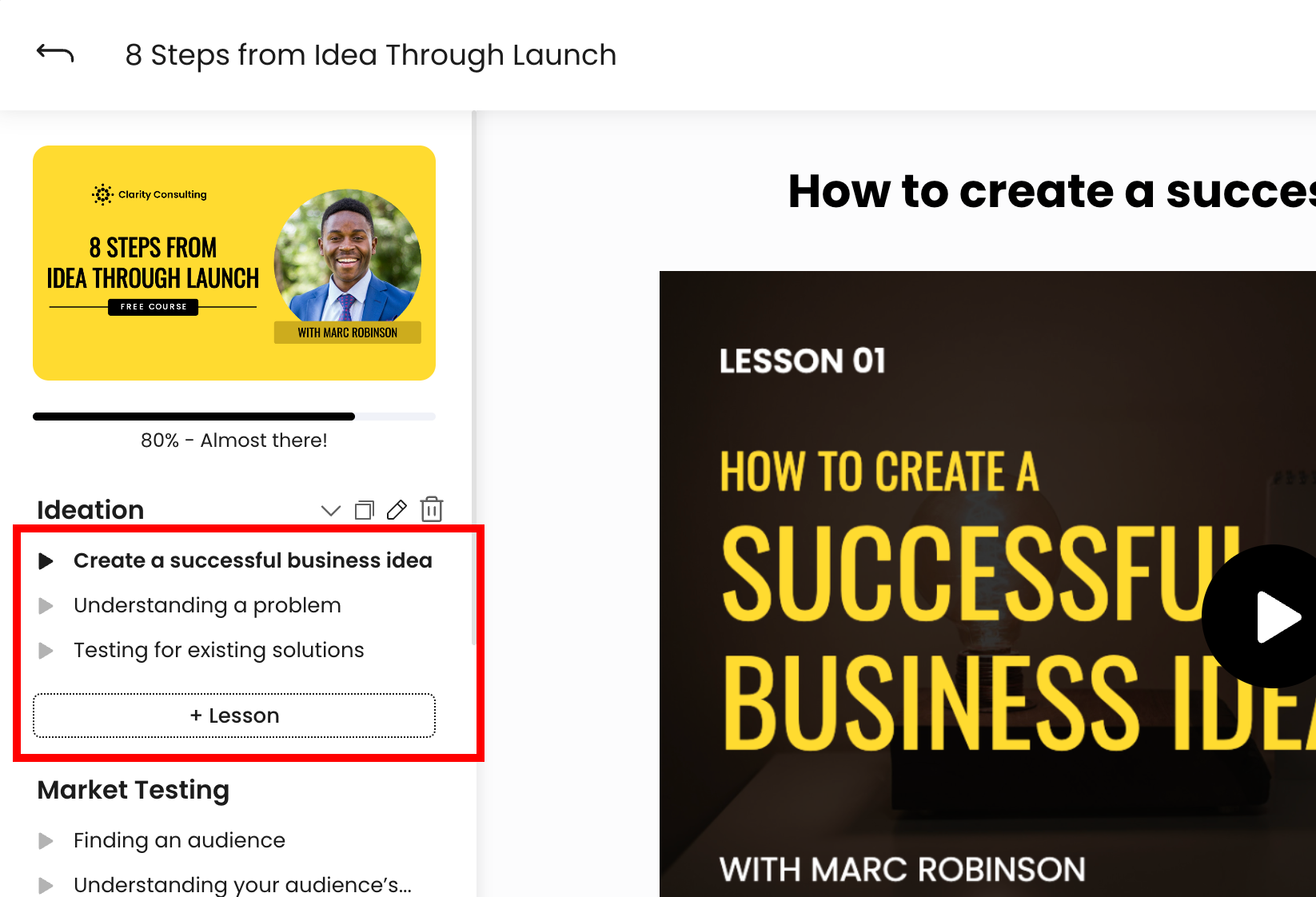
Creating New Lessons
To create a new lesson, click the "+ Lesson" button and enter a lesson name. To learn more about lesson building and customization, see our articles Course Building and Course Content.