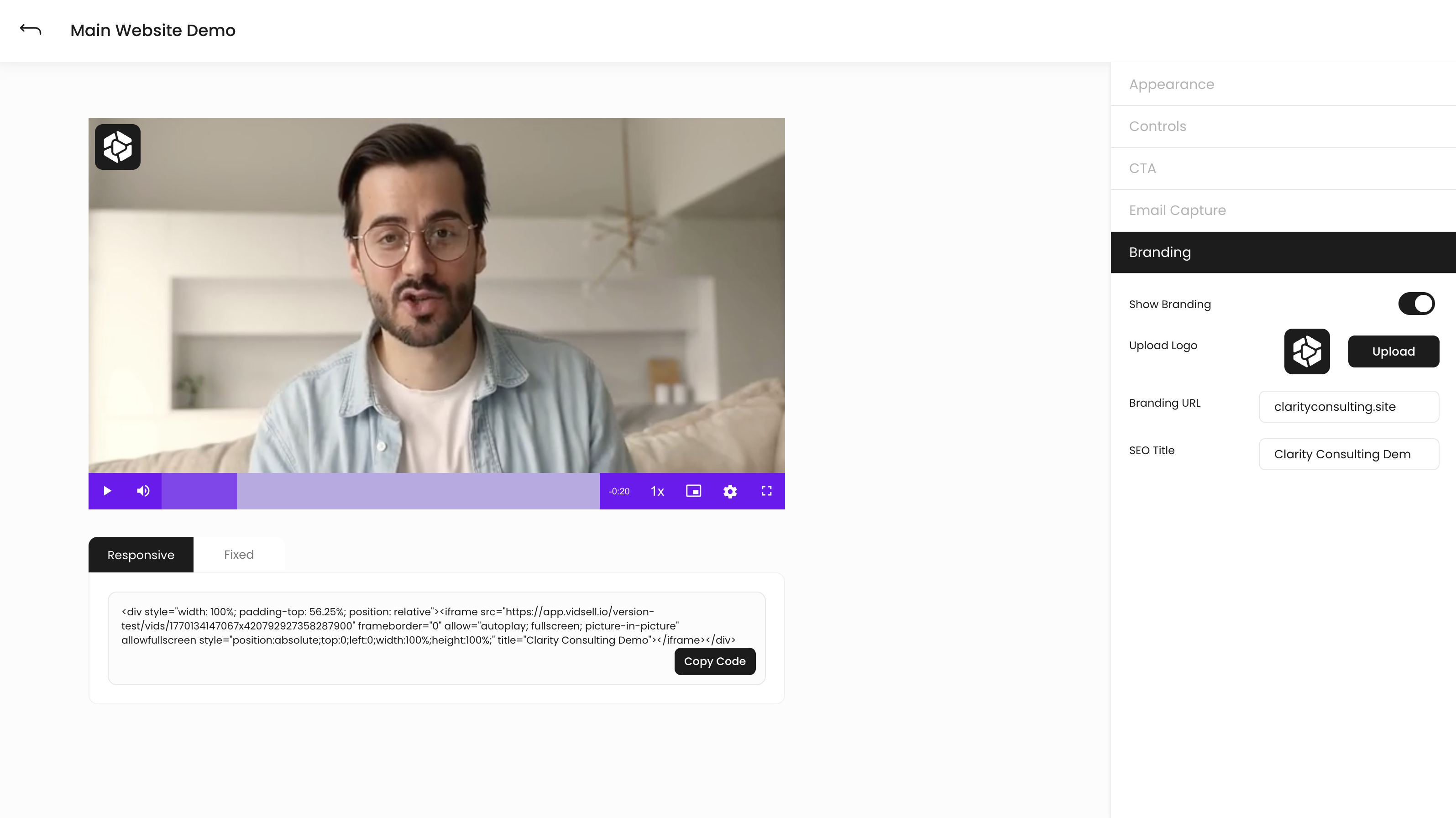
Videos in VidSell can be customized with your brand's look and feel and embedded onto your site or virtually anywhere online that accepts embed codes. In-video CTA's and lead capture forms also help your viewers take action on your message right where they are in the customer journey.
Video Embedding
You can embed your videos easily using either responsive or fixed size embed codes by simply copying your desired code from the embed area below your video.
- Responsive embed codes will automatically resize your video for different screen sizes and website containers and is recommended in most general use cases
- Fixed embed codes set your video to a specific size you choose, useful for cases where on-screen elements are not adjustable in size.
Appearance
Thumbnail
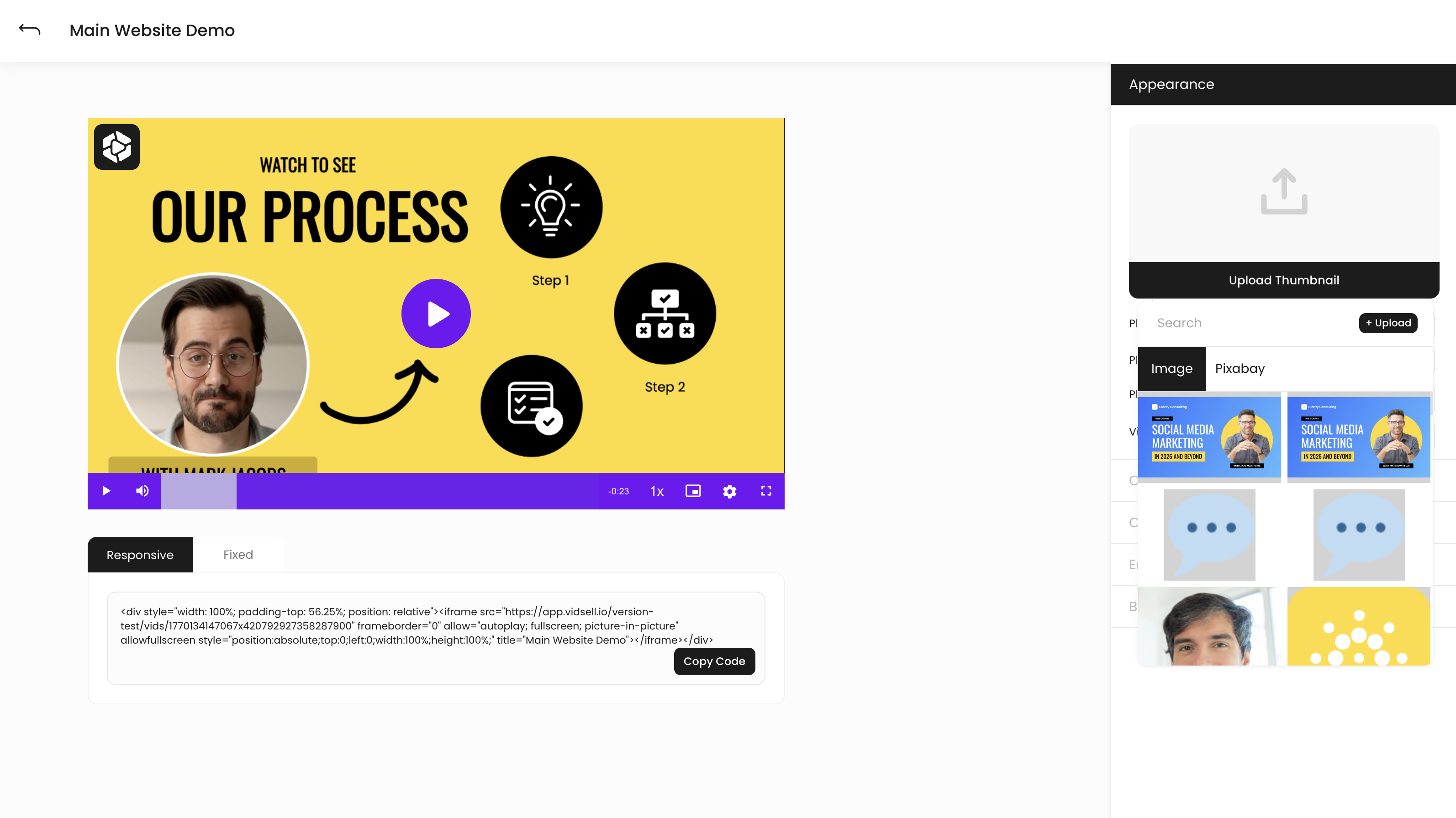
Upload custom thumbnails for your videos or search for a thumbnail from a library of images on Pixabay. If no thumbnail is selected your video will default to either your thumbnail set in YouTube or Vimeo, or for the first frame of your video for directly hosted videos and VidSell hosted videos.
Play button
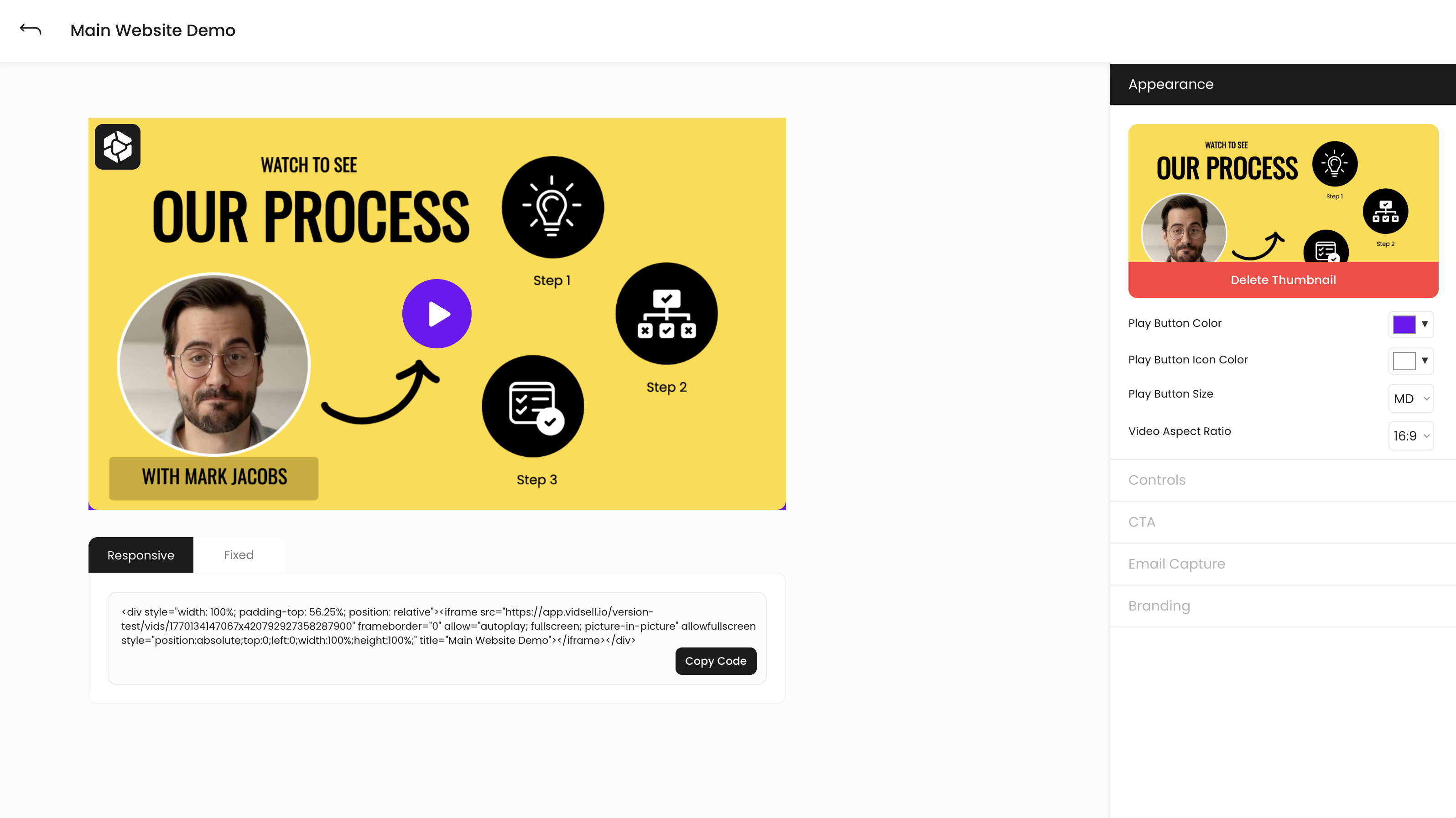
Control how the play button for your video appears with:
- Play Button Color which is set by default as the theme color of your video folder
- Play Button Icon Color which is set by default to white
- Play Button Size which controls how large you would like the play button for your video to appear
Video aspect ratio
Choose an aspect ratio that fits your video goals whether social media, embedding onto a website, or more with included aspect ratios: 1:1, 16:9, and 4:3.
Controls
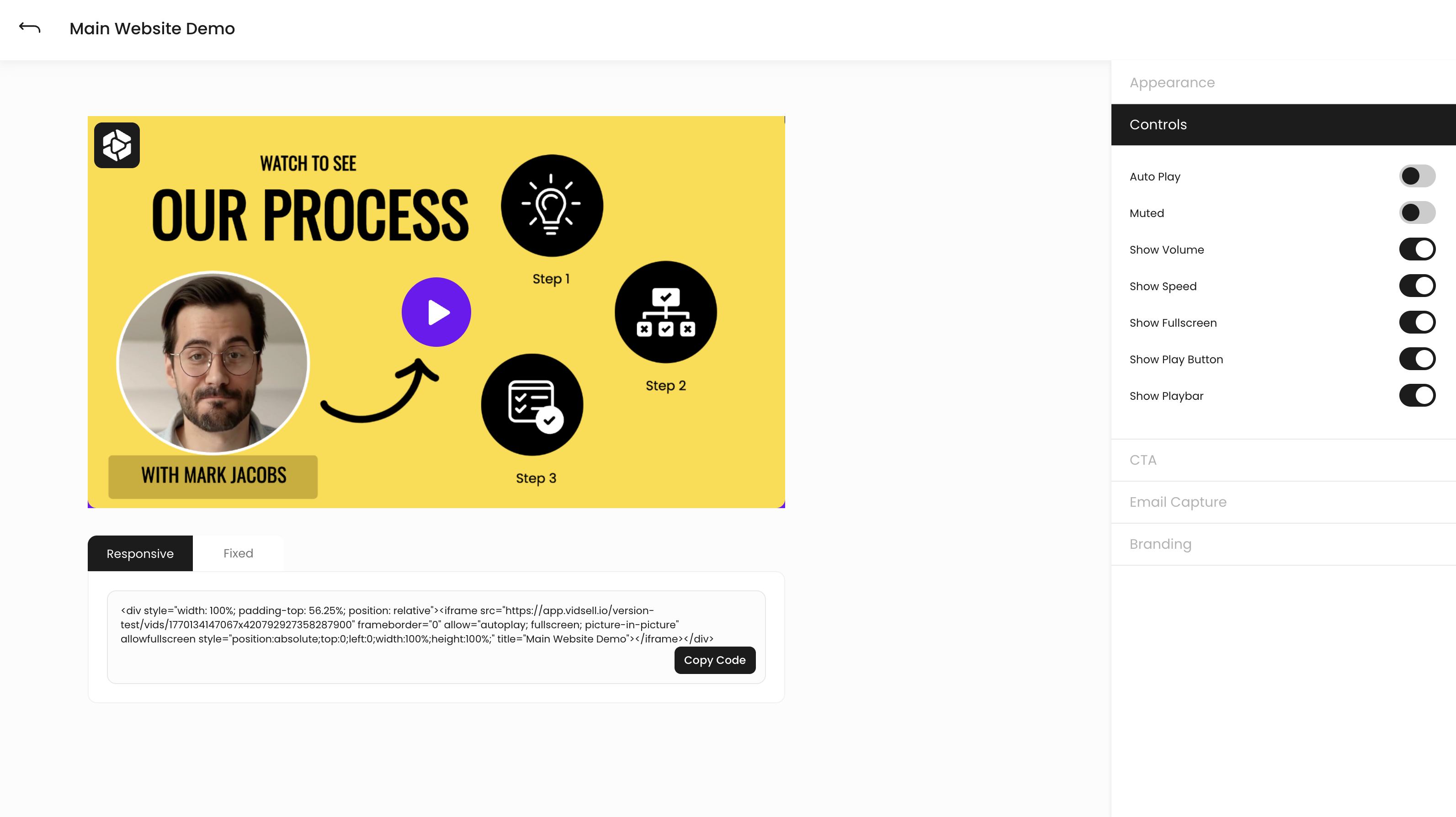
Include custom video controls that determine how viewers interact with your content. Choose to toggle:
- Auto Play - Video starts playing automatically upon page load
- Muted - Video is muted at page load
- Show Volume - Volume can be adjusted
- Show Speed - Video speed can be set to 0.5x, 1x, 1.5x, 2x, 4x, and 8x speeds
- Show Fullscreen - Video can be maximized to fill the entire screen
- Show Play Button - Controls the video's play button over the thumbnail
- Show Playbar - Controls the entire video playbar
Note: Not all controls are available for every video type. YouTube and Vimeo have less controls available than Direct URL or VidSell Hosted videos.
CTA
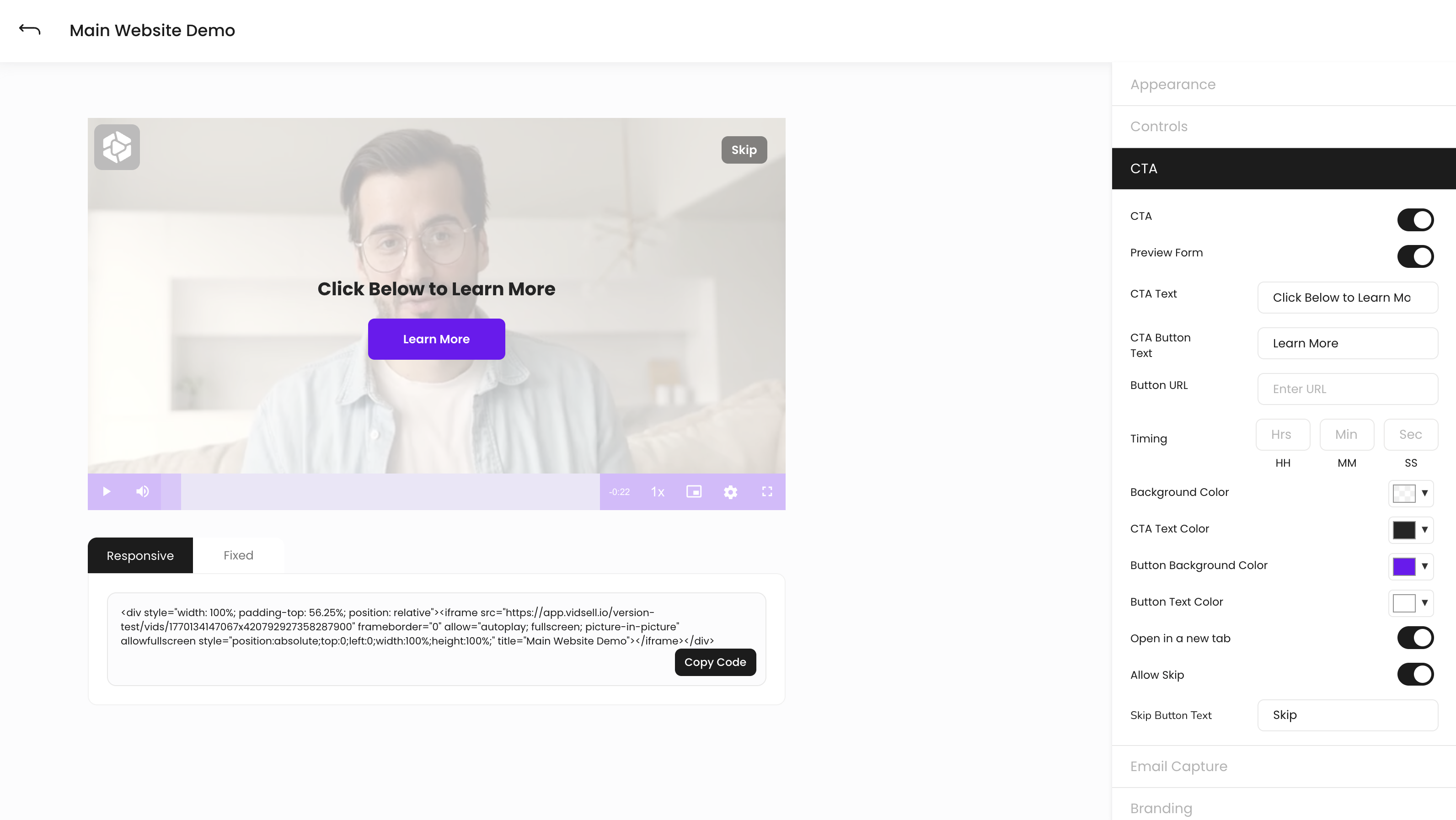
In-video CTA's allow you to direct your viewers to external links at specific times right within your videos - sales pages, checkouts, exclusive offers, and more.
Appearance and Text
Control how your CTA appears in your video with:
- CTA Text - Choose what your CTA message says
- CTA Button Text - Choose what you'd like your CTA button text to say
- Background Color - Choose the background color for your CTA (appears an an overlay over your video)
- CTA Text Color - Choose the color for your CTA text
- Button Background Color - Choose the background color for your CTA button
- Button Text Color - Choose the text color for your CTA button
- Skip Button Text - Choose the message for your optional skip CTA button
Linking and Controls
Choose what you would like to happen once your viewers click your CTA button using the options below:
- Button URL - Choose the URL you would like to link your viewers to (sales pages, checkouts, exclusive offers, etc.)
- Open in a new tab - Choose whether you would like the CTA's URL to open in the current tab or in a new tab
- Allow Skip - Allow viewers to skip your CTA or make the only option to click the CTA button to continue watching the video
CTA Timing
Timing controls when you would like your CTA button and message to appear in your video and can be set at any time in your video to direct your audience to take action when it fits your message the best.
Email Capture
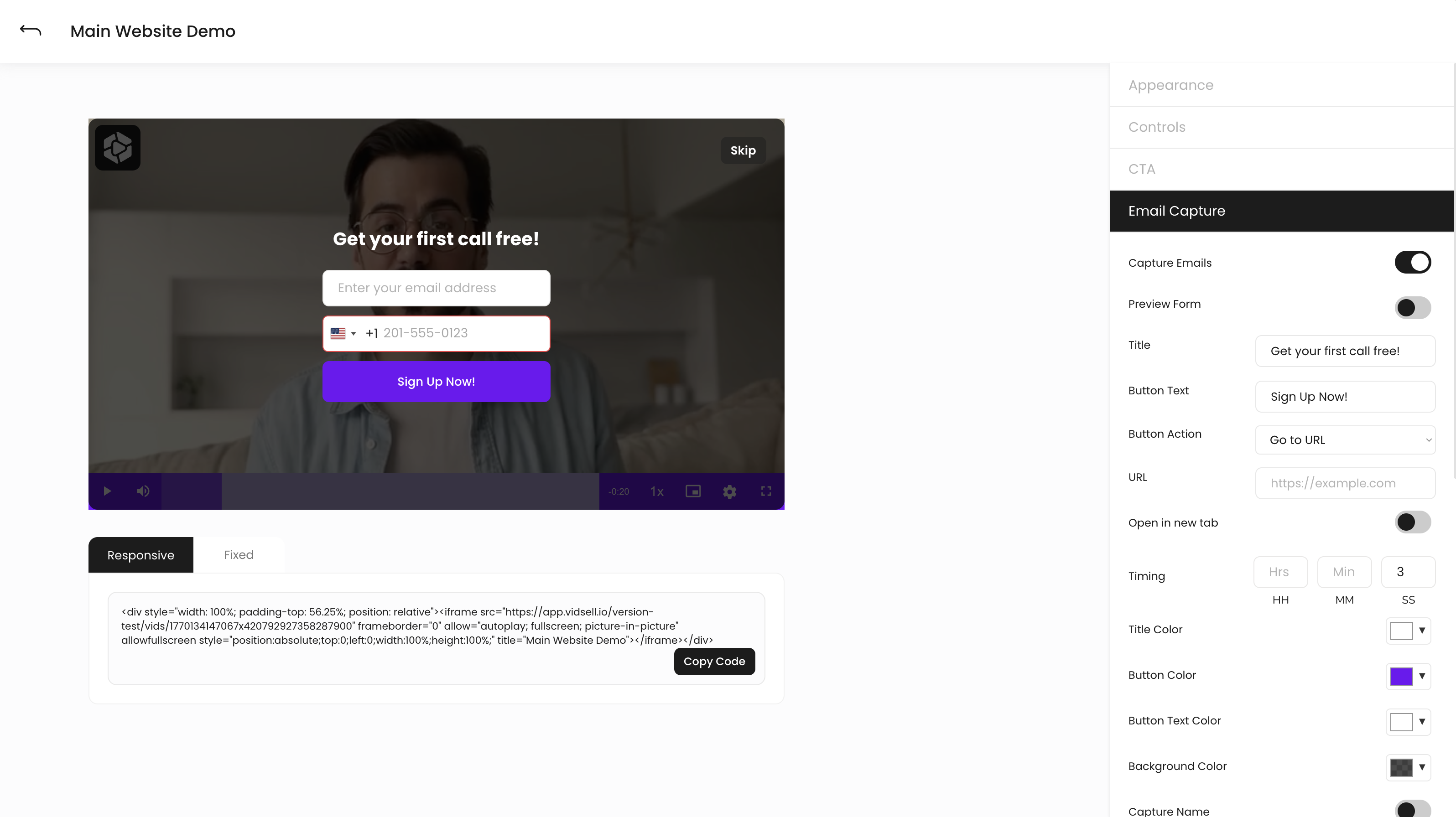
In-video email capture forms allow you to gather leads and create new signups directly in context to where your viewers are. Give access to exclusive offers like lead magnets, downloadable content, free courses, and much more using other areas of your video business like Flows and Engage.
Appearance and Text
Control how your email capture form appears in your video with:
- Title - Choose the title text for your email capture form
- Button Text - Choose the button text for your form submission button
- Title Color - Choose the color for your title text color
- Button Color - Choose the submit button color for your email capture form
- Button Text Color - Choose the button text color for your email capture form
- Background Color - Choose the background color for your form (appears an an overlay over your video)
Form Actions
Choose what information you would like to collect with your form, as well as some controls for how your viewers interact with your form.
- Button Action controls what happens once your viewer opts in to your offer and there are two options to choose from:
- Go To URL allows you to link to an external URL in a new tab or in the current tab. This can be useful for sending external offers, downloadable content, etc.
- Continue Video will cause the video to continue playing once the form is submitted. This is useful if your email capture form is an opt-in gate to watch the video content itself, or if it something you can deliver outside of a link, for example an email newsletter.
- Allow Skip - Allow viewers to skip your form or make the only option to click the CTA button to continue watching the video
- Name - Include the field to collect your viewers name in your email capture form
- Phone Number - Include the field to collect your viewers phone number in your email capture form
Email Capture Form Timing
Timing controls when you would like your email capture form to appear in your video and can be set at any time in your video to direct your audience to take action when it fits your message the best.
Email Capture Form Automations
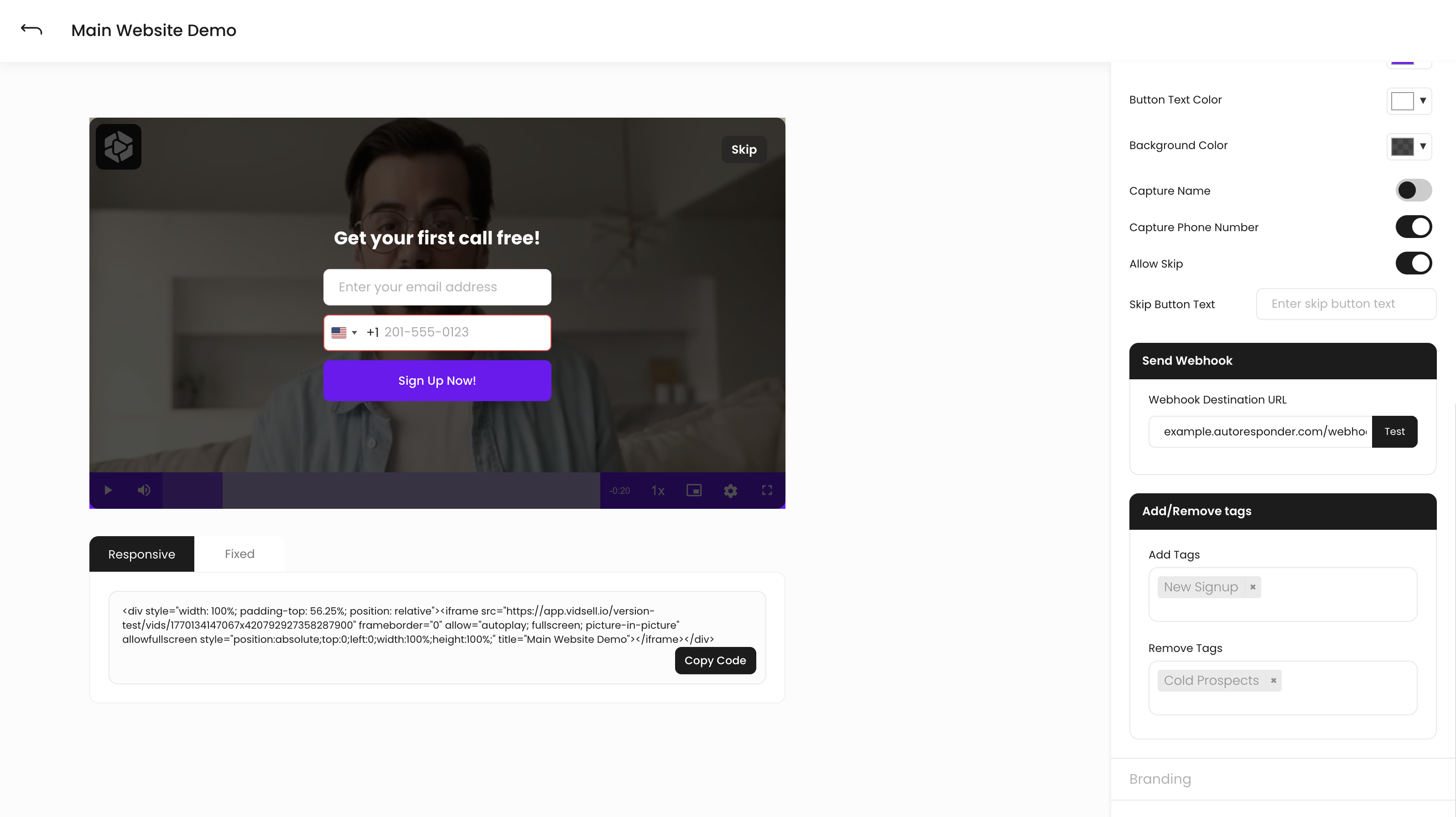
Use VidSell's contextual automations to do things like send your lead information to external platforms like autoresponders, and use tags to create audience segments within VidSell People.
Send Webhooks
Send your lead data from email capture forms to 3rd party platforms like autoresponders, CRM's, or other automation platforms using contextual webhooks. Simply enter in the destination URL for where you would like your information to go, and VidSell will automatically send the data in a webhook to your specified platform.
Test Webhooks
It is recommended to test your webhook workflow before sending real traffic through your email capture forms. Use the "Test" button next to your Webhook Destination URL field and if your webhook is set up properly you will see a success message in the top right of your screen.
If additional setup is needed, an error message will occur with some next steps.
Add/Remove Tags
Tags in VidSell can be added and removed by single form submissions in the Videos area. Create and add tags directly in the Videos area or add tags manually to individual people in People.
Tag Actions
Tags can be used to create audience segments in People or to unlock access to areas of your online community or courses in Engage. To learn more about what you can do with tags, see our Getting Started Course video: Leveraging automations and tags in your video business.
Branding
In addition to colors and player controls, VidSell allows you to custom brand your videos and add additional data for SEO.
- Show Branding - Display your clickable logo in the top left corner of your video
- Upload Logo controls - Upload the logo you would like to display for your brand (square images recommended)
- Branding URL - Choose where you would like your clickable logo to direct your viewers to (your website, social media channels, etc.)
- SEO Title - Create a SEO title for your video to be used in your video's embed code